“How do I remove information on the product page titles in bulk?” Merchants ask it after a rebrand, when a “Free Shipping” promise ends, or when a vendor or product type gets a new name. In Bulk Product Edit you click Create task, add Product title or Description with HTML, pick Replace text or Remove text, filter products and save.

How to remove or replace a word in every title
Say the titles on MITS Auto Parts read “Ceramic Brake Pads - Free Shipping” and the free shipping offer is over.
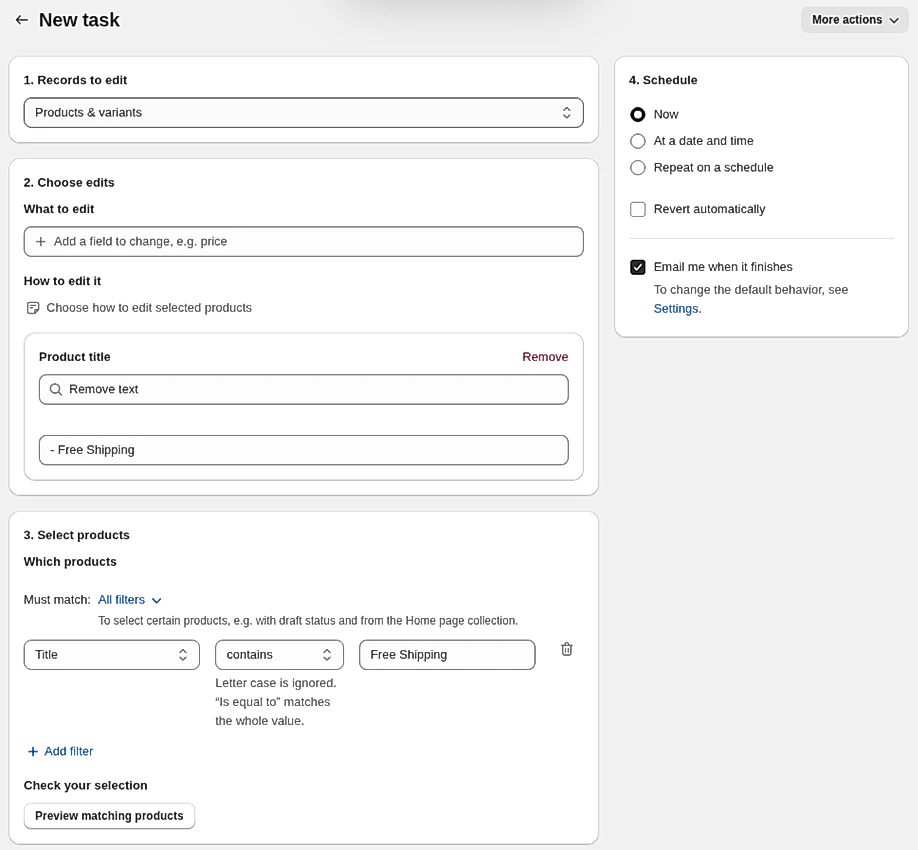
- On Home click Create task. The New task page opens with Products & variants under 1. Records to edit.
- Under 2. Choose edits, open “Add a field to change” and pick Product title from Product fields.
- In the title card, open “Choose how to change” and pick Remove text. Type the words to take out,
- Free Shipping, with the space and dash in front of them. To put new words in their place, pick Replace text instead and type the old text in Find and the new one in Replace with. - Under 3. Select products, click Add filter, choose Title, the operator contains and the value
Free Shipping. Only products that have the words get into the task. - Click Preview matching products and check the list (next section).
- Leave 4. Schedule on Now and click Save. The app opens Tasks with the new task.
The edit changes every occurrence of the text in the field and matches letter case. Replace text with Find r and Replace with # turned “Radiator for Honda Civic 2016–2021” into “Radiato# fo# Honda Civic 2016–2021”: both lower-case r’s changed, the capital R stayed.
Text filters ignore letter case, but the edit does not: a title with “free shipping” in lower case passes the filter and keeps the words. is equal to matches the whole value. To change a title only where it starts or ends with the words, use starts with or ends with in the filter.
Other ways to fix the same title
| Action | What it does to the title |
|---|---|
| Add text to the beginning / Add text to the end | puts your text before or after the current title. The app warns: “Be sure to add any necessary spaces to separate the new letters from the existing text.” |
| Cut from a word to the end | removes everything from the first match of the word in Cut from this word (any letter case) to the end, with the spaces and separators before it |
| Change case | rewrites the title in the Case you pick: UPPERCASE, lowercase, Title Case or Sentence case |
| Trim extra spaces | removes extra spaces from the title |
Cut from a word to the end suits a tail that differs from product to product, for example “Free Shipping on orders over…” with different endings.
Remove text on a word in the middle of a title leaves two spaces where the word was: take “for” out of “Headlight Assembly for Honda Civic 2016–2021” and two spaces stay between “Assembly” and “Honda”. Run a second task with Trim extra spaces on the same products to close the gap.
How to take text or an HTML tag out of every description
Add Description with HTML in step 2 instead of the title. Its actions are Change to, Replace text/HTML, Add text/HTML to the beginning, Add text/HTML to the end and Remove text/HTML. They work on the description’s HTML. To remove a tag, type it exactly as it is in the code, <p>Ships in 24 hours</p> for instance. When you add text, wrap it in your own tags; the app reminds you: “Don’t forget to wrap the letters with HTML elements if necessary.”
Pick the products with the Description filter and contains, so only descriptions that hold the text get changed. Title and description edits can go into one task; the log then has one row per field per product.
How to change a vendor name or product type on every product
If the old brand name is also the vendor, change it there too. Add Vendor or Product type in step 2 and use the same text actions: Change to writes the new name over the old one, Replace text swaps one word inside it. Filter with Vendor or Type and is equal to the old name.
Note: Type with is not equal to or does not contain leaves out products with no type at all. Add a second filter if those products need the change too.
The variant filters in Advanced mode have Vendor and Type as well, but they serve variant edits such as price. Title, description, vendor and type edits need the product filters above. If an old brand name also sits in URL handles, use the Handle filter to find those products and change the handles on SEO titles, descriptions and URL handles, which covers the redirect from the old URL.
How to check the preview before saving
Preview matching products lists every product the filter picked, with its title. Look for titles that contain the words for a different reason, such as a product called “Free Shipping Sticker Pack”: tick it and click Exclude selected products. Preview and exclude shows the modal step by step.
The preview shows the current titles. To see the new text before you touch the whole catalog, run the task on two or three products first (the Selected products filter), open the task and check the Changed tab: each row shows the old value and the new one. Then run the same edit on the rest.
What revert restores
Revert writes back the text each product had before the task, field by field: title, description, vendor or type. Open Tasks, open the task and click Revert; Revert a bulk edit that went wrong covers the details.
Limits
- Free covers 10 products per task. For a fix across “over 1000 product titles” you need Starter (2,000 per task); Growth takes 10,000 and Pro 100,000.
- The text tools change products. Collection titles and descriptions have their own edits under Collections records: Edit collection titles and descriptions.
- Option names and values (Colour, S, M) are not part of the title; rename them with the option edits.
You can also
- Rename options and option values on every product
- SEO titles, descriptions and URL handles for every product
- Change the vendor or product type on every product
- Revert a bulk edit that went wrong
- Find and replace on Shopify products, the feature overview
Updated