You want a New arrivals collection that only includes products created in a certain time period: tag new products and drop the tag after 30 days. Bulk Product Edit does this with two recurring tasks: New task › Tags › Add new tags new for recent products, and Remove tags new for older ones, both on Repeat on a schedule.

How to add the tag to recent products
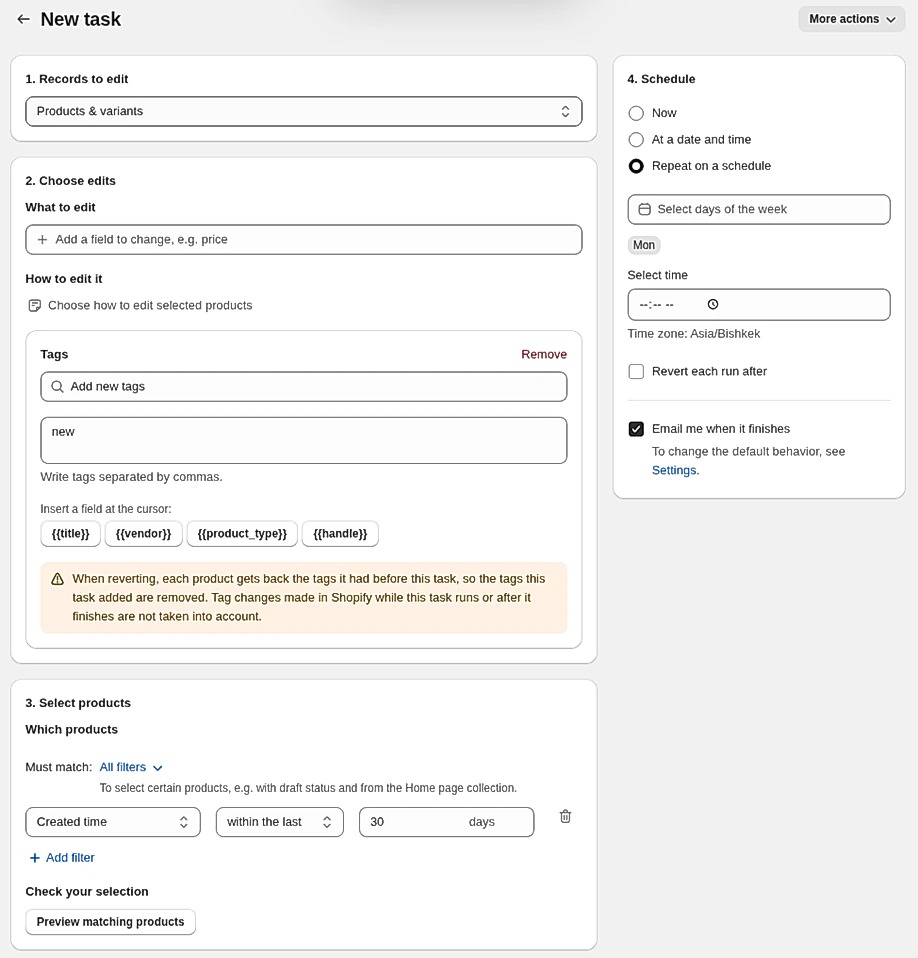
- Open New task. Under 1. Records to edit, keep Products & variants.
- In 2. Choose edits, type “tags” in the field box and pick Tags under Product fields. Choose Add new tags and type
new. - In 3. Select products, click Add filter and set Created time › within the last ›
30days. Keep Must match: All filters. - Click Preview matching products and check the list (see below).
- In 4. Schedule, choose Repeat on a schedule. Under Select days of the week, leave one day on, for example Monday, and set Select time; the task saves your browser’s time zone and shows it under the schedule. Leave Revert each run after off, or every run takes the tag back off a few hours later.
- Click Save. The toast says “Recurring task created”, and the task appears on the Recurring tasks page with its next start time.
If you publish products some time after you create them, use Published time instead of Created time: a product that sat as a draft for two months counts as new from the day it went live.
How to take the tag off older products
- Open New task again and pick Tags under Product fields. Choose Remove tags and type
new. - In 3. Select products, add two filters: Tag has any of
new, and Created time older than30days (use Published time if Task 1 does). Keep Must match: All filters, so only tagged products past the 30-day mark match. - In 4. Schedule, choose Repeat on a schedule with the same day as Task 1 and a time an hour later, then Save.
With weekly runs, a new product waits up to 7 days for the tag and keeps it until the first run after it turns 30 days old, so for just under 37 days at most. Select every day in Select days of the week on both tasks if the tag has to come and go within a day.
Every run picks the products when it starts: within the last 30 days counts back from the moment of that run (UTC), so products you create after saving the task get the tag on a later run.
How to check the preview
Preview matching products lists the products the filters match today, with a Tags column.
- In Task 1, the list should hold only products you added in the last 30 days. If it is empty, the store has no products that recent, and the first run changes nothing.
- In Task 2, every row should already show
newin Tags. A product without it means the Tag filter is missing or set to a different value. - If products such as gift cards should not carry the tag, add the filter Is gift card › no to Task 1 rather than excluding them in the preview.
The preview shows today’s matches. Each later run picks up the products that match on its own day.
Where the runs show up
Runs do not appear under Tasks › All. Open Recurring tasks and click Task history on the row: it lists every run with its status and changed count, plus the next run as Scheduled. Use Stop on the same row to pause the series.
What revert restores
A run of a recurring task cannot be reverted while the series is active: Revert is greyed out with “Stop the recurring task to revert its runs.” Stop the task first, then revert the run from Task history. A revert by hand ends the series as Terminated and cancels its next runs, so the tag stops coming and going until you set the task up again.
Note: A revert of a tags task gives each product the exact tag list it had before that run. Tags you or another app changed on those products after the run are overwritten.
Limits
- This setup needs two recurring task slots: both of them on Starter, two of 3 on Growth, two of 7 on Pro (recurring tasks). Recurring runs do not count toward Tasks used this month.
- Each run edits at most your plan’s records per task: 2,000 on Starter, 10,000 on Growth, 100,000 on Pro. If more products match, the run changes the first ones (how recurring runs pick products).
- The app tags products. It does not create the collection or sort it; set up the automated collection and its sort order in Shopify (automated collections in the Shopify Help Center).
- The same setup works for other time-based tags, such as
last-chanceon products older than a year. For prices on a schedule, see recurring price changes.
You can also
Updated