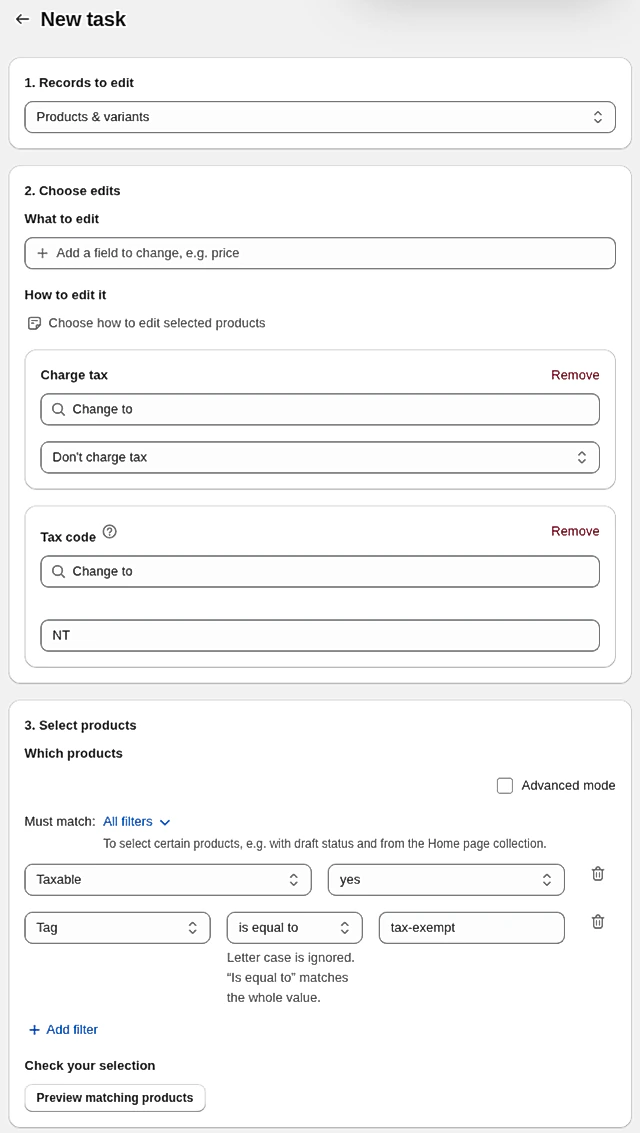
Shopify keeps Charge tax on each variant, so a group of products that should be tax-free, or a fresh import with the box unticked, means opening every variant by hand. In Bulk Product Edit, open New task, add Charge tax under Variant fields, pick the products with the Taxable filter, check Preview matching products, then Save.

How to switch Charge tax on many products
- Open New task. Under 1. Records to edit keep Products & variants.
- In 2. Choose edits, type “tax” in the field box and pick Charge tax from Variant fields. The card has one action, Change to; choose Don’t charge tax to turn tax off or Charge tax to turn it on.
- To set tax codes in the same task, pick Tax code as well (see the next section).
- In 3. Select products, click Add filter and add Taxable with yes when you are turning tax off, or no when you are turning it on. Add a second filter that names the group, for example Tag is equal to
tax-exemptor a Collection, and keep Must match: All filters. - Click Preview matching products and check the list as described under “What to check in the preview” below.
- Under 4. Schedule keep Now, then click Save in the save bar. The app shows “Task created” and opens Tasks.
Product filter or variant filter
The Taxable filter on the product list matches a product when any of its variants matches, and the edit then changes every variant of that product. That is what you want when the whole product should flip. When a product mixes taxed and untaxed variants and only some should change, tick Advanced mode, choose Variant filters, and use Taxable there: the task edits only the variants the filters pick.
| Filter | Where | Values |
|---|---|---|
| Taxable | product filters and Variant filters | yes · no |
| Tax code | Variant filters only | text operators · is empty · is not empty |
How to set or fix tax codes
The Tax code edit offers Change to, Replace text, Add text to the beginning, Add text to the end and Remove text. Change to writes the same code on every selected variant, so build one task per product group that shares a code. To find variants that still have no code, tick Advanced mode, choose Variant filters and add Tax code is empty; to fix a wrong code, use Tax code is equal to the old value with Replace text or Change to.
What to check in the preview
Preview matching products lists each product with its title, total inventory, highest and lowest variant price, number of variants and tags. It does not show the tax setting, so the Taxable filter is your guarantee that only the right products are in the task. Check two things:
- The count and the titles. If products you did not expect appear, a product with one taxed variant among untaxed ones was matched; switch to Variant filters or narrow the group filter.
- Products that should stay as they are: tick them and click Exclude selected products. They stay out of this task and show under Excluded products on the form.
With Variant filters the preview becomes Preview matching variants, which has no checkboxes. To leave variants out there, narrow the filters.
What revert restores
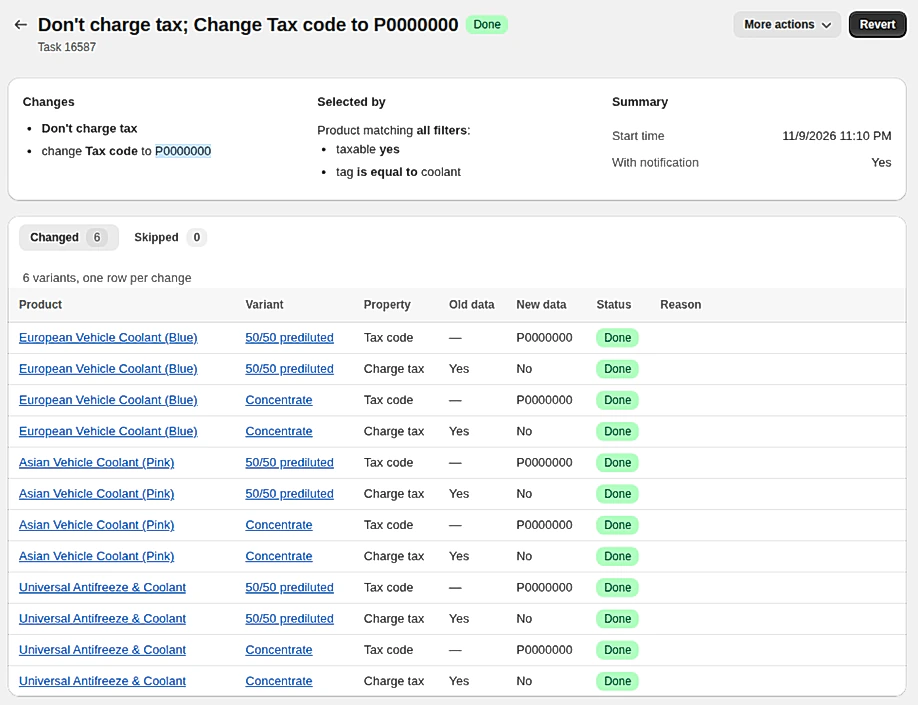
Open Tasks, open the task and click Revert. Every variant gets back the Charge tax setting and the Tax code it had before the task. A variant that already had the value you chose is logged as Done with “Already set to … again”, so the log can list more rows than the variants that really changed.
Limits
- Each task is capped by Records per task on your plan (10 on Free, 2,000 on Starter, 10,000 on Growth, 100,000 on Pro), so a large tax-exempt group needs a narrower filter and more than one task.
- The app changes two variant fields, Charge tax and Tax code. Tax rates, regions, customer exemptions and collection overrides live in Shopify’s tax settings; see Shopify Help Center: Taxes.
- Product fields and variant fields cannot share a task. Product category is a product field, so change it in a separate task.
You can also
- Set prices from cost and fix low margins
- Show unit prices on many products
- See every edit the app makes and its options
- Read the overview of bulk edit tax settings
Updated