A supplier CSV imported twice or a copied product leaves two variants with one SKU, and merchants on the Shopify Community report that inventory for such products stops updating in sync. Open New task, filter by Duplicate SKU is yes, check the preview, rewrite the copies with the SKU edit, then Save.

How to find every duplicate SKU
- Open New task. Under 1. Records to edit keep Products & variants.
- In 3. Select products, click Add filter, pick Duplicate SKU and choose yes.
- On a large catalog, add a row that narrows the search, for example Vendor is equal to the supplier or Created time within the last 7 days for the latest import, and keep Must match: All filters. The duplicate filters read the whole catalog page by page, because Shopify’s search cannot look for them.
- Click Preview matching products. The app first shows “Finding duplicates in your catalog… This can take a few minutes.” On the 2,046 variants of MITS Auto Parts the scan took about one to two minutes.
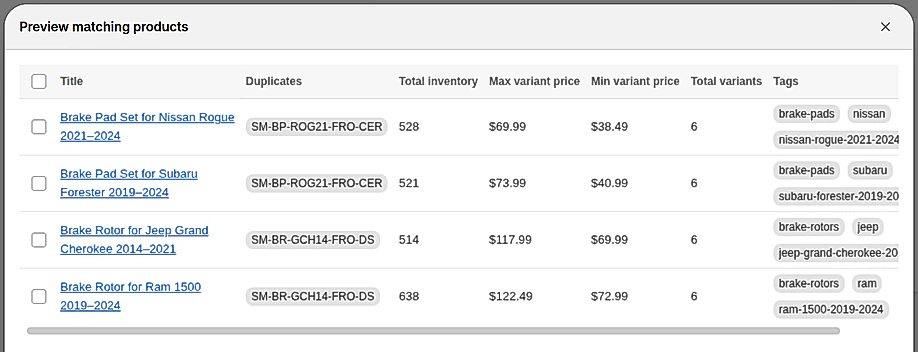
The list shows each product with a Duplicates column that holds the SKU it shares with another variant. The filter matches every copy, the one you want to keep as well, so on MITS Auto Parts both “Brake Pad Set for Nissan Rogue 2021–2024” and “Brake Pad Set for Subaru Forester 2019–2024” appear with SM-BP-ROG21-FRO-CER.
How to rewrite the duplicate SKUs
Rewrite the SKUs on the copies and leave the original alone, so a fulfillment service or a supplier feed that knows the old SKU keeps working.
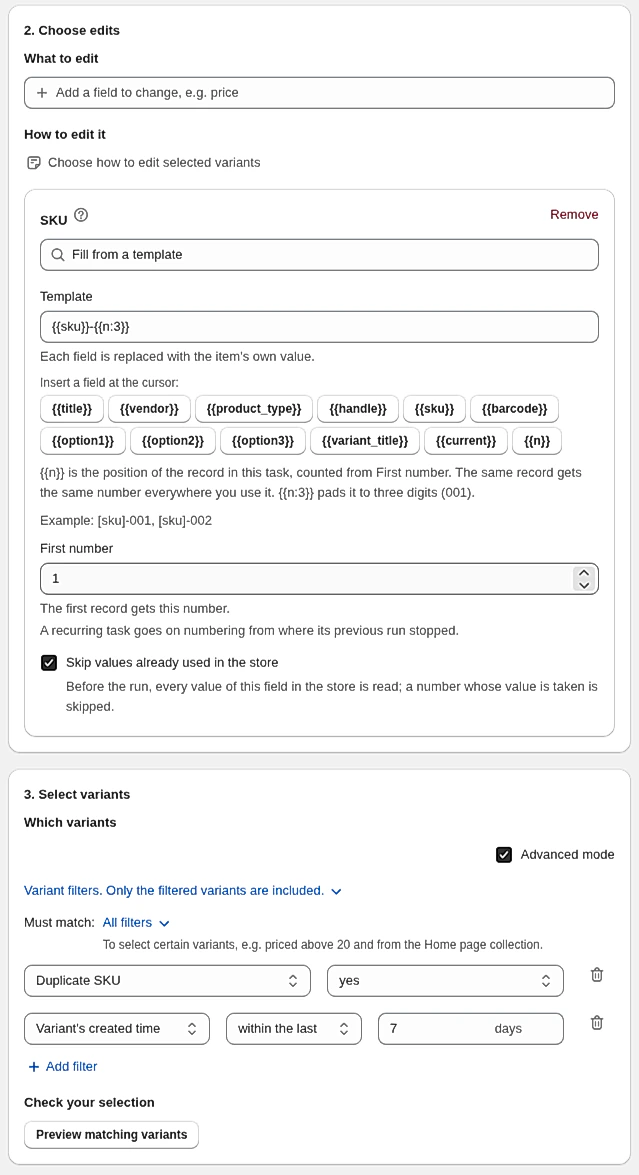
- In 2. Choose edits, type “SKU” in the field box and pick SKU from Variant fields.
- Choose the action:
- Add text to the end with
-Bwhen each SKU has one extra copy:BP-4410on the copy becomesBP-4410-B. - Fill from a template when a SKU is used three or more times, since one suffix would make the copies clash with each other.
{{sku}}-{{option1}}givesBP-4410-Front;{{sku}}-{{n:3}}givesBP-4410-001,BP-4410-002.{{n}}is the position of the variant in the task, so the numbers run across the whole task.
- Add text to the end with
- If the template holds
{{n}}, tick Skip values already used in the store. Before the run the app reads every SKU in the store and skips a number whose value is taken. The option shows only for{{n}}templates, so it does not guard{{sku}}-{{option1}}. - In 3. Select products, tick Advanced mode and choose Variant filters. Switching clears the filter rows, so add them again: Duplicate SKU is yes, plus a row that picks only the copies, such as Variant’s created time within the last 7 days or Vendor is equal to the supplier who sent the second file. With variant filters the task changes only the clashing variants, and the other sizes of the same product keep their SKUs.
- Click Preview matching variants and check it as described below.
- Under 4. Schedule keep Now, then click Save in the save bar. The app shows “Task created” and opens Tasks.
What to check in the preview
- The count should equal the number of copies you mean to change. If it is about twice that, the filters also caught the originals; add or tighten the row that tells the copies apart.
- Preview matching variants has no checkboxes and cannot exclude single rows. To leave a variant out, narrow the filters.
- After the run, the task page’s Changed tab lists each variant with its old and new SKU. Run the find step again: the products you fixed should no longer appear.
How to archive duplicate products
When an import created whole extra products, archive the copies instead of renaming their SKUs.
- Open New task and keep the product filters (Advanced mode off).
- Add Duplicate title is yes or Duplicate SKU is yes, and Created time within the last N days to pick the newer copies. Duplicate title runs the same catalog scan.
- Click Preview matching products, tick the products you keep and click Exclude selected products.
- In 2. Choose edits, pick Product status, keep Change to and choose Archived, then Save.
An archived copy keeps its SKU and can still show up under Duplicate SKU.
What revert restores
To undo either task, click Revert on its page in Tasks. Every variant gets back the SKU it had before the task, and every archived product gets back its earlier status. The steps and statuses are in Revert a bulk edit that went wrong.
Limits
- A task edits up to 10 records on Free, 2,000 on Starter, 10,000 on Growth and 100,000 on Pro.
- The app finds and rewrites duplicates. It does not merge two products into one or add one copy’s stock to the other.
- SKU is a variant field and Product status a product field, and the two cannot share a task. Run the rewrite and the archive as separate tasks.
- Each preview runs the catalog scan again. Keep a narrowing row such as Vendor, Tag or a date in the task on a big store.
You can also
- Fill missing SKUs
- Fix missing and duplicated barcodes
- See all filters and conditions
- Bulk edit SKUs and barcodes
Updated