“Move ALL inventory to a new location at once” is a three-page Shopify Community thread: a shop closes or stock goes to a 3PL, and every variant has to follow. Open New task, pick Inventory quantity, choose Copy to another location or Move to another location in Choose how to change, filter the variants that hold stock at the old location, then Save.
To move everything, copy the stock to the new location, check a few variants there, then set the old location to zero. To send a fixed number of units of each item, use Move to another location. Both are part of the bulk edit inventory editor and work on every plan, within its stock rows per task.

Copy or move
| Action | What happens to each variant | Use it when |
|---|---|---|
| Copy to another location | Sets each variant’s count at the To location to its count at the From location, replacing any stock already there (12 at the new location and 119 at the old one become 119). The From location keeps its units until you empty it. | You move all the stock: copy it, then zero the old location |
| Move to another location | The number of units you enter leaves the From location and is added at the To location. | You send the same number of each item, such as 10 units to a new 3PL |
Note: Before you empty the old location, open the copy task and check a variant that already had units at the new location: its old count there is gone, replaced by the old location’s count.
How to move all stock to a new location
The job takes two tasks: the first runs Copy to another location, the second empties the old location.
Copy the stock
- Open New task. Under 1. Records to edit keep Products & variants.
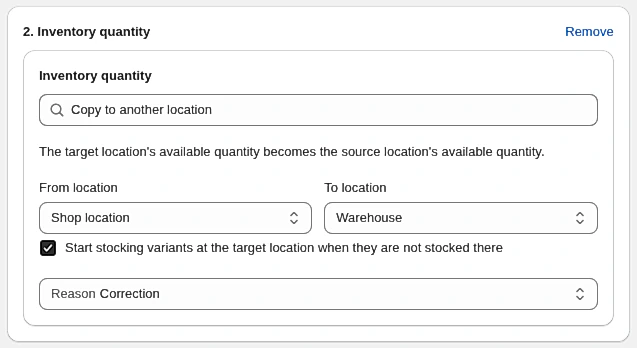
- In 2. Choose edits, type “inventory” and pick Inventory quantity under Other edits (run alone). In the Inventory quantity box open Choose how to change and pick Copy to another location.
- Choose the old location in From location and the new one in To location. Tick Start stocking variants at the target location when they are not stocked there, so variants the new location has never carried get a stock row there.
- Pick a Reason. Correction (“Used to correct an inventory error or as a general adjustment reason.”) fits a move; the list holds Shopify’s other reasons too.
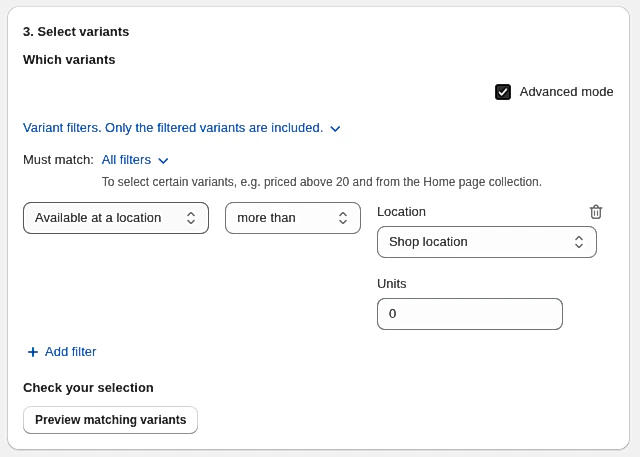
- In 3. Select products, tick Advanced mode, open the link Product filters. All variants of the filtered products are
included. and pick Variant filters. Only the filtered variants are included. The card becomes 3. Select variants and its
filter rows clear. Add the variant filter Available at a location: choose the old location,
more than,
0. That picks every variant with sellable units there. To pick by another quantity state, use Quantity at a location instead: it adds a state select (On hand, Committed, Incoming, Reserved and others) next to the location. - Under 4. Schedule leave Now and click Save. The task opens in Tasks and runs.
Empty the old location
When the copy is Done, start a second Inventory quantity task with the same filter and Change to 0 at the old location.
Set stock levels in bulk shows that task step by step.
Note: Run the second task right after the first. The copy sets the new location to the old location’s number, so a unit sold at the old location between the two tasks is counted at the new location too, and the new location shows one unit more than you have. Pick a quiet hour, or check the variants that sold in between.
How to move a set number of units
- In the Inventory quantity box open Choose how to change, pick Move to another location and enter the number of units.
- Fill From location and To location, tick Start stocking variants at the target location when they are not stocked there and pick a Reason.
- Add the filter Available at a location for the From location with at least and the same number, so every selected variant has enough units to send.
- Click Save. The task name starts with “Move”, then the number of units, the From location, the To location and the reason.
How to check the preview before saving
With variant filters on, the form shows Preview matching variants: Title (product and variant), Price, Compare-at price and Quantity. The list has no column per location, so compare its length with what the old location should hold.
The variant preview has no checkboxes. As the app puts it: “Only the filters choose variants. To leave some variants out, narrow the filters.” Add a Collection, Vendor or SKU filter to keep some items at the old location.
What revert restores
Each changed variant appears on the task page with both locations, its old quantity and the units moved. On a Copy to another location task the Delta column shows the new count at the To location, not the change: the row “Warehouse, Shop location · 12 · 119” means Shop location went from 12 to 119. Revert on a Move to another location task puts the units back at the From location: it moves the same amount in the other direction, so sales and restocks since the task are kept.
The Change to 0 task that empties the old location is different. Its revert writes back the old number, which overwrites every
sale and restock at that location since the task. Do not revert the zeroing task once orders have come in at the old location.
Revert on a Copy to another location task works the same way: it writes the To location’s old count back (119 returns to 12), so sales and restocks at the new location since the copy are overwritten.
Limits
- Stock rows per task. Each plan caps the stock rows one task can change: Free 15, Starter 3,000, Growth 15,000, Pro 150,000. One stock row is one variant at one location, and the stock-row limit is 1.5 × Records per task: 2,000 variants at one location are 2,000 stock rows. A larger catalog fits in several tasks split by a filter such as Collection or Vendor.
- The app keeps no transfer record: it writes quantities at each location; Shopify’s own Transfers track stock that is in transit with incoming quantities, which these tasks do not create.
- The old location stays active. Deactivate it yourself in Shopify under Settings › Locations (Shopify Help: locations) once its stock is zero.
- Scheduling the copy for closing time needs At a date and time under 4. Schedule (Starter and up).
You can also
- Set every variant at the old location to zero: Set stock levels in bulk
- Keep taking orders while stock is in transit: Keep selling when out of stock
- Adjust stock at a location from a workflow: Shopify Flow actions and trigger
Updated