“Is there any way to unpublish a product from multiple publications?” asks a merchant on the Shopify Community. Others want only their best sellers in the Google & YouTube feed, or a product line off Point of Sale. Filter the products, pick Sales channels › Publish on sales channels or Unpublish from sales channels, tick the channels, then Save.
The product stays active and keeps its stock and prices; only the channels it appears on change. To take products off every channel at once, change their status instead with bulk edit product status.

How to publish or unpublish products on a channel
- Open New task. Under 1. Records to edit, keep Products & variants.
- Under 2. Choose edits, open the field list and pick Sales channels in the Other edits (run alone) group. The form shows one card, 2. Sales channels.
- In the card, choose Publish on sales channels or Unpublish from sales channels, then tick each channel the change applies to. The list has one checkbox per sales channel on your store, such as Online Store and Inbox, so one task can take products off several channels at once.
- Under 3. Select products, set the filter that picks exactly the products to move (table below).
- Click Preview matching products and check the list (next section).
- Under 4. Schedule, keep Now and click Save in the bar at the top of the admin. The task appears in Tasks; its edit reads like “Add Inbox to Sales channels”.
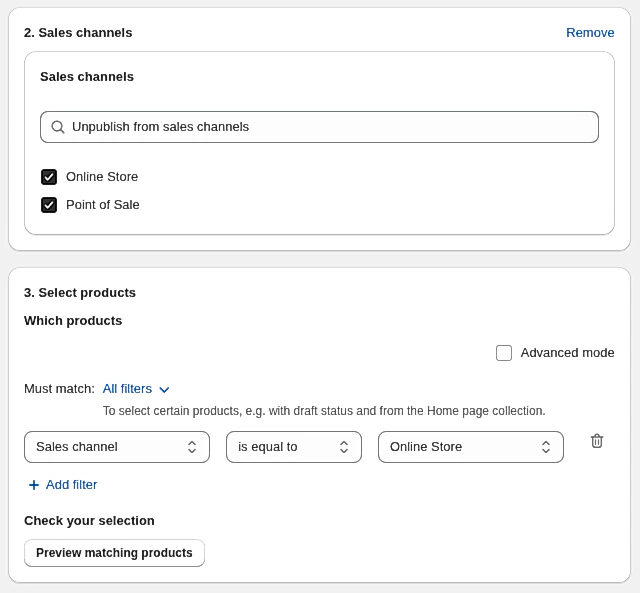
Filters that fit this job:
| Filter | Example | Picks |
|---|---|---|
| Sales channel | is not equal to Point of Sale | products not yet on that channel, so a publish task lists only products that will change |
| Sales channel | is equal to Google & YouTube, plus Tag has any of clearance |
the products to pull from the feed |
| Online Store | is equal to not published | products hidden from the online store |
| Sell as subscription only | yes | products that can only be bought with a subscription |
Online Store checks the online store alone, with the values published and not published. Sales channel works for any channel, the online store included. Add a Vendor, Collection or Tag row to narrow the group, and set Must match to All filters so a product has to match every row.
Grant the sales channels access first
Publishing and the Sales channel filter need an extra Shopify permission that the app asks for only when you use them. Until you grant it, the card or the filter shows an orange banner that asks for the access, with a Grant access button. Click it and confirm in Shopify’s Update data access window. If you cancel, the app says “Access was not granted, so this filter can’t be used yet.” and the task cannot be saved.
You can grant the same access at any time in Settings under Optional access › Sales channels, which reads “Publish products to sales channels and filter products by where they are published.” The row shows Granted once Shopify confirms.
How to check the preview before saving
Preview matching products lists the products your filters match right now. For this job, look for two things:
- Products already in the target state. If you publish on Point of Sale, add Sales channel is not equal to Point of Sale so the list holds only products that will actually change.
- Products you meant to keep. Unpublishing from Google & YouTube by tag can catch a best seller that carries the same tag. Tick it and click Exclude selected products.
Switch products to subscription only
A product with a subscription plan (selling plan) from your subscriptions app can be sold only as a subscription, or also as a one-time purchase. To change many at once, pick Sell as subscription only in the Product fields group of 2. Choose edits and choose Sell as subscription only or Sold without subscription.
The edit’s help says: “Only for products that have a subscription plan (selling plan). Products without one are left as they are, so shoppers can still buy them.” Such a product lands on the task’s Skipped tab with “No subscription plan on this product, so it was left as it is.”, and the task reads Not completely done. Filter on Sell as subscription only no to find the products not set to subscription only; that includes products with no subscription plan.
This is a product field, so it can share a task with other product field edits such as Tags. It cannot share a task with Sales channels.
What revert restores
Open the task in Tasks and click Revert. A sales channels task puts each product back on or off the channels it changed; the task log lists each channel with its state before and after, for example Inbox going from not published to published. A Sell as subscription only task returns each product to the way it was sold before.
Limits
- Sales channels runs alone. It is the only edit in its task, so publishing and, say, retagging the same products take two tasks.
- One direction per task. A task either publishes or unpublishes; moving products from one channel to another takes a publish task and an unpublish task.
- An import does not change channels. An export can carry a Sales channels column per channel (yes / no), but an import leaves them alone and says “Sales channels are changed with the Sales channels editor.”
- Records per task follow your plan: 10 on Free, 2,000 on Starter, 10,000 on Growth, 100,000 on Pro. A larger group needs a narrower filter and more than one task.
You can also
Updated