Under EU price rules (Directive 98/6/EC, Article 6a), a sale’s “before” price is your lowest price of the last 30 days. Bulk Product Edit sets it from its own record: turn on Keep price history in Settings (Pro), then put a Price cut and Compare-at price › Set to the lowest price of the last N days in one task.

Start recording prices before the sale
The app can only look back over prices it has recorded itself, so turn the history on at least 30 days before a sale that needs a 30-day look-back.
- Open Settings and tick Keep price history under Price history. The help text reads: “Records each variant’s price whenever it changes. Tasks need it to set the compare-at price to the lowest price of the last days (up to 90), as EU rules ask for sales. Kept 100 days.”
- Click Save in the save bar. The section now shows when recording started and how many variants have a price on record, in the form “Recording since
: variants have a price on record.”

Every option on that screen is described in Settings.
How to set compare-at prices to the 30-day low
Put the price cut and the compare-at edit in one task. The app compares the lowest recorded price with the price after this task’s Price edit. If an earlier task (or a Shopify edit) already cut the price, that sale price is in the record and is now the lowest price, so every variant is skipped.
- On Home, click Create task. Under 1. Records to edit, keep Products & variants.
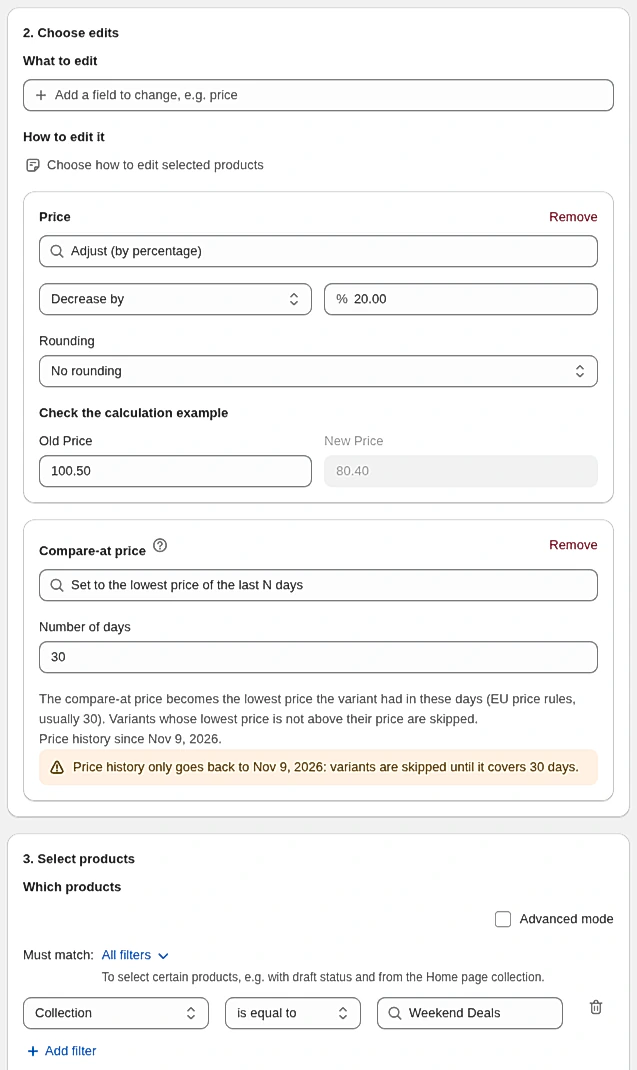
- Under 2. Choose edits, add Price and choose Adjust (by percentage), then enter the sale discount, for example a 20% decrease.
- Add Compare-at price and choose Set to the lowest price of the last N days.
- Enter 30 in Number of days (the history goes back up to 90 days). The days are a rolling window back from the moment the task runs, not calendar days.
- Under 3. Select products, click Add filter and choose Collection is equal to your sale collection. To put a hand-picked group on sale, tag those products in Shopify first and use Tag is equal to that tag.
- Leave 4. Schedule on Now and click Save.
Every recorded price in the window counts, including a sale price an earlier task set the same day, and so does the price the variant had when the window starts.
How to check the preview before you save
Click Preview matching products. The list shows each product’s title, Total inventory, Max variant price, Min variant price, Total variants and Tags. The prices are still the regular ones, because the task has not run yet. Check that only the sale’s products are in the list. To leave a product out, tick it and click Exclude selected products.
After the run, check which variants got a strike-through: start a new task, tick Advanced mode, switch to Variant filters (switching clears the filter rows, so add them after it) and preview Discount % more than 0 together with your sale Collection. A sale variant missing from that list was skipped; the task’s Skipped tab says why.
What revert restores
As with other tasks, open the task in Tasks and click Revert to put back the price and compare-at price each changed variant had before the task. Revert does not check for later changes, so a price you edited by hand in Shopify after the task is overwritten.
When the task has no 30-day low to set
The task skips these variants and leaves their compare-at price unchanged. The Skipped tab gives the reason:
- The variant was as cheap as the new price, or cheaper, at some point in those days, so there is no higher “before” price to show: “The lowest price of the last 30 days (…) is not above the price (…).”
- The recording started less than 30 days ago, so the record does not cover the days you asked for: “Price history starts on …; 30 days are needed.” Wait until it does, or turn the history on earlier next time.
- The variant has no recorded price at the start of the window: “There is no price history for this variant from ….”
With price history off, the edit card says “Turn on price history in Settings first: Product Edit can only use prices it recorded.” with an Open Settings button, and Number of days stays locked.
Limits
- Keep price history and the lowest-price action are on the Pro plan only ($39.99); see Plans and limits.
- The record starts the day you save the setting. Prices from before that day cannot be added later.
- Number of days goes up to 90, and the app keeps the history for 100 days.
- The task fills only Shopify’s compare-at price. The app does not add a line such as “Lowest price in the last 30 days” to the product page.
- This guide gives no legal advice. Which price counts as the prior price, and which products and promotions the rule covers, is for you or your adviser to decide. The app gives you the number from its own record.
You can also
- Run a sale that ends on its own
- End a sale and restore prices
- Bulk edit compare-at prices with every other compare-at action
Updated