To show a unit price such as “per 1 KG” on many products, every variant needs a unit price measurement: what it holds (500 G) and the unit the price is shown per (1 KG). In Bulk Product Edit, add the Unit price measurement and Show unit price edits, pick the variants of one pack size, then Save.
One task sets the measurement on every variant that matches the filters, and the Unit price filter finds the variants that still have none. The other variant edits are listed in All edits and their options.

How to set unit prices for many variants
-
Start a new task with Create task on Home and leave 1. Records to edit on Products & variants.
-
Under 2. Choose edits, type “unit” in “Add a field to change, e.g. price” and pick Unit price measurement under Variant fields.
-
Fill in the card:
- Quantity and Quantity unit: what one variant holds, for example
500and G; - Price per and Reference unit: the amount the unit price is shown for, for example
1and KG.
The card’s help line reads “E.g. 500 G sold, price shown per 1 KG.”
- Quantity and Quantity unit: what one variant holds, for example
-
Add a second edit from the same box: Show unit price › Change to › Show unit price. Both are variant fields, so they run in one task.
-
Under 3. Select products, tick Advanced mode and switch to Variant filters (“The filtered variants will be edited.”). Switching clears the filter rows, so add them after it:
- Unit price › is empty finds the variants that have no measurement yet;
- a second row picks one pack size, for example Variant’s title › is equal to ›
500 g, or a SKU row, and keep All filters.
-
Under 4. Schedule, keep Now, or pick At a date and time (Starter and up).
-
Click Save. After the “Task created” toast, the task is listed in Tasks.
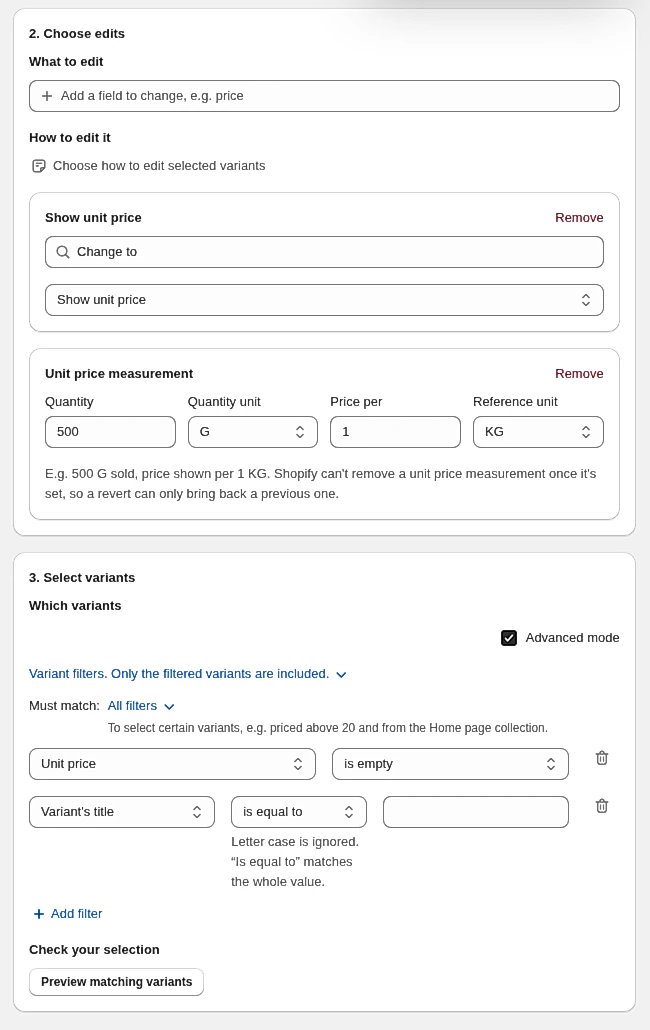
One task writes one measurement to every variant it selects. A store that sells 250 G, 500 G and 1 KG packs runs three tasks, one per size, each with its own filter. A product filter would put the same measurement on every variant of the product, so keep to Variant filters here.
How to check the preview before saving
- Click Preview matching variants. The list shows each variant’s title, price, compare-at price and quantity. Read the titles: a 1 KG variant in a 500 G task would get “500 G” as its measurement.
- The list has no checkboxes. To leave a variant out, narrow the filters until only the right size matches.
- After the task runs, open it in Tasks. The Changed tab lists each variant with its old and new value, and the Skipped tab gives the reason for any row Shopify refused.
Whether shoppers see the unit price on the product page also depends on Shopify’s unit pricing for your store and on your theme; see Shopify’s unit pricing help.
How to hide unit prices again
Run a task with Show unit price › Change to › Hide on the same variants. Hide changes only whether the unit price is shown. Shopify cannot remove a unit price measurement once it is set, so the measurement stays on the variant, and turning the unit price back on later needs only another Show unit price task.
What revert restores
| Edit | After Revert |
|---|---|
| Show unit price | the show or hide setting each variant had before the task |
| Unit price measurement on a variant that had one | the previous measurement |
| Unit price measurement on a variant that had none | nothing: the new measurement stays |
Shopify cannot remove a unit price measurement once it is set, so a revert can only bring back an earlier one. When none of the variants had a measurement, the task ends as Revert failed with “The revert didn’t restore anything. The Skipped tab shows why for each row.” Each Skipped row then says, for example, “Shopify cannot remove a unit price measurement once it is set, so it stays 500 G / 1 KG.” When only some of them had one, the task ends as Not fully reverted.
Note: Check the size filter before you save a Unit price measurement task. A wrong measurement on a variant that had none can only be overwritten with a new one; to keep it off the storefront in the meantime, run Show unit price › Hide.
Limits
- The Free plan edits 10 records per task, enough to try it on one product. Starter goes to 2,000 per task, Growth 10,000 and Pro 100,000.
- The measurement cannot be cleared, by a task or by a revert.
- Preview matching variants does not show the current unit price. Unit price › is empty is the way to see which variants still need one.
You can also
- Fix weights and shipping settings
- Turn tax on or off for many products
- All edits and their options
- Bulk edit products and variants on Shopify
Updated