Products often sit with no Shopify product category, and accepting Shopify’s suggestion one product at a time is slow on a big catalog. The app does not accept Shopify’s suggestions, but one task sets the category you pick on a whole group. Filter on Category is empty plus a vendor, type or collection, then choose Product category › Change to. Clear category in the same edit takes a wrong one off.
This is the Shopify product category. Some metafield definitions apply only to some categories, and the app skips products in other categories when it fills them. To change vendors or product types as well, see bulk edit vendor and product type.

How to set a category on uncategorized products
- Open New task. Under 1. Records to edit, keep Products & variants.
- In 2. Choose edits, type “category” in the field box and pick Product category under Product fields. The action box starts empty; choose Change to to open the category chooser.
- In the category chooser, search by name or open the tree, and pick the category. The box shows it with its parent, for example “Mugs in Drinkware”; the × clears your choice.
- In 3. Select products, click Add filter and set Category › is empty.
- Add a second filter for the group that belongs in this category: Vendor is equal to a brand, Type is equal to
Oil Filters, or Collection is equal to a collection. Keep Must match: All filters, so a product has to be uncategorized and in the group. - Click Preview matching products and check the list (see below).
- Leave 4. Schedule on Now and click Save in the admin’s top bar.
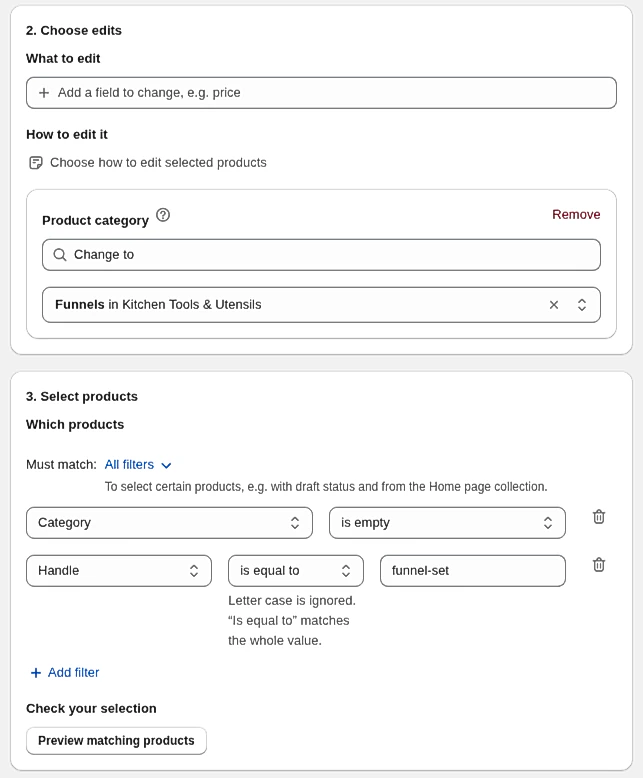
Repeat the task for each group: one task sets one category. On MITS Auto Parts, that could be one task for funnels and one for brake pads.
How to fix or remove a wrong category
To move products out of a wrong category, filter on Category is equal to the wrong category and pick the right one under Change to. To leave the products with no category at all, choose Clear category in the same edit instead of Change to.
Category is not equal to skips products with no category, so is not equal to Funnels misses the uncategorized ones. A second row, Category is empty, with Must match: Any filter brings them back. Keep those two rows alone in the task: with Any filter, any other row would match products on its own.
How to check the preview before you save
Preview matching products lists the products the filters match right now.
- Read the count first. If it is much larger than the group you meant, the vendor, type or collection row is missing or too broad.
- Skim the titles. A product from another line gets the same category too: Type is equal to
Toolslists socket sets and jack stands next to the Funnel Set. Tick it and click Exclude selected products. - An empty preview with Category is empty means every product in the group already has a category, and the task would change nothing.
After the run, the task’s Changed tab shows each product with its old and new category as full paths, such as “Home & Garden > … > Funnels”.
What revert restores
Revert on the task page puts back the category each product had before the task.
Limits
- One task sets one category. Products that need different categories need separate tasks, each with its own filter.
- The app does not accept Shopify’s suggested categories. You choose the category yourself; the app has no list of what Shopify suggested for each product.
- An import does not set the category. An export carries Product Category as the full path plus Product Category ID, which helps you find gaps in a spreadsheet, but an import does not change the Product Category column. Set the category with this edit.
- Records per task follow your plan: 10 on Free, 2,000 on Starter, 10,000 on Growth, 100,000 on Pro. Split a bigger group across tasks with narrower filters.
- Variant filters do not split a product. Advanced mode › Variant filters has a Category filter too, but the category belongs to the product, so it matches every variant of the product. Use the product filters for this job.
A Google product category your feed reads from a metafield is a separate field. Set it with a Google Shopping metafield preset.
You can also
- Fill product and variant metafields, including category metafields, which skip products outside their categories
- Add products to collections in bulk
- Add HS codes and country of origin for the same products before you ship abroad
Updated