To run an edit at a set time and undo it later, open 4. Schedule in New task, pick At a date and time, set the Start date and time, tick Revert automatically, set the Revert date and time and click Save. The task runs at the start and undoes itself at the revert time (Starter and up).

How to schedule a task
- In New task, pick the records, add the edits under 2. Choose edits and the filters under 3. Select products. For a sale, the edits are described in Run a sale that ends on its own.
- In 4. Schedule, select At a date and time (next to Now and Repeat on a schedule).
- Set Start date and time with the date picker and the time field. The time field is filled with the next full hour.
- Tick Revert automatically and set Revert date and time to the moment the sale ends.
- Email me when it finishes sends you an email when the task is done; untick it if you do not want one. Whether it starts ticked, and the address it goes to, come from Notify by default and Send notification to in Settings.
- Click Save in the bar at the top. The toast says “Task created” and Tasks opens with the new row.
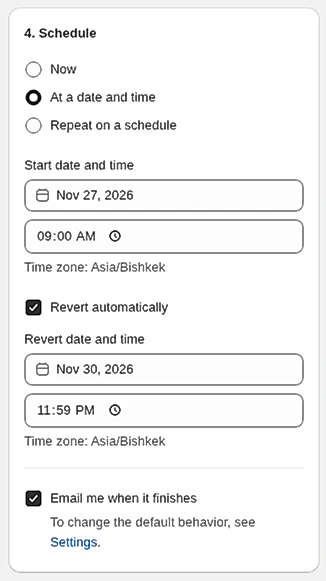
The start and revert times use the time zone of the browser you set them in, not the store’s. Each field shows it underneath, for example “Time zone: America/New_York”, and the time you type is read in that zone.
How to check a task before it starts
Preview matching products under Check your selection lists every product the filters pick; run it before you save.
After saving, open Tasks and the Scheduled tab. A one-off task waiting for its time shows the status Scheduled with × Cancel, its planned start under Start time and the revert time under Reverts. Open the row to see Start time and Revert time in Summary and the filters under Selected by.

The Tasks list and the task page do not refresh a task’s status by themselves. Reload the page or switch tabs to see the new status.
What happens at the start and revert times
At the start time the scheduler picks the task up and its status moves to In progress, then Done. The task starts on the minute you set; a small task finishes within a minute.
At the revert time the scheduler reverts the task, and the badge reads Reverted once Shopify has the old values again. Like the start, the revert begins on the set minute.
How to cancel or change a scheduled task
A scheduled task cannot be edited. To stop it before it starts:
- Open the task from Tasks (its row shows × Cancel) and choose More actions › Cancel task.
- There is no confirmation. The toast says “Task canceled”, the badge turns Canceled and the page reads “Nothing was changed”.
To change the time or the edits, cancel the task, then click Run again on its page. The form opens with the same edits, filters and excluded products; set 4. Schedule again and save.
To end a sale early, wait until the task is Done, open it and click Revert. The scheduled revert is then cancelled and does not run a second time.
What revert restores
Revert writes back the value each changed item had before the task. It does not check for manual changes: a price or other field you edit by hand in Shopify during the sale is overwritten, with no warning. A stock increase or decrease is reversed by the same amount instead, so sales and restocks are kept. For tags, it writes back the tag list from before the task. The Changed tab on the task page shows the old and new value of every line, so you can see what the revert will put back.
Limits
- Scheduling needs Starter or a higher plan. On Free, 4. Schedule shows the lock badge Starter, “Scheduler needs the Starter plan.” and View plans.
- A scheduled task runs once. To repeat an edit on set weekdays, use Recurring tasks, where Revert each run after sets the revert in hours.
- The revert time must come after the start. If it does not, Save keeps you on the form with the banner “There are 2 errors with this task:” “Start: cannot be after the revert time.” and “Revert: cannot be before the start time.”
- A task changes up to 2,000 records on Starter, 10,000 on Growth and 100,000 on Pro. For a price change, each variant is one record.
Related
- Run a sale that ends on its own
- Recurring tasks
- Launch, draft or archive products on a set date
- Settings for the email default
- Schedule price changes on Shopify
Updated