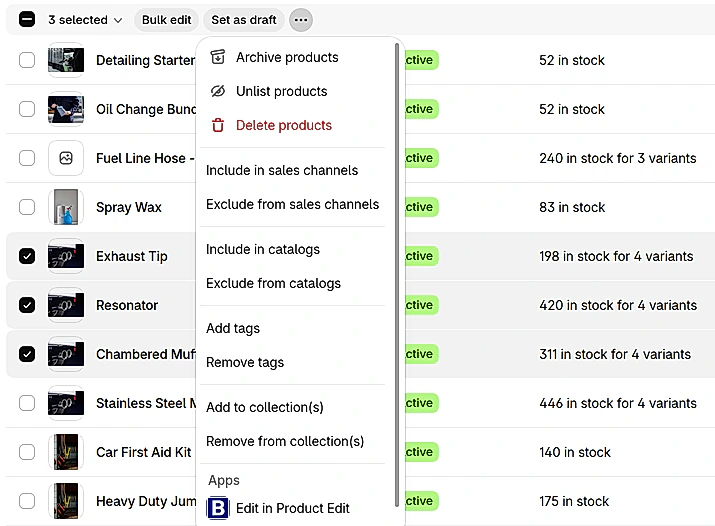
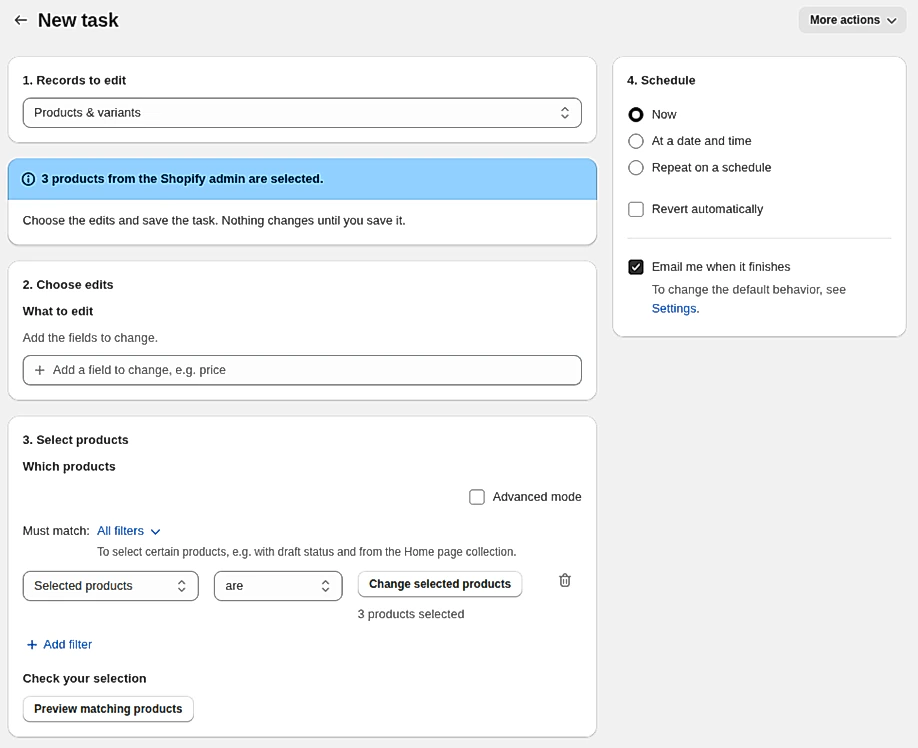
Already ticked the products in your Shopify admin product list? Open the bulk “…” menu, choose Apps › Edit in Product Edit, then click Open New task. The app’s New task form opens with those products selected. Add the edit, check the preview and click Save. Nothing changes in Shopify until you save.
Merchants pick products in the admin list and then hit the limits of Shopify’s own bulk editor: “only 50 products at a time”, columns that reset every morning, no price column in the product list filters. This action keeps the selection you made in the admin and hands it to the app, where you pick the edit. The page on Shopify’s native bulk editor compares the two tools.

Where the action appears in the Shopify admin
| Admin page | Where to click | What the New task form selects |
|---|---|---|
| Products list, products ticked | bulk “…” menu › Apps › Edit in Product Edit | the ticked products, up to 250 |
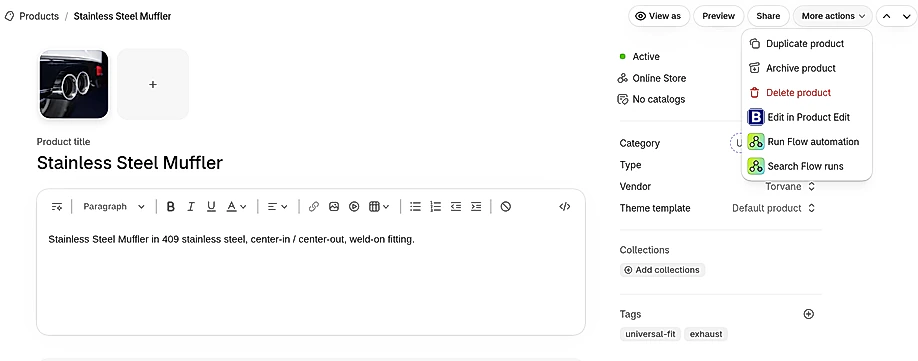
| Product page | More actions › Edit in Product Edit | that product |
| Variant page | More actions › Edit in Product Edit | that variant, in Advanced mode |
| Collection page | “…” menu › Edit in Product Edit | that collection, with records set to Collections |
How to start a task from the product list
- In the Shopify admin, open Products and tick the products you want to change, up to 250.
- Open the bulk “…” menu and choose Apps › Edit in Product Edit. A window opens: “2 products selected. The New task form opens with this selection. Nothing changes until you save the task.”
- Click Open New task. The form shows the banner “2 products from the Shopify admin are selected.” The filter reads Selected products are with the count, and Change selected products lets you add or remove products.
- Click Add edit, choose the edit and fill in its values. How a task is built explains each part of the form.
- Click Preview matching products and check the list before you save (see the next section).
- Click Save. The task runs like any other: it appears in Tasks, and you can revert it from there.
To start from a single product, open the product page and choose More actions › Edit in Product Edit. The window says “1 product selected.” and the rest of the steps are the same.
How to check the preview
The preview should list exactly the products you ticked in the admin. If the count is wrong, use Change selected products before you save. To leave a few products out without going back to the admin, exclude them in the preview, as shown in Preview and exclude.
Starting from a variant or a collection
- Variant page. The form opens in Advanced mode with “Variant filters. The filtered variants will be edited.” and the filter Selected variants are with “1 variant selected”.
- Collection page. The form opens with records set to Collections, the banner “1 collection from the Shopify admin is selected.” and the filter Selected collections are.
Limits
- One pick from the product list carries up to 250 products. For larger groups, build the selection with filters in the app instead.
- The action only carries the selection. You choose the edit and its values in the app.
- Every current plan, Free included, has the action. A shop on an old (legacy) plan gets New task without the selection and a banner that names the cheapest plan with the action, normally Starter: “Opening a selection from the Shopify admin needs the Starter plan” and “Choose the products with filters below, or change the plan to start from your selection.”
Related
- Get started: install and run your first task
- How a task is built
- Preview and exclude
- Sidekick and Bulk Product Edit
Updated