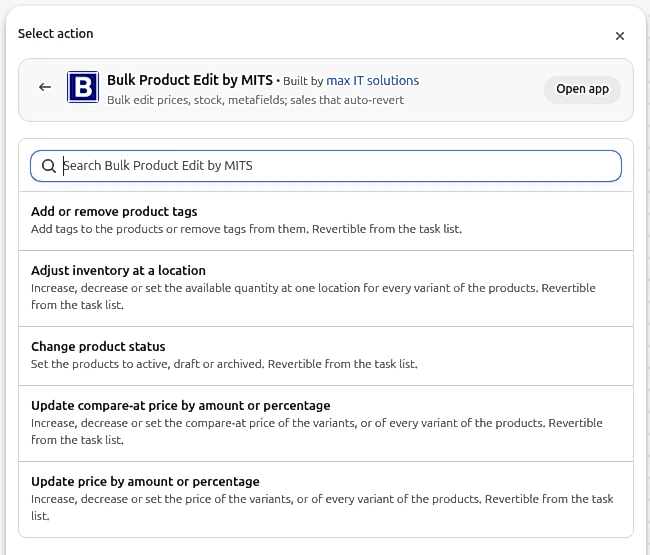
Bulk Product Edit adds five actions and one trigger to Shopify Flow (Starter and up). In a workflow, add a step, search for Product Edit, pick an action such as Add or remove product tags, fill Product ids with Add variable, and turn the workflow on. Each run becomes a normal task in the app’s Tasks list, which you can revert.

Which actions Bulk Product Edit adds to Flow
| Action | What it does | Fields |
|---|---|---|
| Update price by amount or percentage | Increases, decreases or sets the price of the variants in Product or variant ids, or of every variant of the products | Product or variant ids, By amount or by percentage, Action, Value (how much to change the price by, or the new price for set), Round to (after decimal point) (optional, 0 to 99) |
| Update compare-at price by amount or percentage | The same for the compare-at price; Value is the change, or the new compare-at price for set | the same five fields |
| Add or remove product tags | Adds tags to the products or removes them | Product ids, Action, Tags |
| Change product status | Sets the products to active, draft or archived | Product ids, Status |
| Adjust inventory at a location | Increases, decreases or sets the available stock at the location in Location ID, for the variants in Product or variant ids or every variant of the products | Product or variant ids, Location ID, Action, Units (a whole number, at least 1 for increase or decrease), Reason (optional, for example restock) |
The choice fields take typed words, and the field help lists the valid ones:
- By amount or by percentage:
amountorpercentage; - Action:
increase,decreaseorset(for tags,addorremove); - Status:
active,draftorarchived.
How to fill Product ids
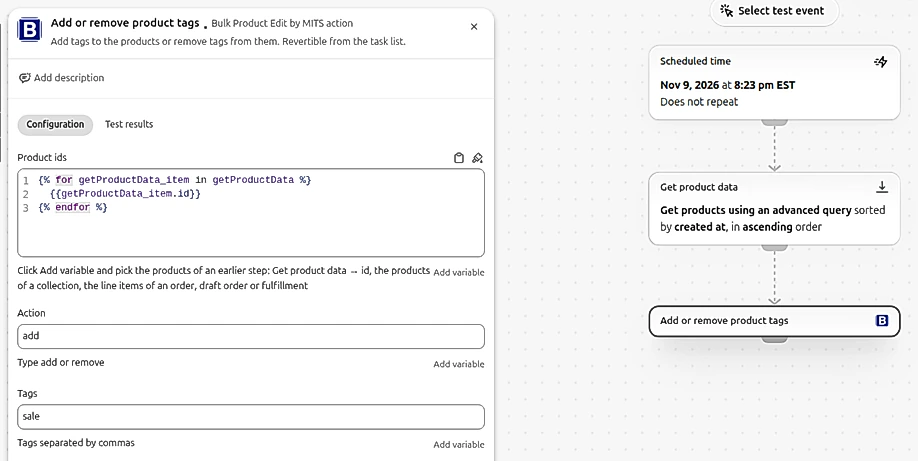
Product ids (Product or variant ids in the price, compare-at and inventory actions) accepts only a Flow variable. Click Add variable and pick Get product data › id from an earlier step. Flow writes the loop over the products for you. Ids typed by hand, or built from a loop over each product’s variants, are refused with “Typed ids are not supported.”
Where to find the Location ID
The inventory action needs the location’s number. In the Shopify admin, open Settings › Locations and click the location: the number at the end of the page address is the Location ID.
The Bulk edit finished trigger
Bulk edit finished starts a workflow once per task when a Product Edit task ends Done, Not completely done or Failed, and passes how many items it changed, failed or skipped. It does not fire for reverts or canceled tasks. The workflow gets these values:
| Value | What it holds |
|---|---|
| Task ID | the number of the task in the app |
| Status | the status the task finished with, as done, notCompletelyDone (Not completely done) or failed; use these words in a condition, see Task statuses and messages |
| Changed | items the task changed |
| Failed | items that failed |
| Skipped | items the task skipped |
Use the values in a condition, for example to send the team a message when Failed is more than 0.
Add a tag on a schedule with Flow
- In Shopify Flow, create a workflow and choose the Scheduled time trigger, set to run once.
- Add Shopify’s Get product data action. In its advanced query, pick the products, for example
id:and one product’s id. - Add Add or remove product tags. In Product ids, click Add variable and choose Get product data › id. Type
addin Action and the tag in Tags. - Turn the workflow on. At the scheduled time, Flow shows every step as succeeded; the Product Edit step reports that it returns no data, which is expected.
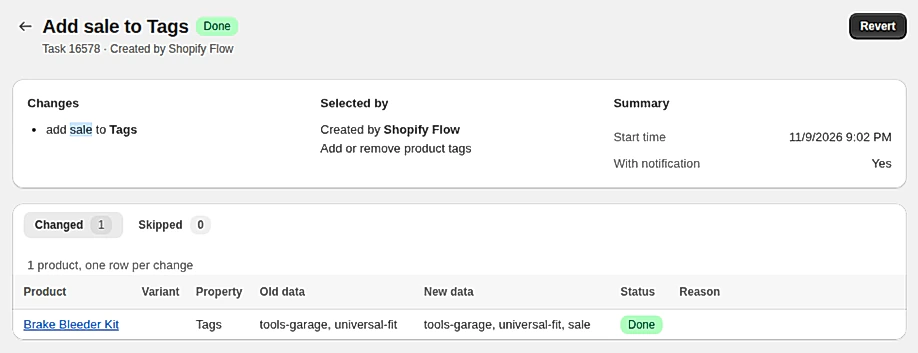
- In the app, open Tasks. The new task is named after the edit, followed by “Created by Shopify Flow”, and starts at the next whole minute. It is Queued with a cancel button until then, then In progress, then Done.
The task page shows “Created by Shopify Flow” and the action name under Selected by, and the Changed tab lists every product the run touched. If notifications are on, a task made by Flow sends the same email as any other task when it finishes. Set up the other four actions the same way. One workflow can hold several Product Edit actions, and each makes its own task; with product ids, the price action changes every variant of each product. A task page made by Flow has no Run again.
Note: Test your workflow in Flow only previews the configuration. Nothing changes in the store until the workflow is on and runs.
What revert restores
A task made by Flow reverts from its task page like any other task: Tasks › task page › Revert writes back the price, compare-at price, tags or status each product had before the task. It does not check for later changes, so a value you edited by hand in Shopify since then is overwritten, with no warning. Stock is different: a stock increase or decrease is reverted by the same number of units in the other direction, so sales and restocks since then are kept; a set gets the old number back and overwrites later stock changes.
Related
- Clean up product tags
- Move stock to another location
- Task statuses and messages
- Edit in Product Edit from the Shopify admin
- Shopify Flow integration: what merchants use it for
Updated