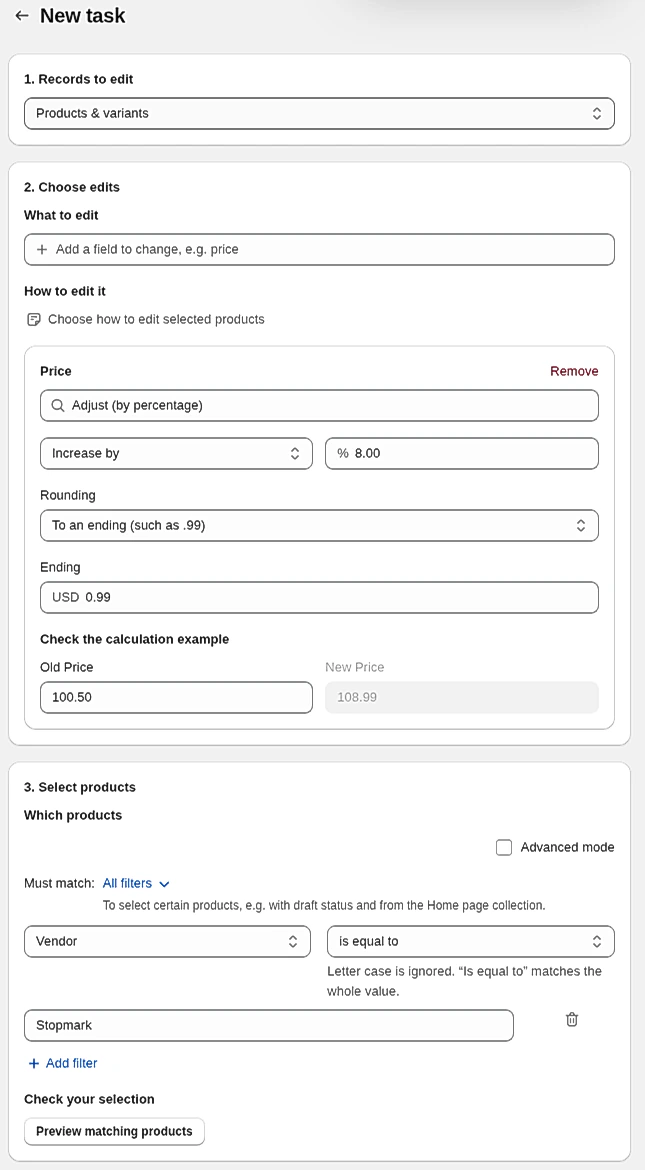
Your supplier sent a new price sheet and every product from them has to go up 8%. To increase all prices by a percentage in one task, start a Price edit, choose Adjust (by percentage) with Increase by, set Rounding to To an ending (such as .99), pick the products with a Vendor or Collection filter, then Save.
One merchant described the job before they found an app: “I was manually updating hundreds and hundreds of skus.” Here the task does that for every matching variant, and the task page lets you undo it. The full list of price actions is on the bulk edit prices page.

How to raise prices for a vendor, a collection or the whole store
- On Home, in Start a task, pick Price under Popular edits (or type “price” in the search “Search edits, e.g. price”). The New task form opens with a Price card.
- In the Price card, choose Adjust (by percentage), keep Increase by and enter the percentage, for example
8. - Under Rounding, choose To an ending (such as .99) and enter
0.99in Ending. The field takes the decimals in your store currency (it shows, for example, “EUR 0.99”). - If some of these products are on sale, add a second edit from “Add a field to change, e.g. price”: Compare-at price › Adjust (by percentage), Increase by the same percentage. The struck-through price then goes up with the price, and the discount shoppers see stays the same size. The Compare-at price card has the same Rounding select as Price: set it to To an ending (such as .99) too.
- In 3. Select products, click Add filter and pick the products the increase applies to:
- one supplier: Vendor › is equal to › the name exactly as it shows in the product’s Vendor field; several suppliers: Vendor › is any of, one name per line;
- one collection: Collection › is equal to › search the collection;
- the whole store: All products (it removes every other filter row).
- In 4. Schedule, keep Now, or choose At a date and time to have the new prices go live on the day the supplier’s prices change (Starter and up).
- Click Save. A “Task created” toast confirms it, and the new task is listed in Tasks.
Only some variants, or only cheap items
A product filter picks whole products. Price › less than 20 on the Products tab matches a product as soon as one of its variants costs less than 20, and the task then changes every variant of that product. To raise only the variants under a price, tick Advanced mode, open the link “Product filters. All variants of the filtered products are included.”, pick “Variant filters. Only the filtered variants are included.” and add Price › less than there. Switching between product and variant filters clears the rows you added.
One ready-made edit for both prices
On Home, Start a task › search “raise” lists Raise prices and compare-at prices. Its help line reads “Both go up by the percentage you enter, so discounts stay.” It opens the section 2. Raise prices and compare-at prices with two cards, Price and Compare-at price. Each is fixed to Adjust (by percentage) with Increase by and has its own % box, Rounding and Check the calculation example. Type the percentage in both cards: entering 8 in Price leaves Compare-at price at 0.00. The filters and the schedule work as above.

Check the preview before you save
Click Preview matching products under the filters. The list shows each product’s title, Min variant price, Max variant price, total variants and tags. Check two things:
- the product count matches what you expect from that supplier or collection; a vendor name typed with a different spelling matches nothing;
- nothing is in the list that should keep its price. Tick those rows and click Exclude selected products. They show as chips under Excluded products on the form.
The preview does not show the new prices. Open Check the calculation example in the Price card instead: at 10% with the ending 0.99, an old price of 100.50 becomes 110.99. More on the list and on exclusions: Preview and exclude.
With variant filters the preview is Preview matching variants. It lists each variant with its price and compare-at price, but has no checkboxes: only the filters choose variants.
How rounding to .99 works
The ending keeps the whole amount and replaces the decimals, so a price that lands on a round number goes up to the next .99. These are the prices from a 10% increase with the ending 0.99, run and then reverted on a store:
| Old price | After +10% | Saved price |
|---|---|---|
| 10.00 | 11.00 | 11.99 |
| 20.00 | 22.00 | 22.99 |
| 30.00 | 33.00 | 33.99 |
For whole numbers or steps of 5, choose To a multiple (such as 0.05 or 5) under Rounding instead, enter the step in Multiple (for example 5) and pick a Direction: To the nearest (the default), Up or Down.
To round prices without raising them, the Price edit has two actions of its own: Round to an ending (such as .99) and Round to a multiple (such as 0.05 or 5). They take the same filters, so you can round one vendor’s prices to .99 without touching anything else.
What revert restores
Open Tasks, click the task and click Revert. Every variant the task changed gets back the price and compare-at price it had before the task. Revert does not check for later changes: a price you edited by hand in Shopify after the task is overwritten, with no warning. On the store from the rounding table, the 11.99 variant was back at 10.00 in Shopify after the revert. The steps and statuses are in Revert a bulk edit that went wrong.
Limits
- One percentage per task. If supplier A goes up 8% and supplier B 5%, save two tasks, each with its own Vendor filter.
- Each plan caps the records one task can change (for a price edit, one record per variant, so 3,000 products with 4 variants each are 12,000 records): Free 10, Starter 2,000, Growth 10,000, Pro 100,000. Tasks per month: 5, 45, 150, unlimited. On Free, run the increase on a handful of products first to see the result.
- The task changes the variant price and compare-at price. It does not change Cost per item: if the supplier raised your cost, update it in the same task with a Cost per item edit, or set prices from cost.
You can also
- Set prices from cost plus a markup and fix low margins
- Update prices from a supplier’s price list, item by item
- Revert a bulk edit that went wrong
Updated