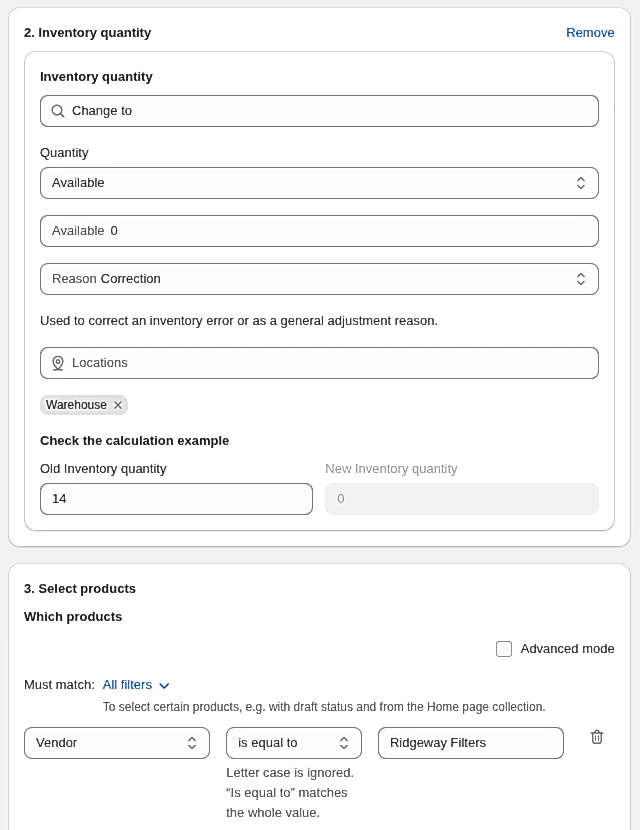
“Need a quick way to zero all stock on 50,000 SKUs” is how merchants put it before a year-end count. To zero one vendor, open New task, pick Inventory quantity, set Action to Change to 0 at the locations you count, choose a Reason, add a Vendor filter, check Preview matching products, then Save.

How to set stock to zero for a vendor or a collection
- Open New task. Under 1. Records to edit keep Products & variants.
- Under 2. Choose edits, type “quantity” in the field and pick Inventory quantity from Other edits (run alone). It runs as the only edit of the task.
- Set Action to Change to and type
0. Leave Quantity on Available, the stock customers can buy. - In Locations, tick the locations you are counting. Stock at the other locations stays as it is.
- In Reason, pick the one Shopify should record in the inventory history: Correction (“Used to correct an inventory error or as a general adjustment reason.”) or another Shopify reason from the list.
- Under 3. Select products, click Add filter and choose Vendor › is equal to › the vendor name, for example
Ridgeway Filterson MITS Auto Parts. For a collection, the first row is already Collection › is equal to. - Click Preview matching products and check the list (next section).
- Under 4. Schedule keep Now, or choose At a date and time to zero the stock after the store closes (Starter and up). Click Save.
Filters that pick the stock you mean
| Job | Filter |
|---|---|
| One supplier’s products | Vendor › is equal to |
| Only products that still have stock | Total quantity › at least › 1 |
| Variants with negative stock | Advanced mode › Variant filters › Quantity › less than › 0 |
| Units held as damaged at one warehouse | Advanced mode › Variant filters › Quantity at a location › location, Damaged, Units › more than › 0 |
| The whole store | All products (it removes every other filter row) |
Total quantity is a product filter: it adds up the stock of all variants. Quantity and Quantity at a location check one variant at a time, so switch on Advanced mode and choose the variant filters when only some sizes or colors should change. Switching clears the rows you already added.
Set, adjust or set aside stock
The Action select on the Inventory quantity card has five choices:
| Action | What it does |
|---|---|
| Change to | puts the same number on every selected variant at each chosen location |
| Adjust (by amount) | Increase by or Decrease by a number of units |
| Adjust (by percentage) | raises or lowers each quantity by a percentage |
| Move to another location | takes units out of one location and adds them to another |
| Copy to another location | copies stock from one location to another |
Quantity picks the inventory state the change applies to: Available, On hand, Damaged, Quality control, Reserved or Safety stock. The Quantity at a location filter also reads Incoming and Committed, which the app can filter on but does not change.
Reason lists Shopify’s adjustment reasons, such as Correction. The reason also appears in the task name on Tasks.
How to check the preview before you save
The Preview matching products modal shows Total inventory for each product. Before you zero a vendor, look for:
- products from another vendor with a similar name (is equal to matches the whole name, letter case ignored);
- products you are not counting this time: tick them and click Exclude selected products;
- Total variants: one stock row is one variant at one location, so multiply Total variants by the number of ticked locations and compare it with the Stock rows per task of your plan (1.5 × its Records per task, see Limits).
With variant filters the modal is Preview matching variants: each row names the product and the variant, with its price and quantity. It has no checkboxes, so narrow the filters to leave variants out.
A different count for each variant
The Inventory quantity edit puts one number or one change on every selected variant. When each variant needs its own counted number, use Export & import (Starter and up; Free exports the first 10 records):
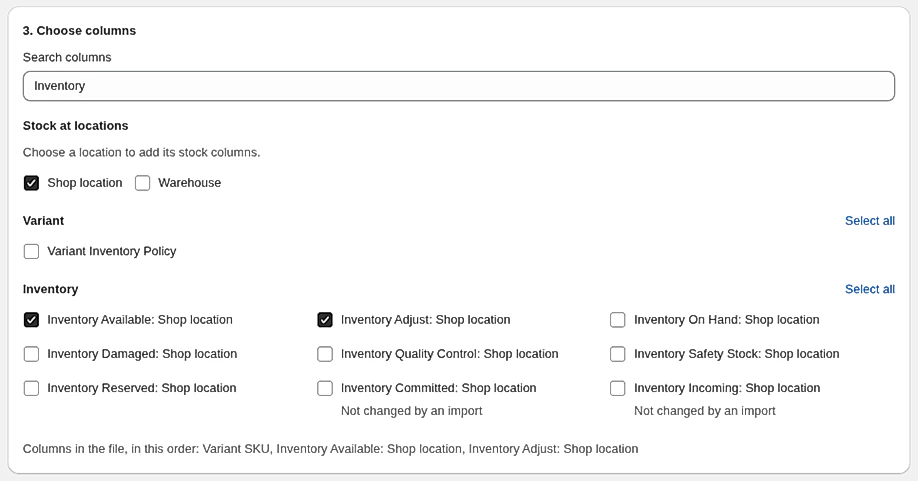
- Export variants and, under Stock at locations, choose a location. The file gets Inventory Available and Inventory Adjust columns for it.
- Type the counted numbers in the column Inventory Available: Shop location (named after your location), or a plus or minus number in Inventory Adjust: Shop location. Fill only one of the two for a location. The import refuses a row with both: “Fill in either Inventory Available: Shop location or Inventory Adjust: Shop location, not both: one row cannot set and adjust the same stock.”
- Import the file. A stock cell whose quantity changed in the store since the export is held, with the reason “Stock changed since the export”, so sales made during the count are not lost. Tick Overwrite stock even if it changed since the export only if your count should win.
What revert restores
What revert writes back depends on the action:
- Change to, or any change of On hand: revert puts the old number back and overwrites stock changes made since the task. If a task set stock from 4 to 0 and two units were received afterwards, the variant ends at 4.
- Adjust (Increase by or Decrease by) on Available: revert moves each quantity back by the same amount, so sales and restocks since the task are kept. If a task decreased stock by 4, from 4 to 0, and two units were received afterwards, revert adds 4 and the variant ends at 6.
The Changed tab of the task lists each variant with its location, the old quantity and the Delta.
Note: Once you have entered the counted numbers, do not revert the task that zeroed the stock. Revert would write the old quantities back over the count.
Limits
- Stock rows per task on the Plans page: Free 15, Starter 3,000, Growth 15,000, Pro 150,000. Zeroing 50,000 SKUs at one location in one task needs Pro.
- Change to and Adjust put the same value on every selected variant. Per-variant numbers go through the import above.
- Quantities matter only on variants that track quantity. Add the filter Track quantity › yes to leave untracked products out of the preview.
- A Shopify Flow action adjusts inventory at one location from a workflow (Starter and up); it needs the location number from Shopify Settings › Locations.
You can also
- Move all stock to another location
- Hide sold-out products
- Update prices from a supplier’s price list
- Bulk edit inventory quantity on Shopify
Updated