You want the catalog in a spreadsheet the team keeps: cost next to price for a margin check, stock at each location, metafields, collections. Open Export & import › Export, pick the records, add filters, tick the columns, choose CSV or Excel and click Export. The file waits in Export history under Download.
Reviews of other bulk editors ask for “profit margins and cost field in spreadsheet exportations”. In this export, Cost per item sits in the same row as Price for every variant, and the file can go back in as an import you preview and revert. Bulk editing vs CSV import explains when a file is the better tool.

How to export products to Excel or CSV
- Open Export & import from the app’s Home and stay on the Export tab (Import is the other tab).
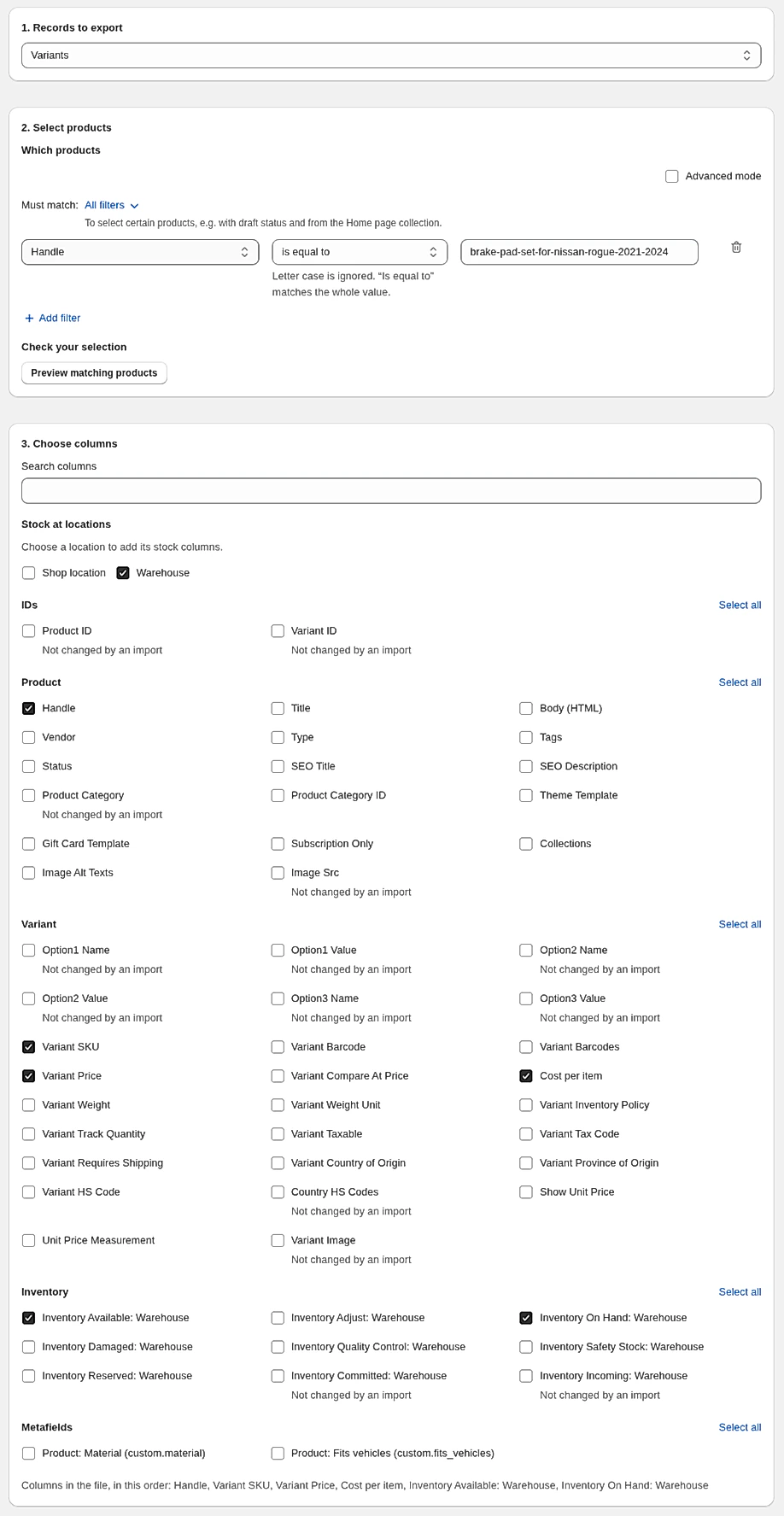
- Under 1. Records to export, choose what one row of the file is:
- Products: one row per product;
- Variants: one row per variant, the only choice that has prices, costs and stock;
- Collections: one row per collection;
- Metaobject entries (Growth and up): pick a Metaobject definition as well. The app explains why: “Each definition has its own fields, so its entries are exported on their own.” A store without definitions gets “This shop has no metaobject definitions.” and a pointer to create one in Shopify under Settings › Custom data › Metaobjects.
- Under 2. Select products, set Must match to All filters or Any filter and click Add filter. These are the same filters as on a new task, listed in All filters and conditions. To export all products from Shopify, add no filter row: the export takes the whole catalog. A filter row left empty is an error and the app asks you to remove it.
- On a Products or Variants export, tick Advanced mode and pick the scope in the menu under it: “Product filters. All variants of the filtered products are included.” or “Variant filters. Only the filtered variants are included.” Use variant filters to export, say, only the variants whose SKU starts with one supplier’s prefix. Collections have their own filters (Title, Handle, Collection type, Online Store, Updated time, with is equal and is not equal); a Title row is already added.
- Under 3. Choose columns, tick what the file should hold. Type in Search columns to narrow the boxes (“seo” leaves SEO Title and SEO Description); a word with no match shows “No columns match “…”.” Each group has Select all, which turns into Deselect all, and it works on a search result too.
- For stock, find Stock at locations, “Choose a location to add its stock columns.”, and tick a location. Repeat for each location you need.
- Under Format, choose CSV or Excel. Google Sheets (Growth and up) sends the same rows to a sheet instead, as in Products in a Google Sheet.
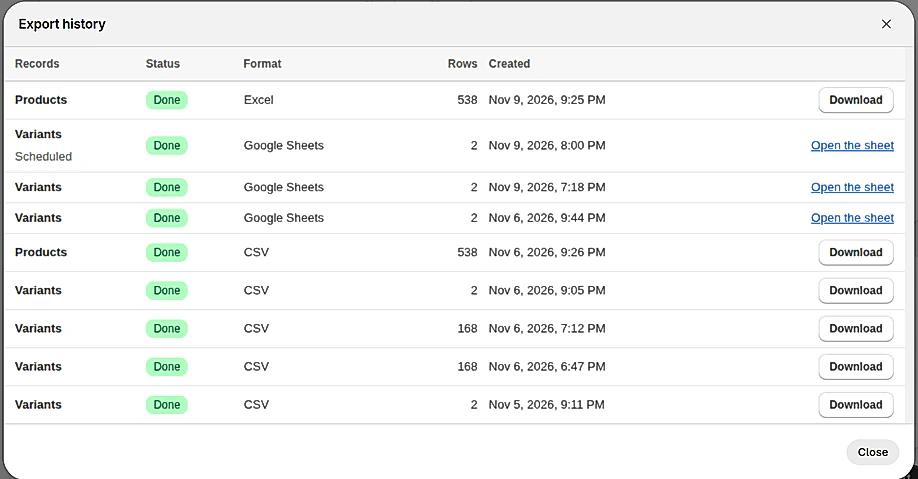
- Click Export. Export history opens and the row moves from Queued to Running to Done. Click Download: the file is not downloaded by itself.
On MITS Auto Parts, a 538-product export finished in about 30 seconds.
Which columns you can export
| Group | Columns in the file | Records |
|---|---|---|
| IDs | Product ID (Products, Variants); Variant ID (Variants) | Products, Variants |
| Product | Handle, Title, Body (HTML), Vendor, Type, Tags, Status, SEO Title, SEO Description, Product Category, Product Category ID, Theme Template, Gift Card Template, Subscription Only, Collections, Image Alt Texts, Image Src | Products, Variants |
| Variant | Option1–3 Name and Value, Variant SKU, Variant Barcode, Variant Barcodes, Variant Price, Variant Compare At Price, Cost per item, Weight and Weight Unit, Taxable, Tax Code, Requires Shipping, Track Quantity, Inventory Policy, Country and Province of Origin, HS Code, Country HS Codes, Unit Price Measurement, Show Unit Price, Variant Image | Variants |
| Inventory | Inventory Available, Adjust, On Hand, Damaged, Quality Control, Safety Stock, Reserved, Committed, Incoming, each as “…: |
Variants |
| Sales channels | one column per channel, yes or no | Products, Variants |
| Metafields | one column per metafield definition, listed as “Name (namespace.key)”, headed “Metafield: namespace.key [type]” in the file | Products, Variants |
| Collection | Collection ID, Handle, Title, Body (HTML), Collection Type | Collections |
| Metaobject entry | Metaobject ID, Handle, Display Name, Status, then one “Field: |
Metaobject entries |
How values look in the file: lists such as Tags and Image Alt Texts as “a, b”; yes and no; status in lowercase; Collections as collection handles; Product Category as the full path plus its ID; Inventory Policy as deny or continue; Country HS Codes as “CA:6109100010, US:6109100011”.
A box marked Not changed by an import is a read-only column: Product ID, Variant ID, Product Category, Image Src, Variant Image, Country HS Codes, the option names and values, Inventory Committed and Incoming, Sales channels, the collection Handle and Collection Type, and the metaobject Display Name. It is in the file for reading, and an import leaves it alone.
A variants file with stock also carries hidden “Inventory …: _exported_at column. Keep them if the file is going back in: the import compares them with the store and holds a stock cell that changed since the export, so a sale made while you edited the file is not lost. The details are in Import a file you can revert.
How to check the file before you export
- Click Preview matching products under 2. Select products to see the products your filters pick. If the list is wrong, the file will be too.
- Read the line under the columns: “Columns in the file, in this order: …”. The order follows the order you ticked the boxes, so tick them in the order you want to read them.
- If none of Product ID, Handle or SKU is ticked, the app adds a key column and says so, for example “Product ID is added first so the file can be imported back.”
- With no box ticked, the app shows “Choose at least one column to export.” and Export stays disabled.
- Errors in the form show in a banner above it, “There is 1 error with this export:” or “There are 2 errors with this export:”, with “Fix these below, then export again.”
Open the file in Excel without broken IDs
- Excel writes a .xlsx file with IDs stored as text, so a Variant ID stays whole instead of turning into 6.82001E+13.
- CSV files are UTF-8 with a byte-order mark. If you open a CSV in Excel and save it again, format the ID columns as text first.
- A cell whose text starts with = + - or @ is written with a leading
', so a spreadsheet shows it as text and does not run it as a formula. An import of the same file removes the'again, and the title in the store stays as it was.
How to export on a schedule
Scheduled exports are on Growth and Pro.
- Set up the export as above, then tick Repeat on a schedule. The app notes: “Each run makes a new file, or refreshes the same Google Sheet.”
- Pick the days and a time in Time (…); the brackets show your browser’s time zone, the one the schedule runs in.
- Click Schedule export.
With no day picked, the app stops with “Choose at least one day for the scheduled export.” Each run adds a row to Export history, where the file waits for Download.
The schedule appears under Scheduled exports, for example “Products · Active · CSV · Product ID, Title, Image Alt Texts, Image Src · Every Monday at 8:00 AM (America/New_York)”. Stop pauses it and Start turns it back on. Delete asks “Delete this scheduled export? The schedule stops for good and can’t be restored. Files and sheets it already made are kept.”, then Delete or Cancel.

Growth allows 3 scheduled exports and Pro 20. When all of them are in use, the app says, on Growth, “Your plan allows 3 scheduled exports and all of them are in use. Stop or delete one, or change the plan.” On a plan with no scheduled exports it says “This needs the Growth plan. Change the plan to use it.”
Export history
Export history opens from the page header and after every export. It lists Records, Status, Format, Rows, Created and Download (or Open the sheet for Google Sheets), and it updates while it is open.
| Status | What it means |
|---|---|
| Queued | waiting to start |
| Running | the file is being written |
| Done | ready to download |
| Failed | the row gives the reason and a Contact support link |
| Expired | “Export files are kept for 7 days.” Export again for a fresh file |
Only the newest 20 exports are listed. A download of a file that is gone shows “This export is not available any more. Export again to get a new file.”
Limits
- The Free plan exports the first 10 records only. CSV and Excel export are on every plan; Metaobject entries, Google Sheets and Repeat on a schedule need Growth.
- A file holds one kind of record. Products, variants, collections and metaobject entries go to separate exports, and metaobject entries one definition per file.
- Product prices, costs and stock are variant columns. Pick Variants to get them, even for products with a single variant.
- An export only reads the store, so there is nothing to revert. Changes come back through an import, which runs as a task you can revert.
You can also
- Update products from a spreadsheet and revert the import
- Update prices from a supplier’s price list
- Edit metaobject entries in bulk
Updated