Merchants ask how to change “the cost price of each product’s variant” and how to find the products that sell below their margin. Fill the missing cost per item first. Then open New task, add Price with Set from cost plus markup (by percentage), pick variants with Margin % less than your floor and click Save.

How to find variants with no cost or a low margin
Both checks work best as variant filters, which pick single variants. Turn on Advanced mode under 3. Select products and choose Variant filters.
| Filter | Condition | What it finds |
|---|---|---|
| Cost per item | is empty | variants with no cost, so no margin can be worked out |
| Margin % | less than your floor, e.g. 40 | variants that sell below the margin you want |
| Margin % | is empty | variants with no margin value |
Click Preview matching variants to see the list. The same Margin % and Cost per item filters exist on the Products tab, where they work per product: less than matches a product when any one of its variants matches, and is empty matches only when every variant is empty. To change only the low variants, stay on Variant filters. Every condition is listed in all filters and conditions.
How to fill in a missing cost per item
- Open New task and keep Products & variants under 1. Records to edit.
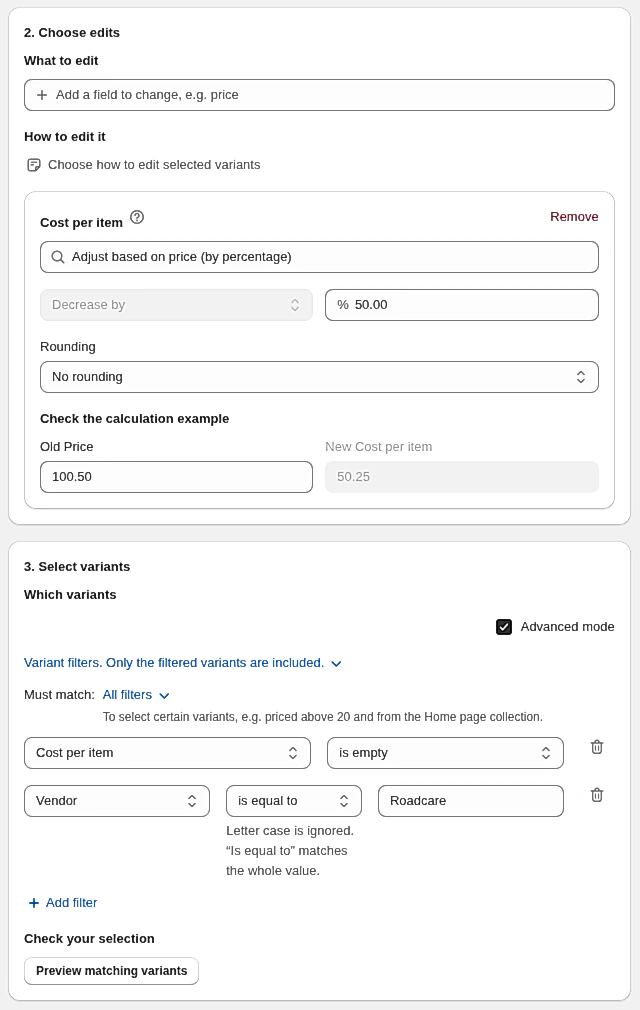
- Under 2. Choose edits, open “Add a field to change, e.g. price” and pick Cost per item from Variant fields. The card notes “Customers won’t see this.”
- Choose how to change it:
- Change to writes one cost on every matching variant. It suits a batch of items you bought at the same price.
- Adjust based on price (by percentage) with Decrease by sets the cost as a share of the current price. If a supplier sells to you at half your retail price, Decrease by 50% makes each cost half its price.
- Under Variant filters, add Cost per item is empty. Add Vendor is equal to the supplier’s name so one rule covers one supplier’s goods.
- Click Preview matching variants, then leave 4. Schedule on Now and click Save.
If the costs come in a supplier file, import it instead of writing a rule: see update prices from a supplier’s price list.
How to set prices as cost plus a markup
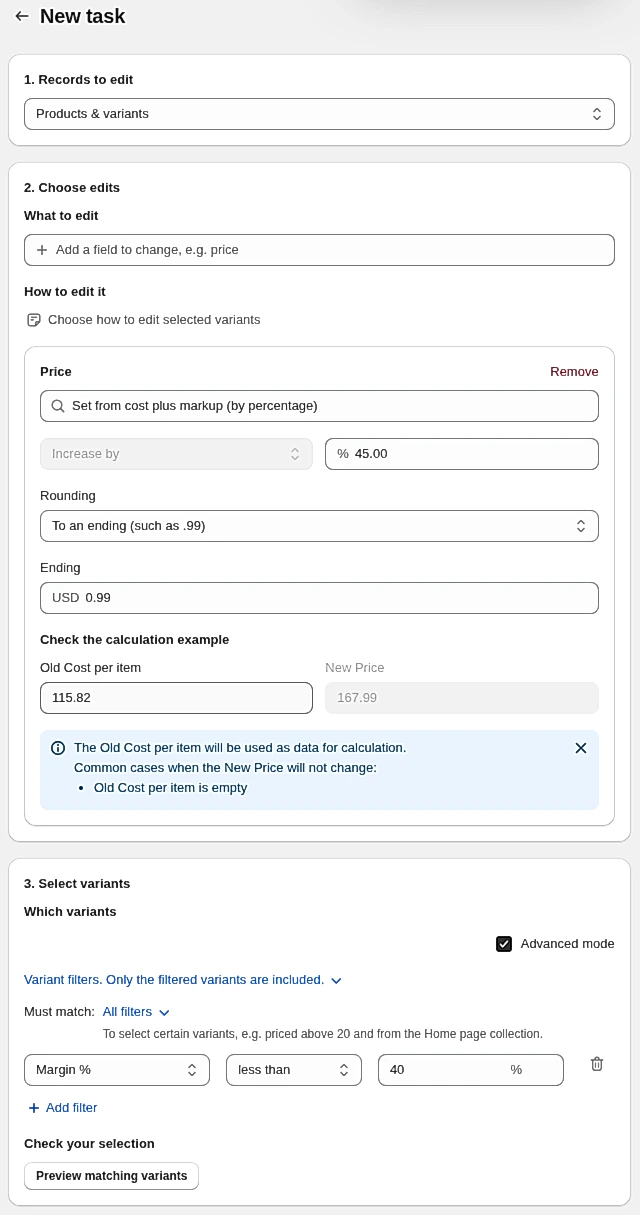
- Open New task, keep Products & variants, and add Price from Variant fields.
- In Choose how to change, pick Set from cost plus markup (by percentage) to add a percentage of the cost, or Set from cost plus markup (by amount) to add the same amount to every cost.
- Action is Increase by (the only choice). Enter the markup in the % Value and pick a Rounding, for example to end in .99. The example under the form shows an Old Cost per item and the New Price it gives: with a 45% markup and .99 rounding, a cost of 115.82 becomes a price of 167.99. The help warns that the price stays the same when the Old Cost per item is empty.
- Under Variant filters, add Margin % less than your floor. Variants with no cost show up under Margin % is empty, so fill their cost first.
- Click Preview matching variants, choose 4. Schedule and click Save.
A markup is a percentage of the cost and a margin is a percentage of the price, so the two numbers differ. Pick the markup from the margin you want:
| Markup on cost | Margin you get |
|---|---|
| 25% | 20% |
| 50% | 33.3% |
| 66.7% | 40% |
| 100% | 50% |
The formula is markup = margin ÷ (100 − margin) × 100.
How to check the preview before saving
Preview matching variants lists each variant by product and variant title (for example “Standard Flooded Car Battery” and its variant) with its Price, Compare-at price and Quantity. It has no cost column, so check two things there: the count matches what you expect, and no variant you priced by hand is in the list. The preview has no checkboxes for variants. It says “Only the filters choose variants. To leave some variants out, narrow the filters.”, so add a Vendor, Type or Tag row instead.
After the task runs, its Changed tab lists the old and new price of each variant, and Skipped gives a reason for every variant it left as it was.
What revert restores
Open Tasks, open the task and click Revert. A Price task gets back the price each variant had before it. A Cost per item task writes back the old cost, and a variant that had no cost before is left with no cost again.
Limits
- Price and cost edits work on every plan. They count one record per variant, and the plan caps how many records one task edits: Free 10 variants, Starter 2,000, Growth 10,000, Pro 100,000.
- A task has one set of filters, so different markups for different vendors or types are separate tasks. To price new products from cost every week, use Repeat on a schedule in 4. Schedule (Starter and up).
- Margin % is (price − cost per item) ÷ price, so shipping, payment fees and discounts are outside it.
- The app does not split freight or duties across items. Add them to the cost per item yourself or through a file import.
- To keep items on sale out of a markup task, add Compare-at price is empty to the filters.
You can also
- Raise prices by a percentage
- Update prices from a supplier’s price list
- Turn tax on or off for many products
- Bulk edit cost per item on Shopify
- Plan prices with margin-based pricing on Shopify
Updated