To change the text of many collections at once, open New task, choose Collections under 1. Records to edit, add the Collection title or Collection description edit, pick the collections with a filter, then click Save. One task can add a shipping note to every description, swap a word in every title, or write descriptions for collections that have none.
This page covers the collections themselves. To change prices, tags or text on the products inside a collection, see bulk edit by collection.

How to edit collection titles or descriptions
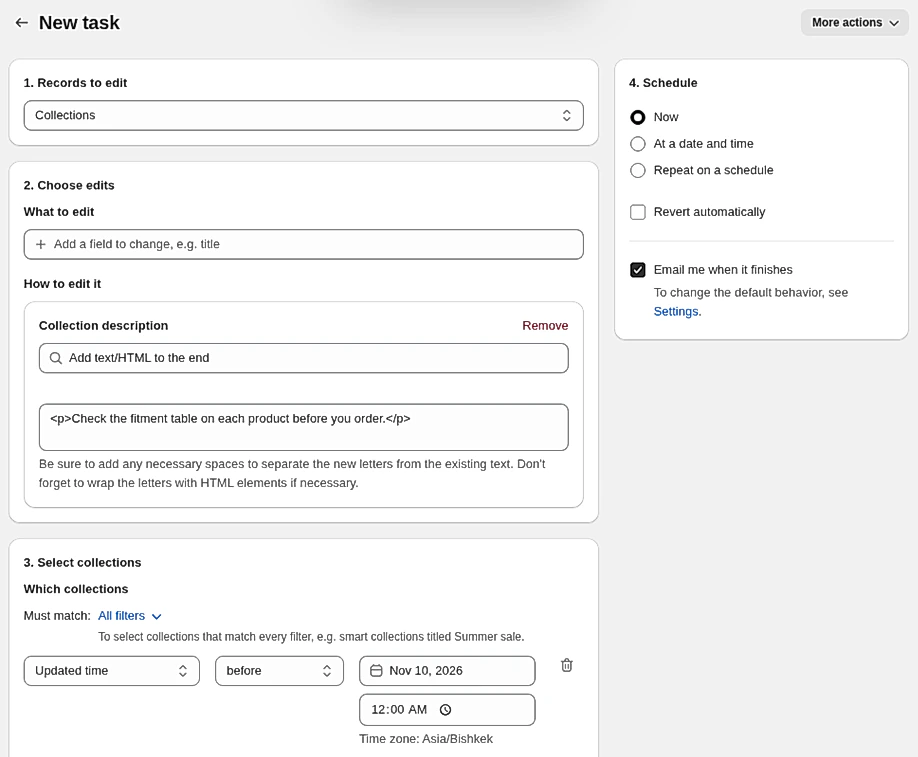
- Open New task. Under 1. Records to edit, choose Collections. The edit box now reads “Add a field to change, e.g. title”.
- Under 2. Choose edits, pick Collection title or Collection description from the Collection group. An edit card opens.
- In the card, choose how to change the text (actions below) and type the new text.
- Under 3. Select collections, add the filters that pick the collections (table below). Must match works as on products: All filters picks collections that match every row, Any filter picks collections that match at least one. Collections have no Advanced mode.
- Click Preview matching collections and check the list (next section).
- Under 4. Schedule, keep Now and click Save in the bar at the top of the admin. The task opens in Tasks.
Actions for collection titles
Collection title has the same text tools as product titles: Change to, Replace text, Add text to the beginning, Add text to the end, Remove text, Change case, Trim extra spaces, Fill from a template, Limit the length and Cut from a word to the end.
Add text to the end and Add text to the beginning add exactly the letters you type. The form reminds you: “Be sure to add any necessary spaces to separate the new letters from the existing text.” Type Sale with the leading space, and “Brake Pads” becomes “Brake Pads Sale”.
Actions for collection descriptions
Collection description has five actions: Change to, Replace text/HTML, Add text/HTML to the beginning, Add text/HTML to the end and Remove text/HTML.
Shopify stores a description as HTML, so type a new paragraph with its tags: <p>Check the fitment table on each product before you order.</p>. Add text/HTML to the end on a collection with an empty description writes your text as the whole description.
Which filters pick the collections
| Filter | Operators | Use it for |
|---|---|---|
| Selected collections | are | Picking collections by hand in Shopify’s collection picker (search, product counts, up to 250) |
| Title | is equal to · is not equal to | One collection by its full title; letter case is ignored |
| Handle | is equal to · is not equal to | One collection by its handle |
| Collection type | is equal to · is not equal to | Smart or Manual collections |
| Online Store | is equal to · is not equal to | Collections published, or not, on the Online Store |
| Updated time | before · after | Collections last changed before or after a date and time |
The three jobs on this page combine them like this:
| Job | Filters | Action |
|---|---|---|
| Add a line to every collection description | Updated time before tomorrow’s date (every collection was last changed before it) | Add text/HTML to the end |
| Replace a word in collection titles | the same Updated time row | Replace text |
| Fill empty descriptions | Selected collections are the collections without a description | Change to |
Title matches the whole title, so it cannot pick “every collection with Winter in the name”. Use the Updated time row from the table above to pick every collection, then Replace text; a title without the word stays as it is.
How to check the preview before you save
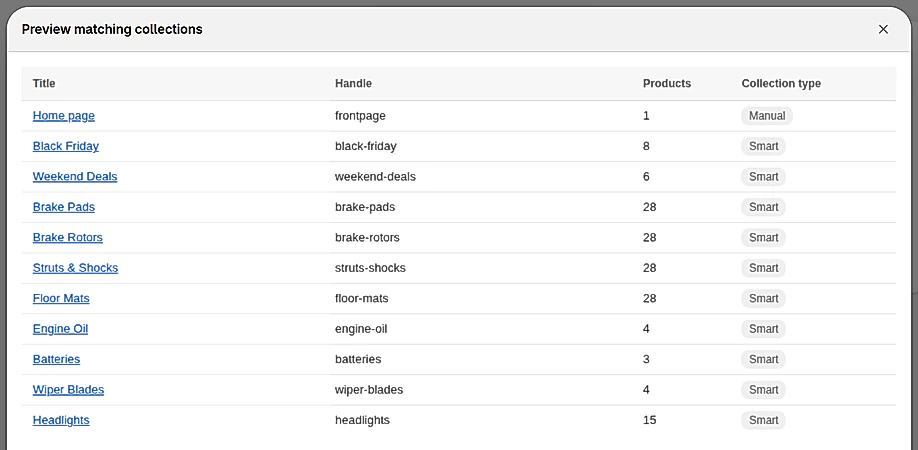
Preview matching collections lists each collection with its Title (a link to the collection), Handle, Products and Collection type.
- Count the rows. For a change to every collection, the list should hold all of your collections, smart and manual.
- For Fill empty descriptions, open each title link and confirm the description is empty: Change to replaces whatever text is there.
- The preview does not show descriptions or the new text. Read the text you typed in the edit card once more, with the HTML tags and spaces.
After the run, the task page lists every changed collection with Collection, Property, Old data and New data, so you can read each new title or description there.
What revert restores
Open Tasks › task page › Revert and confirm. Each changed collection gets back the title or description it had before the task.
Limits
- The Collection group has two edits, Collection title and Collection description. Collection handles, SEO titles and meta descriptions, images and smart collection conditions stay in the Shopify admin.
- No filter finds collections with an empty description; pick them with Selected collections.
- A task edits either collections or products. To change the products inside a collection, start a separate task with Products & variants.
- A record is what the edit changes, so a collection task counts one record per collection; the number per plan is in Plans and limits.
You can also
- Add products to collections in bulk, or move them from one collection to another
- Remove or replace text in titles and descriptions of products
- Write SEO titles and descriptions for many products, with URL handles, in one task
Updated