The app says the edit ran, yet some products still show the old value. The task’s status badge and its Skipped tab tell you which items were left out and why. Open Tasks, check the Status and Result columns, and click the task for the reason on each skipped row; the next step for every status is below.

Where to see a task’s status
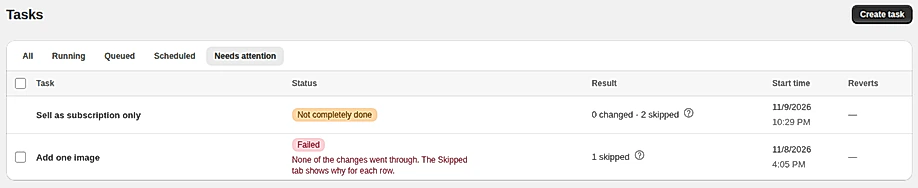
- Tasks lists every one-off task with its Status badge and a Result such as “415 changed · 103 skipped”. Hover the (?) next to the result to see what was counted, for example “Changed: 415 variants / Skipped: 103 variants”.
- The tabs All, Running, Queued, Scheduled and Needs attention filter the list. Needs attention holds the tasks that failed or skipped some items, so it is the first place to look after a large edit.
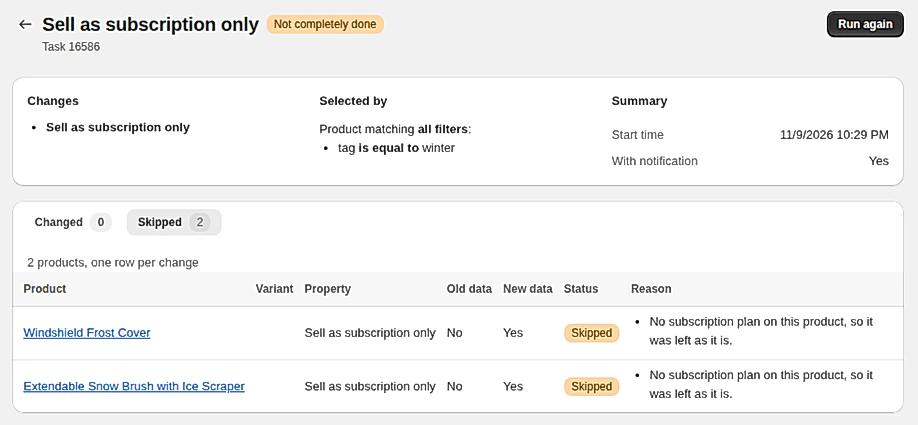
- The task page shows the same badge, the cards Changes, Selected by and Summary (a failure reason appears there in red), and the tabs Changed and Skipped with one row per change.
Before and during the run
New, Queued and Scheduled
The task is saved and waits for its start. Right after Save the new row on Tasks reads New with × Cancel. A task saved with Now waits for the next whole minute and reads Queued; a task set for a later date and time reads Scheduled, with its start time under Started and its revert time under Reverts when you set one. Nothing in your store has changed yet. To stop it, click Cancel on the row or open the task and choose More actions › Cancel task. The task is canceled at once, without a confirmation.
In progress
The app is changing your products in Shopify. Leave it to finish. A large task takes longer, and the Home page App status card reads “working now” while something runs. The Running tab in Tasks lists it; the parts of a task are in How a task is built, and a scheduled task moving to In progress is shown in Schedule a task and its automatic revert.
After the run
With Shopify Flow (Starter and up), the Bulk edit finished trigger fires once per task when it ends Done, Not completely done or Failed, with the status and the Changed, Failed and Skipped counts; it does not fire for reverts or canceled tasks. See Shopify Flow actions and trigger.
Done
The run finished. The task page offers Revert and, under More actions, Run again. Check the Result column: if it lists skipped items, open the Skipped tab and read the reasons, as described in why some products were not changed.
Not completely done
Some items changed and some did not. This is the status behind “the app said done, but not every product changed”. Open the task and the Skipped tab, as shown in why some products were not changed: each row names the product or variant, the old and new value, and a Reason, such as “Option value already exists.” Fix the cause, then run the edit again for those items or leave them as they are. The items in the Changed tab are already in your store and can be reverted with the rest of the task.
Failed
The task stopped. When the app knows why, the reason is shown in red in the Summary card. Without a stored reason it reads “The task stopped before it changed anything. Run it again; if it fails again, contact support.” When none of the rows went through, it reads “None of the changes went through. The Skipped tab shows why for each row.” with a Contact support button. Click Run again to open the same edit and filters in a new task; a failed task can be removed with More actions › Delete task. A failed Add images task is shown in Variant images and image order.
Canceled
You canceled the task before it started, so nothing in your store changed. A canceled task can be deleted from the task page or by ticking it in Tasks. Canceling a scheduled task is shown in Schedule a task and its automatic revert.
After a revert
A finished task with changes has a Revert button on the Tasks row and on the task page. The steps and what each edit gets back are in Revert a bulk edit that went wrong.
Revert queued
You confirmed the revert and it waits for its turn. If another task is running, the badge reads “Revert queued · Waiting for another task to finish”. Wait; the revert starts by itself when that task ends. Until then it is listed in the Queued tab of Tasks; the waiting revert is shown in Revert a bulk edit that went wrong.
Reverting
The app is writing the old values back to Shopify. Leave it to finish. The badge moves from Reverting to Reverted on the open page, as shown in Revert a bulk edit that went wrong.
Reverted
Each changed item got back the value it had before the task. Stock the task increased or decreased is changed back by the same amount, so sales and restocks since then stay, and a reorder task is reverted against the current order. A value you edited by hand in Shopify after the task is overwritten without a warning, and the task still reads Reverted. Ending a sale this way is shown in End a sale and restore prices. You can now delete the task or use Run again to repeat the edit.
Not fully reverted
Some rows got their old value back and some could not. The Tasks row shows both counts, for example “1 changed · 1 skipped”. The task page shows the caution “Shopify can’t undo some of these changes, so they stay as they are. The Changed tab shows which.” The rows that keep the new value stay in the Changed tab with the reason. Shopify cannot remove a unit price measurement or a country HS code once set, so a revert can only put back a previous one; see Show unit prices on many products.
Revert failed
Nothing was restored. The task page reads “The revert didn’t restore anything. The Skipped tab shows why for each row.” with a Contact support button. If the revert stopped without a reason, the message is “The revert stopped before it restored anything. Try the revert again; if it fails again, contact support.” A revert that stopped without a reason can work when you try it again. A row whose reason is an edit Shopify cannot undo, such as the unit price measurement above, stays as it is after a retry; see Show unit prices on many products.
Note: Delete a task only when you no longer need to undo it. Deleting removes its log and its Revert button; the changes it made in Shopify stay.
Messages on the task page
Rows in the Skipped tab
Each row in the Skipped tab carries a Skipped badge and its reason. A skipped row was not written to Shopify, so a revert has nothing to restore on it. The common reasons and their fixes are in why some products were not changed.
Plan limit reached
When more records match than your plan’s Records per task, the task changes the first ones and shows Plan limit reached with the note “Records changed: 2,000. Not every matching record was changed. Upgrade your plan to change more records in one task.” (on Starter) and a View plans button. Narrow the filters so the rest fit in another task, or change the plan; which records go first and the limits are in Plans and limits.
Recurring task statuses
A recurring task has its own status on the Recurring tasks page, next to Task history, Start and Stop. Each run also appears in its Task history with the statuses above.
| Status | What it means | What to do |
|---|---|---|
| Active | The task runs on its days and time. | Nothing; check Next start time. |
| Running | A run is in progress. When it ends Done or Not completely done, or stops before it reaches Shopify because an optional access is missing, the series is Active again. | Wait; the run is in Task history. |
| Stopped | You clicked Stop, the plan changed to one without recurring tasks, or the app was uninstalled; no new runs start. | Start it again when you need it; after a change to the Free plan, which has no recurring tasks, change the plan first. |
| Failed | A run ended Failed; no further run is created. | Open the run in Task history, fix the cause, then click Start. |
| Terminated | You reverted one of its runs by hand after stopping the series; its pending runs are canceled and its recurring slot is freed. A scheduled automatic revert of one run does not change the series status. | Set up a new recurring task if you need the edit again. |
To revert one run, stop the series first: while it is active, Revert on a run is grayed out with “Stop the recurring task to revert its runs.” How to set up a series is in Recurring tasks.
Related
- Why some products were not changed
- Revert a bulk edit that went wrong
- Recurring tasks
- Undo a bulk edit on Shopify
Updated