“How do I auto hide sold out products on my Shopify website?” is a common Shopify Community question. Bulk Product Edit answers it with two recurring tasks: one sets zero-stock products to draft and tags them, the other sets them back to active once stock returns. Build both in New task with Repeat on a schedule (Starter and up).
The tasks run once a day at the time you pick, in your browser’s time zone; the recurring task shows it under the schedule (“Time zone: …”). A product that sells out at noon stays visible until the next run, and a restocked product stays in draft until then too. The Product status edit itself is covered in bulk edit product status.

Which filter means sold out
| Filter | What it matches | Use it here |
|---|---|---|
| Total quantity (numbers) | the product’s stock added up | yes: at most 0 |
| Out of stock somewhere (yes / no) | products out of stock somewhere, even when other variants or locations still have stock | no, it would hide products that still sell |
| Available for sale (yes / no, variant filter) | Shopify’s own flag; it stays yes for draft and archived products with stock and for variants set to continue selling | no, it is a variant filter, and Product status needs product filters |
Add Track quantity is yes so products that do not track stock stay out, and Policy: allow selling after out of stock is no so pre-order products keep selling at zero. Those products are covered in keep selling when out of stock.
How to set sold-out products to draft every day
- Open New task, choose Products & variants and keep All filters.
- Add the filters:
- Total quantity at most
0 - Status is equal to Active
- Track quantity yes
- Policy: allow selling after out of stock no
- Total quantity at most
- Add edit › Product fields › Product status › Change to › Draft.
- Add edit › Product fields › Tags › Add new tags ›
sold-out-auto. Restock day uses this tag to find exactly these products, so drafts you made by hand stay drafts. - Under 4. Schedule choose Repeat on a schedule. Select days of the week has every day on; leave it. Pick a time in Select time, for example 2:00 AM.
- Leave Revert each run after empty. A timed revert would put every product back on sale after a few hours, sold out or not.
- Click Save. The “Recurring task created” toast appears and the task gets a row on Recurring tasks.
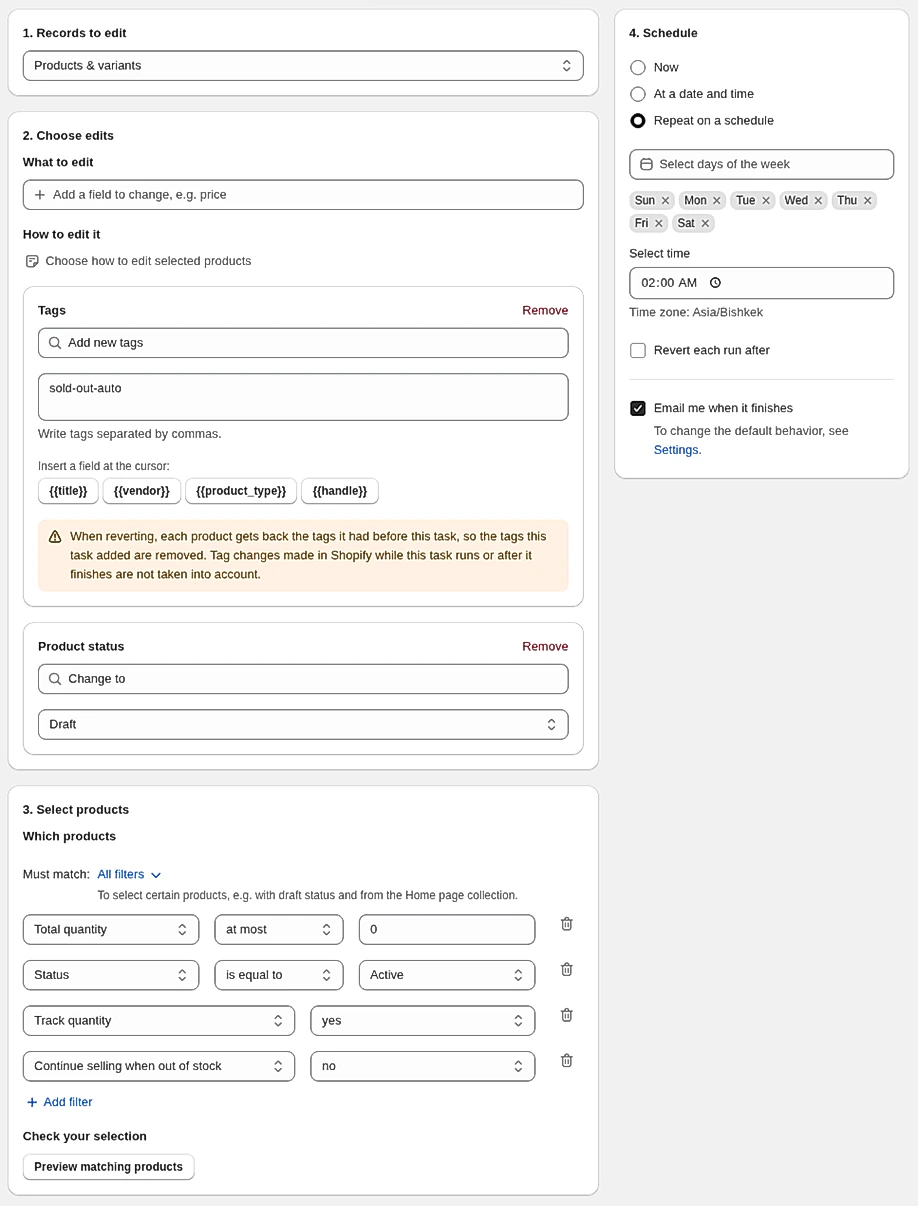
Every run copies the saved filters and picks the products when it starts, so products that sell out after you save are drafted by the next run.
How to bring products back on restock
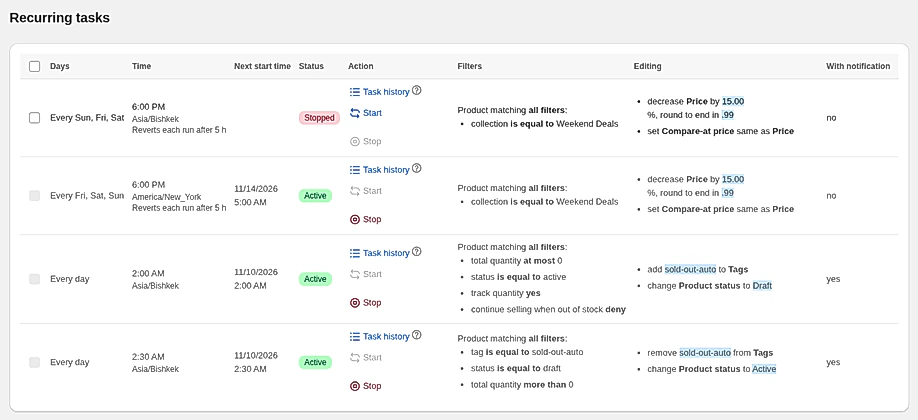
Build a second recurring task:
- New task, Products & variants, filters Tag is equal to
sold-out-auto, Status is equal to Draft and Total quantity more than0. The Status row keeps a tagged product you archived by hand from going back to active. - Product status › Change to › Active, then Tags › Remove tags ›
sold-out-auto. - Repeat on a schedule, every day, at a different time from the first task, for example 2:30 AM. Save.
A product that is still at zero does not match these filters, so it keeps its tag and stays in draft.
What to check in the preview
Click Preview matching products before you save the first task. Look for:
- the count: on a first run it can be large if the store has kept sold-out products live for months;
- products you sell on pre-order. One that shows up has its inventory policy set to deny; remove it with Exclude selected products, or switch it to continue selling first;
- products already in draft. The Status filter keeps them out, so none should be listed.
The preview shows the products that match today.
Unpublish from one channel instead of draft
To take sold-out products off the Online Store only and keep them in other channels,
use Other edits (run alone) › Sales channels › Unpublish from sales channels › Online Store, with the filters
Online Store is equal to Published, Total quantity at most 0 and Track quantity yes. The steps for this
edit are in publish products on sales channels.
This edit runs alone, so it cannot add a tag in the same task, and the way back is less precise. Publish on sales channels with
Online Store is equal to Not published and Total quantity more than 0 also republishes products you hid on purpose. For a
one-time bulk unpublish of zero-stock products, run it with Now. If it has to repeat and come back on its own, the draft
pair above is the safer setup.
What revert restores
Revert on a run writes back the status and tags each product had before that run. While the daily task is active, its runs cannot be reverted (recurring tasks explains why). Stop it on Recurring tasks, then open Task history and revert the run. That ends the series: it turns Terminated, its scheduled runs are cancelled and the daily hide stops, so set up the task again if sold-out products should keep going to draft. Recurring runs do not appear in Tasks › All; find them in Task history.
Limits
- The tasks run once a day at a set time. The app does not react to each stock change, so between runs a product can sell out and stay visible, or come back in stock and stay in draft.
- Recurring tasks start on Starter, which allows 2, the two tasks of this setup. Growth allows 3, Pro 7. Free has none, but you can run the same task with Now by hand, 10 products per task.
- Each recurring task holds a slot until you delete it or it turns Terminated, and its runs do not count toward Tasks used this month (recurring tasks).
- Starter edits up to 2,000 products per task, Growth 10,000, Pro 100,000.
You can also
- Repeat any edit on a schedule with recurring tasks
- Launch, draft or archive products in bulk
- Publish or unpublish products on sales channels
- Keep selling when out of stock for pre-orders
Updated