Merchants on the Shopify Community ask how to write SEO titles and meta descriptions for hundreds of products from one pattern. To fill the empty ones in one pass, open New task, add the SEO edit with Fill from a template, filter SEO title · is empty, check Preview matching products, then Save.

How to fill empty SEO titles from a pattern
Each product gets a title built from its own data, such as {{title}} | {{vendor}}, and the products that already have a written SEO title stay out of the task. More on the edits themselves: bulk edit SEO titles and descriptions.
- Open New task and keep Products & variants as the records to edit.
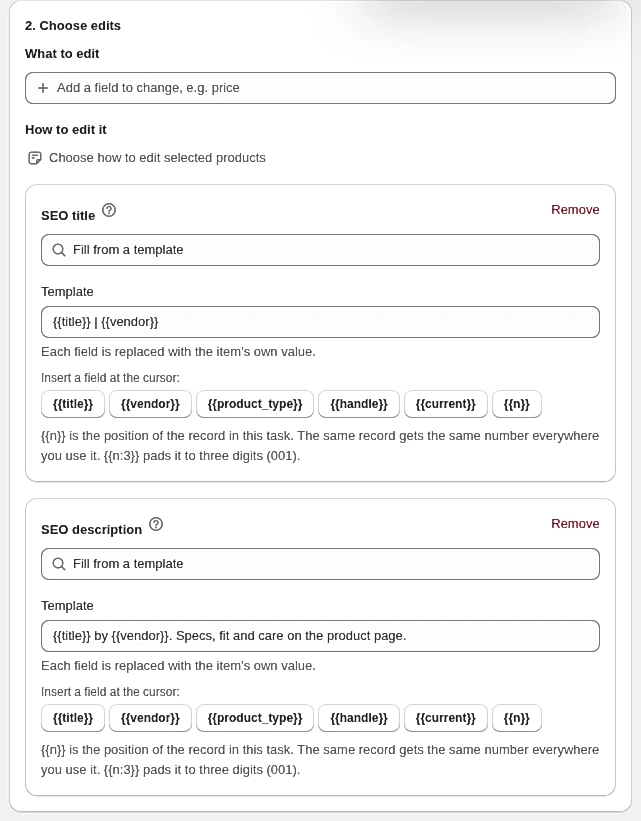
- In the box Add a field to change, e.g. price, pick SEO. Two cards appear, SEO title and SEO description. Both start at Choose how to change, and a card you leave there is not sent, so one task can change only the title.
- In the SEO title card choose Fill from a template and type the pattern into Template. The chips under the box insert
{{title}},{{vendor}},{{product_type}},{{handle}},{{current}}and{{n}}at the cursor (“Each field is replaced with the item’s own value.”). Anything else you type stays as typed. - To write descriptions in the same task, choose Fill from a template in the SEO description card too, for example
{{title}} by {{vendor}}. Specs, fit and care on the product page.Write a sentence that is true for every product the filter picks. - Under 3. Select products, click Add filter and choose SEO title · is empty. For descriptions use SEO description · is empty; with both rows, All filters picks products missing both, Any filter picks products missing either.
- Add a Vendor, Type or Collection row when a pattern only fits part of the catalog. A pattern with
{{product_type}}reads badly on products that have no type. - Click Preview matching products, check the list (next section), then Save. The task opens in Tasks.
When a product has no SEO title, Shopify then uses the product title, as the app’s help and Shopify admin › Products › Search engine listing show. An empty SEO description falls back to the product description cut to 320 characters. So the filter finds the products whose listing is just the product name, or the first lines of a long description.
How to trim SEO titles and descriptions to length
Search results cut long titles and descriptions. One card runs one action, so the trim is a second task on the same products:
- Open New task, pick SEO and choose Limit the length in the SEO title card.
- Type the limit into Maximum number of characters, for example
60. The checkbox End a shortened text with … is ticked by default; untick it to cut the text without the ellipsis. - Do the same in the SEO description card with
155, or leave it at Choose how to change. - Pick the products with the same filters as the fill task, without the is empty rows, preview and Save.
When a template adds a fixed tail such as | Free returns, Cut from a word to the end removes it again; see Remove or replace text in titles and descriptions.
How to fix handles after duplicating products
Duplicating a product leaves a handle such as ceramic-brake-pads-copy or ceramic-brake-pads-1, part of the “messed up URLs and meta titles” one Community thread describes. The URL handle edit fixes them and leaves a redirect from the old address. The handle without the suffix belongs to the original, so give each duplicate its own title first and then rebuild its handle from that title:
- Rename the duplicates. When they share a pattern, the Product title edit with Replace text or Fill from a template does it in one task.
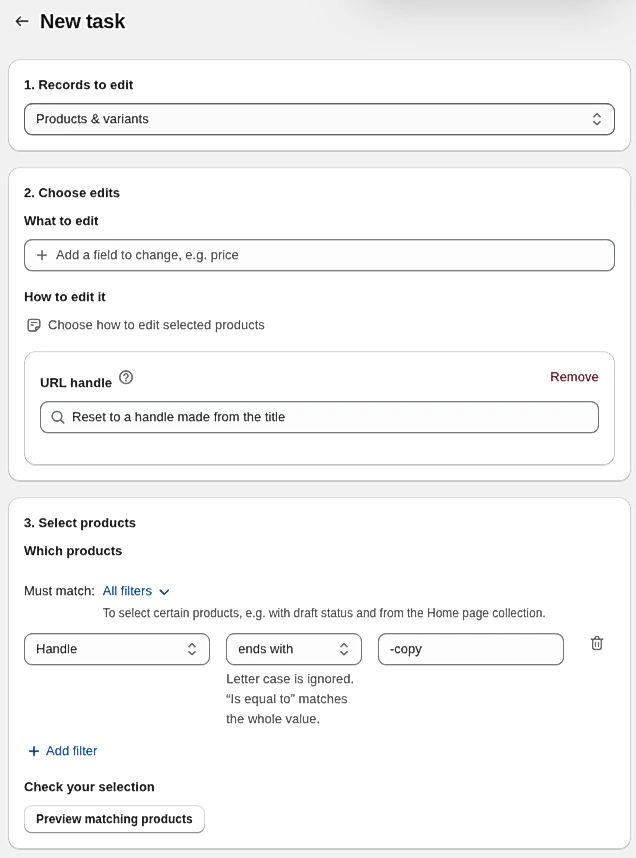
- Open New task, pick URL handle in What to edit and choose Reset to a handle made from the title.
- Nothing to tick for the redirect: Reset to a handle made from the title has no Leave a redirect from the old URL box, because the reset always leaves a redirect from the old URL. It shows up in Shopify admin under Content › Menus › URL redirects.
- Under 3. Select products, add Handle · ends with
-copy. For the numbered ones use ends with-1, and read the preview closely, because a real handle such asbrake-kit-size-1matches too. - Click Preview matching products, then Save.
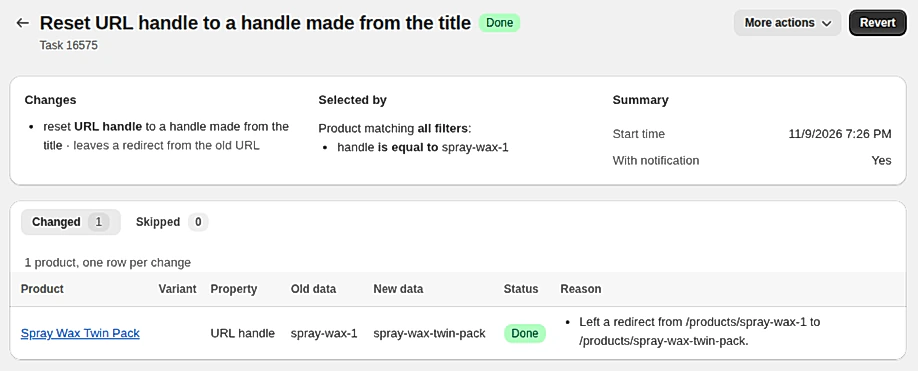
While a duplicate still has the original’s title, the handle made from it is taken, so Shopify keeps the numbered handle (ceramic-brake-pads-1 stays ceramic-brake-pads-1) and no redirect is created. The task, named “Reset URL handle to a handle made from the title”, lists such a product on the Skipped tab with “No change needed: ‘URL handle’ is already the handle Shopify makes from the title.”
The other handle actions are Change to, Replace text, Add text to the beginning, Add text to the end, Remove text and Copy from field. When you add a suffix, start it with a hyphen: “A URL handle has no spaces. Start with a hyphen to keep the words apart, for example -sale.” The page on bulk editing URL handles covers more handle jobs.
After the run, each log row shows the old and new handle, followed by “Left a redirect from” the old /products/… path to the new one.
What to check in the preview
- Preview matching products lists the products the task will change; it does not show the new texts. The count should match the products you expect to be missing a listing; a much larger list means a filter row is missing.
- To see real results first, add a Selected products row, pick two or three products, run the task and read their Search engine listing in Shopify. Then run the rest without that row.
- For handles, check that every product in the list really is a duplicate and not a product whose real handle happens to end the same way.
What revert restores
Tasks › task page › Revert writes back the SEO title, SEO description or handle each product had before the task. For SEO texts filled from empty, that means empty again, and search shows the product title once more.
Removing the redirect needs the optional URL redirects access (“Remove the redirects a URL handle task left when you revert it.”). With the access granted, the revert dialog of a handle task says “Revert also removes the redirect this task left from each old URL, unless it was changed in Shopify since.” Without it, the dialog says “The redirects this task left from the old URLs stay in Shopify (Content › Menus › URL redirects). Allow Product Edit to manage URL redirects and revert removes them.” and shows Allow removing redirects. Check it under Settings › Optional access and click Grant access if the row is not Granted; see Settings.
Note: After a handle revert, Shopify keeps no redirect from the new handle. Links shared or indexed while the task was live stop working.
Limits
- The templates use product fields only. A pattern cannot pull a word out of the description or write a different sentence per product; texts that differ product by product are better written by hand or brought in with Export & import.
- SEO title · is not equal to and does not contain leave out products with no SEO title. To include them, add SEO title · is empty and switch to Any filter.
- Each task changes a set number of products per plan.
You can also
- Remove or replace text in titles and descriptions, such as the word left in the titles of duplicated products
- Fill missing image alt text on the same products
- Edit collection titles and descriptions with the same text tools
Updated