“Can I change product prices via CSV without affecting other properties?” is a question merchants keep asking in the Shopify Community, and the next one is how to undo a file that went in wrong. Open Export & import › Import, upload the file, read each change with its old and new value, then click Start import. The import runs as a task you can revert.

How to update products from a file
- Start from an export, so the file has the columns the import reads: Export & import › Export, filter the products, tick the columns you want to change and download the file (see Export products to Excel or CSV). If you tick no ID, handle or SKU column, the app adds one: “Product ID is added first so the file can be imported back.”
- Edit the cells in Excel, Google Sheets or any spreadsheet. Delete the columns you are not changing if you like; keep the key column (the ID column, or the SKU for
variants and the handle for products and collections; metaobject entries match by ID only), and in a variants file keep the hidden
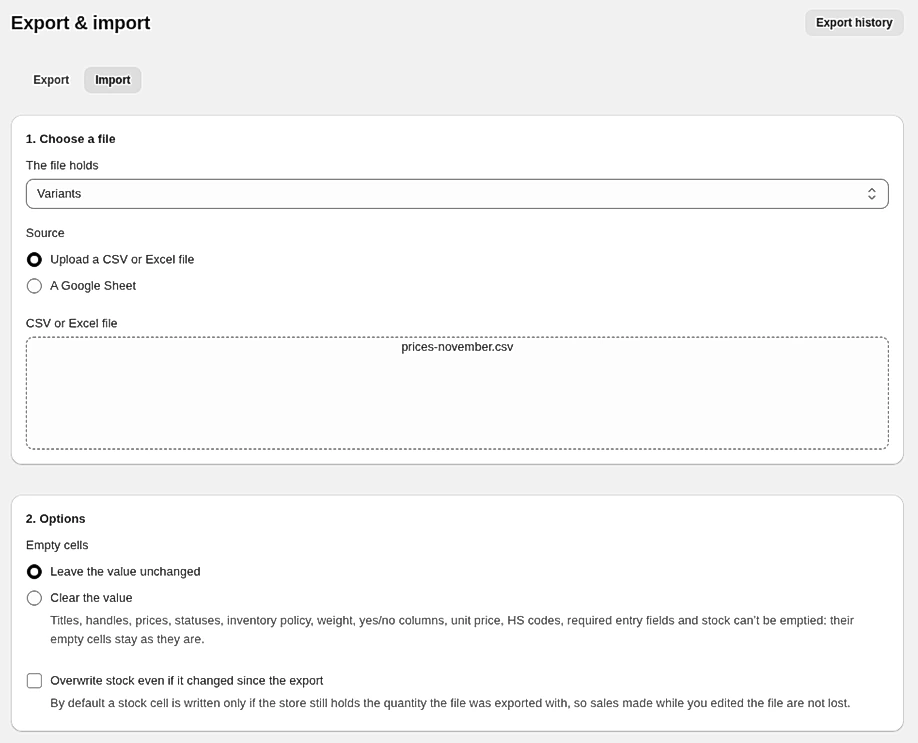
Inventory …: <location> (exported)columns and_exported_at. - Open the Import tab. Under 1. Choose a file, pick what The file holds: Products, Variants, Collections or Metaobject entries (Growth and up; then choose the definition: “The file’s columns are matched to the fields of this definition.”).
- Pick the Source:
- Upload a CSV or Excel file: drop the file on the box (“Accepts .csv and .xlsx files up to 20 MB”).
- A Google Sheet (Growth and up, after you connect Google Sheets in Settings): click Pick a Google Sheet and choose the spreadsheet.
- Under 2. Options, set Empty cells to Leave the value unchanged (the default) or Clear the value, and leave Overwrite stock even if it changed since the export off unless you mean it (see the stock section below).
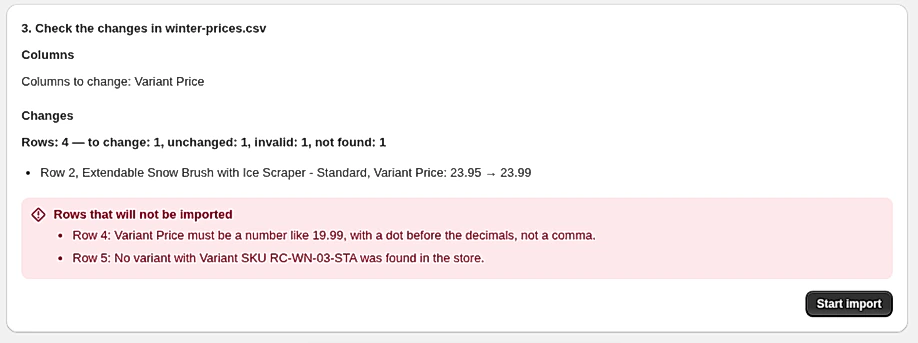
- Click Upload and preview. The app compares the file with your store and shows 3. Check the changes in followed by the file name.
- Read the review (next section), then click Start import. A green box says “The import started” with Go to tasks.
- The task appears in Tasks named after the file and the columns it changes, for example Import from file “prices-november.csv” (Variant Price), or Import from sheet “…” for a Google Sheet. Its Changed tab lists each cell it wrote.
How rows are matched
The import does not need the file in any order. Each row finds its record by the ID column; a row with an empty ID falls back to the second key. The How rows are matched note on the form says the same and links to Go to Export.
| The file holds | Matched by | If the ID cell is empty |
|---|---|---|
| Products | Product ID | Handle |
| Variants | Variant ID | Variant SKU |
| Collections | Collection ID | Handle |
| Metaobject entries | Metaobject ID | — |
So a supplier file with only SKUs and prices works as a Variants import: the app reads the plain headers sku, price,
compare at price, cost and barcode as the export’s Variant SKU, Variant Price, compare-at price, cost and
Variant Barcode columns, and qty, quantity or stock when the file has one location.
The full supplier job is on Update prices from a supplier’s price list.
- A SKU on two variants can’t pick one: “Variant SKU … matches 2 records: use the ID column instead.”
- When a row has both an ID and a handle, the ID decides. A handle that differs from the store becomes a new handle for that product, and the row is refused if another product already uses it: “The handle … is already used by another product.”
- One row per record: if two rows point at the same product, the second is refused (“… is already changed by row 2, so this row is not imported: a file changes each record in one row.”).
What to check in the review before you start
Nothing is written to your store until you click Start import, and the button stays grey when the file changes nothing. The review is the place to catch the mistake merchants report after a plain CSV import, such as prices that came back a hundred times higher.
- Columns to change names the columns that will write something. Same as in your store lists the columns whose cells already
match. Columns the import leaves alone: lists each skipped column with its reason: “Read-only column: an import does not change
it.” (Product ID, Image Src, option names and values, Product Category), “Sales channels are changed with the Sales channels editor.”,
or “Unknown column: it is not part of a Product Edit export.” for a column such as
Color. - The summary line counts the rows: “Rows: 2 — to change: 1, unchanged: 0, invalid: 1, not found: 0”. When a stock cell is held it adds stock held.
- Each change is one line with the row, the record, the column and the old and new value, such as row 2, Extendable Snow Brush with Ice Scraper, Variant Price from 23.95 to 23.99. Read a few of them; a price that jumped from 23.95 to 2395 shows up here.
- Rows that will not be imported lists each invalid row as “Row N: message”, for example “must be a number like 19.99”, “must be active, draft, archived or unlisted”, “must be g, kg, oz or lb” for Variant Weight Unit, or “No variant with Variant ID 1 was found in the store.” for a row that is not found.
- Cells left as they are because they can’t be emptied appears when Clear the value meets a column that must keep a value.
- Stock held because it changed since the export lists stock cells the import will not write (next section).
If a column needs an access the app does not have yet, a banner says so. With Image Alt Texts it reads “Product Edit needs access to product images for the Image Alt Texts column”, adds “Rows that change Image Alt Texts are skipped; grant access and upload the file again to include them. The other rows can be imported now.” and offers Grant access. After you grant access, upload the file again. If the comparison itself fails, the review shows “The changes could not be checked.” or “The preview failed” with Contact support.
Stock that sold while you edited the file
A stock count in a spreadsheet goes stale as soon as an order comes in. By default the import writes a stock cell only if the store still holds the quantity the file was exported with, so sales made while you edited the file are not lost.
- A held cell shows in the review with its row, product and column, the message “Stock changed since the export” and the two quantities (exported and current). The summary counts it under stock held.
- Turn on Overwrite stock even if it changed since the export to write the file’s number anyway. It overwrites any sale made after the export.
- A file you built by hand has no exported quantity, so its Inventory Available cells are held: “The file has no exported quantity to compare with: export it from Product Edit again, or choose to overwrite stock even if it changed.”
- An
Inventory Adjust: <location>column adds or subtracts (5,-2) from the current stock, so it needs no export check. - Use one of the two per location in a row. A row with both is refused: “Fill in either Inventory Available: Shop location or Inventory Adjust: Shop location, not both: one row cannot set and adjust the same stock.”
What empty cells do
Leave the value unchanged skips every empty cell, so a file with only SKU and Price columns, or with blank cells, changes nothing else. Clear the value empties the field for each blank cell, which is how you wipe compare-at prices, costs, SEO descriptions or tags in bulk. Some fields can’t be emptied: the help under Clear the value lists them, and their empty cells stay as they are.
Metafields in a file
Tick metafields in the Metafields group of the export (they show as “Name (namespace.key)”); the file gets one column per metafield
with the header Metafield: namespace.key [type]. Edit the values and import the file as usual: the review lists each metafield change
like any other column, and revert writes the old value back.
Files saved in Excel or Google Sheets
| What happens | What the app says or does |
|---|---|
| A CSV opened in Excel rounds long IDs | “Variant ID 6.82001E+13 was rounded by a spreadsheet. Export the file as Excel, or format the ID column as text before you save it.” See Open the file in Excel without broken IDs. |
| Saved in a non-UTF-8 encoding | “The file is not UTF-8 text.” In Excel, save it again with Save As and the CSV UTF-8 (Comma delimited) type, or upload the .xlsx file. |
| Old Excel format (.xls) | “Upload a CSV or Excel (.xlsx) file exported from Product Edit or saved from a spreadsheet.” |
| Semicolons as separators | read as usual; write prices with a dot (19.99), since a decimal comma makes the row invalid |
Cells starting with =, +, - or @ |
the import drops the leading ' the export adds to them |
| File over 20 MB | “Files up to 20 MB can be imported. Split the file into smaller ones.” |
What revert restores
Open Tasks, click the import task and click Revert. The badge goes from Revert queued to Reverting to Reverted without a page reload, and every cell the import changed gets the value it had before, including metafields and stock from Inventory Available or Inventory Adjust columns. Rows that were invalid or not found sit in the task’s Skipped tab with the same reason as in the review; the import never touched them, so revert has nothing to do there. The file or Google Sheet stays as you edited it. Revert covers imports run in Bulk Product Edit only: a file imported with Shopify’s own CSV import, or edits made elsewhere, can’t be reverted by the app. More on undo in Revert a bulk edit that went wrong.
Limits
- Plans: Free lists Export & import (first 10 records); Starter and up list Export & import (CSV, Excel). Google Sheets and Metaobject entries need Growth. An import runs as a task, and the Plans page caps each task by Records per task and Stock rows per task (Starter 2 000 / 3 000, Growth 10 000 / 15 000, Pro 100 000 / 150 000). Each record the file changes counts once, and stock-only rows count toward Stock rows per task. On Free an import stops at 10 records.
- An import changes field values only. Image files (Image Src, Variant Image), option names and values, the variant order and sales channels can’t be changed from a file; their columns are read-only, and those jobs have their own edits in New task.
- An Image Alt Texts cell with more alt texts than the product has images makes the whole row invalid (“Image Alt Texts lists 1 alt text, but the product has 0 images.”).
- One file up to 20 MB, one row per record.
You can also
- Update prices from a supplier’s price list
- Export products to Excel or CSV
- Revert a bulk edit that went wrong
- Compare bulk editing with Shopify’s CSV import
Updated