Merchants ask how to bulk upload alt text to their product images. To fill empty alt fields in one task, click Create task, pick Images, set Action to Image alt text, type a pattern such as {{title}} - {{n}}, filter by Image without alt text and Save. Written alt text stays.

How to fill missing alt text on every product
- On Home click Create task. Under 1. Records to edit keep Products & variants.
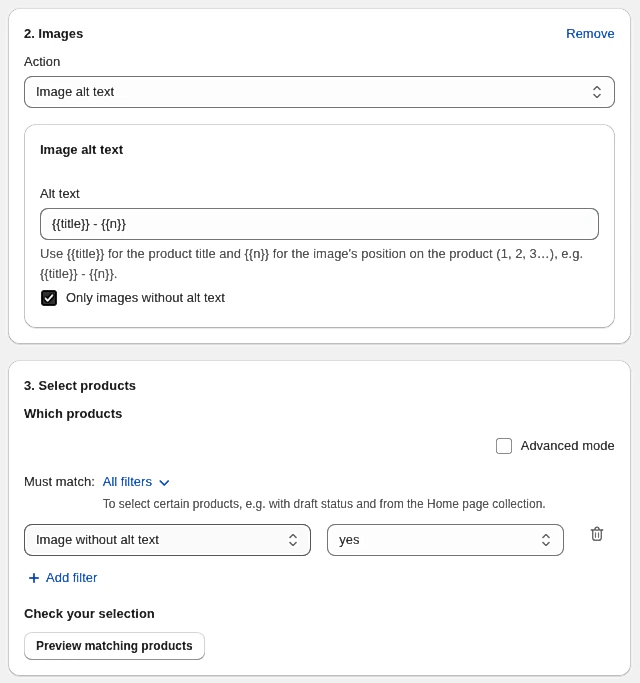
- In 2. Choose edits, type “images” in the field and choose Images under Other edits (run alone). A single 2. Images card appears, starting with an Action select.
- Set Action to Image alt text. If the card shows “Product Edit needs access to product images for this editor. Shopify asks you to confirm. Tasks with this editor can be saved once access is granted.”, click Grant access and confirm in Shopify. Until Product images is granted under Settings › Optional access, the task cannot be saved.
- In Alt text type the pattern.
{{title}}is the product title and{{n}}is the image’s position on the product (1, 2, 3…). With{{title}} - {{n}}, the photo of Chambered Muffler gets “Chambered Muffler - 1”, and a second photo on a product would get “ - 2”. Words you type around the tokens are written as they are, so{{title}} car brush photo {{n}}works too. - Tick Only images without alt text. Images that already have alt text keep it, so anything you or an SEO app wrote by hand stays.
- Under 3. Select products click Add filter and choose Image without alt text · yes. The task then covers only products with at least one empty alt field. Add more rows if you want one collection or vendor first, and leave Must match on All filters.
- Leave 4. Schedule on Now and save the task with Save in the top bar. The task gets a name like
Change Image alt text to {{title}} - {{n}}.
{{n}} counts every position on the product. If image 1 already has alt text and images 2 and 3 are empty, they get “… - 2” and “… - 3”, and image 1 is left alone.
How to check the preview before saving
Click Preview matching products before you save. With the Image without alt text filter the list holds the products that still have an empty alt field, so its length tells you how many products the task will touch. To leave a product out, tick it and click Exclude selected products.
The preview does not show the alt texts themselves; you see them on the task page once the task has run. The Changed tab shows one row per image with its old alt text, a dash for none, and the new one, such as “Chambered Muffler - 1”.
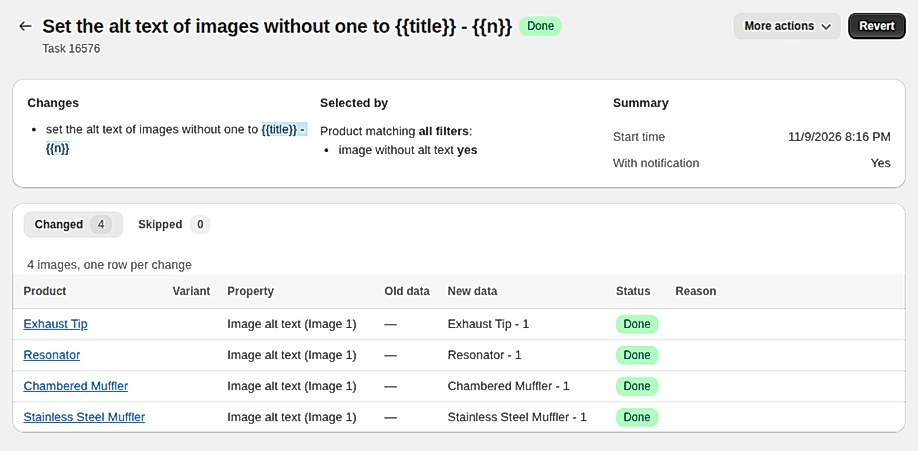
What revert restores
Revert on the task page writes back the alt text each image had before the task. For images that had none, the alt field is empty again.
Why images are skipped
An image Shopify could not process is skipped with “The image is not ready in Shopify (FAILED), so it was left as it is.” It shows a media error on the product in the Shopify admin; remove or re-upload it there, then run the task again.
Limits
- The pattern is the same for every image: product title, image position and the words you type. The app does not look at the picture, so it cannot write “red brush, side view” for one photo and “ice scraper blade” for another. For hand-written alt text per image, export the Image Alt Texts column under Export & import, write the texts in the file and import it. That import needs Product images access (Shopify asks you to confirm it), and a cell with more alt texts than the product has images makes the whole row invalid.
- Untick Only images without alt text and the task rewrites the alt text of every image on the matching products, the written ones included. Revert brings them back, but check the filter first.
- One task edits as many products as your plan allows per task: 10 on Free, 2,000 on Starter, 10,000 on Growth and 100,000 on Pro.
You can also
- Put variant images and product images in the right order
- Write SEO titles and meta descriptions for all products
- Remove a word from all product titles and descriptions
- Bulk edit SEO titles and descriptions, the feature page for search fields
Updated