“Set continue selling when out of stock for all my products” is a Shopify Community thread title: pre-orders or made-to-order goods, and a checkbox to tick on every variant. On the Home page, open Start a task, pick the ready-made edit Keep selling when out of stock, filter the products, then Save.
The same two settings switch back with the variant edits Continue selling when out of stock and Track quantity, part of the bulk edit inventory editors. Shopify calls the first one the inventory policy.

How to keep selling out-of-stock products
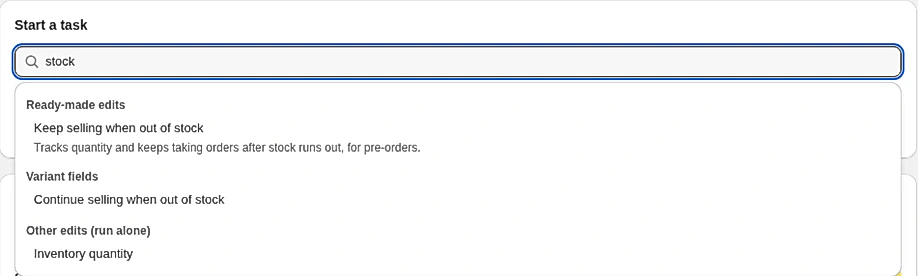
- On Home, type “stock” in Start a task and pick Keep selling when out of stock in the Ready-made edits group. Its help line reads “Tracks quantity and keeps taking orders after stock runs out, for pre-orders.”
- The new task opens with both edits filled in: Track quantity set to Track quantity and Continue selling when out of stock set to Continue selling when out of stock.
- In 3. Select products, add the filter that picks the pre-order or made-to-order products, for example Collection is equal to your pre-order collection, or a tag. To skip products that are already set, add Continue selling when out of stock no.
- Click Preview matching products and check the list (see below).
- Under 4. Schedule leave Now and click Save. The task opens in Tasks and runs.
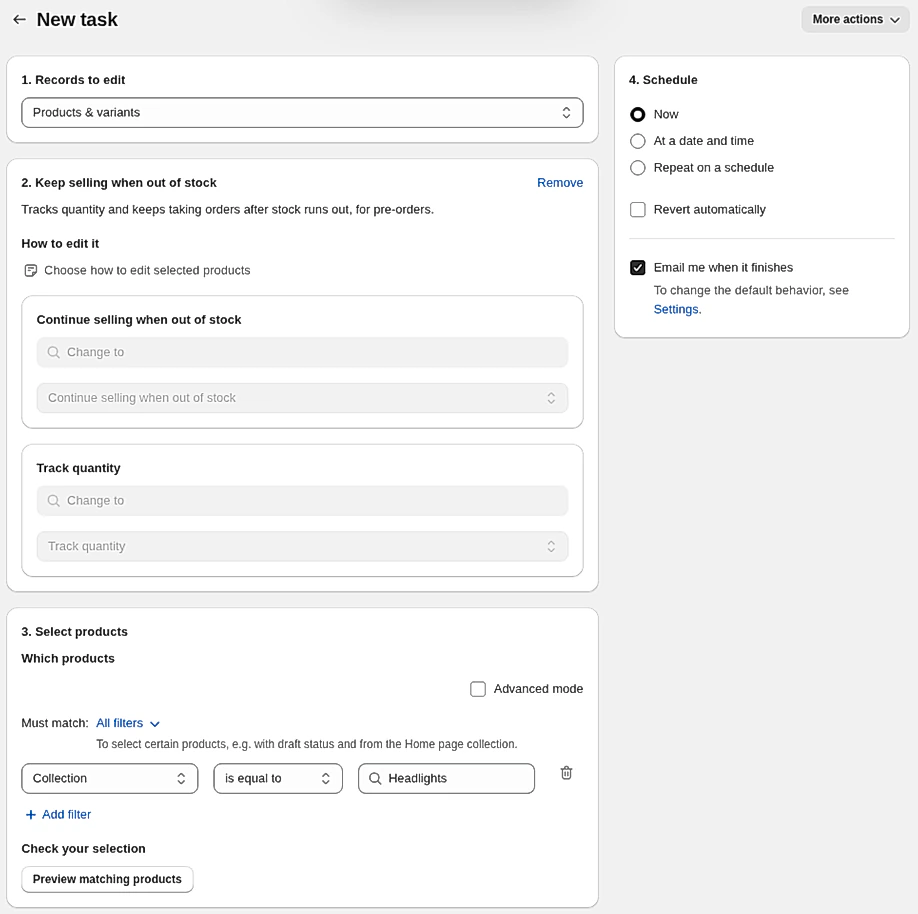
The edit covers every variant of each matching product. A variant that already had the setting still shows under Changed, with “Already set to … again” in the Service message column.
Note: Shopify only stops a sale at zero stock when it tracks the quantity. With Track quantity off, the variant is always available, whatever the policy says. That is why the ready-made edit turns tracking on as well. Shopify’s side is described in the Help Center.
How to stop selling at zero again
When the pre-order ends or the restock is in, switch the same variants back:
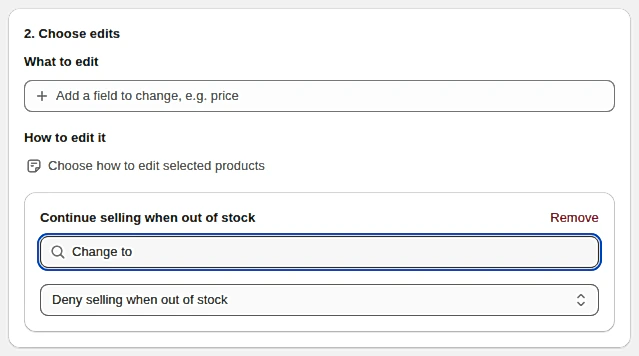
- Open New task. In 2. Choose edits, add Continue selling when out of stock from Variant fields.
- Keep Change to and pick Deny selling when out of stock.
- In 3. Select products, add the filter Continue selling when out of stock yes, plus the collection or tag of the pre-order products if only some of them should stop.
- Preview, then Save.
The same way works with Track quantity alone: its card offers Track quantity and Don’t track quantity. To find products whose stock Shopify does not count yet, filter Track quantity no.
How to set it on some variants only
Product filters match a product when any of its variants matches, and the edit then changes all of its variants. To put only one size
or color on pre-order, tick Advanced mode in 3. Select products. The filters there pick variants, and only those variants are
edited. Combine Option2: value (or the option that holds the size) with Quantity at most 0, or with Continue selling
when out of stock no.
What to check in the preview
- Preview matching products lists every product the task will change, with Total inventory and Total variants. A product with plenty of stock in that list will also sell past zero later; tick it and click Exclude selected products if it should not.
- In Advanced mode the button is Preview matching variants (title with the variant, price, compare-at price, quantity). It has no checkboxes: “Only the filters choose variants. To leave some variants out, narrow the filters.”
What revert restores
Open the task in Tasks and click Revert. Each variant gets back the policy and tracking it had before. The task log shows the change per variant in the app’s words, such as “Stop selling” to “Continue selling” or “Tracked” to “Not tracked”.
Limits
- The task changes the two Shopify settings and nothing else.
- The policy is one setting per variant for all locations (Help Center).
- Records per task depend on the plan: Free 10, Starter 2,000, Growth 10,000, Pro 100,000. The ready-made edit and both variant edits work on every plan.
You can also
- Hide sold-out products
- Set stock levels in bulk, for example zero before a pre-order opens
- Run the same task again for the next pre-order: Saved templates and ready-made edits
Updated