Before you save a task, click Preview matching products under Check your selection in step 3 of New task. The window lists every product your filters match. Tick the ones to leave out and click Exclude selected products. The new values are shown in each edit card’s calculation example, and after the run on the task page.

How to preview and exclude products
- In New task, add your edits and at least one filter under Select products.
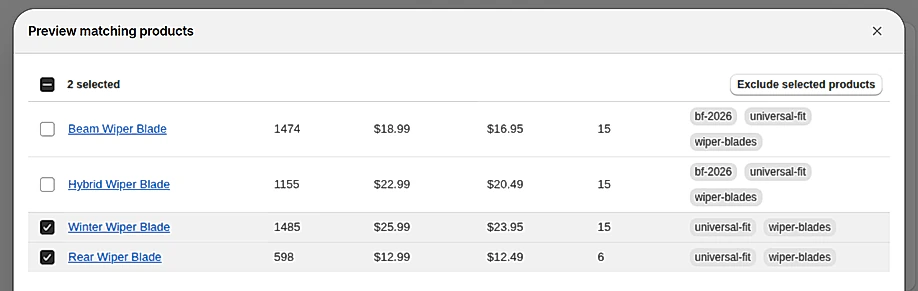
- Click Preview matching products. The window lists the matching products with Title (a link to the product in Shopify), Total inventory, Max variant price, Min variant price, Total variants and Tags.
- Tick each product the task should not touch. The header shows how many are selected.
- Click Exclude selected products. The window stays open: the excluded rows turn grey with an Excluded badge, and a line above the table reads “2 products excluded. Put them back under Excluded products on the form.”
- Click Close. The form now shows Excluded products with one chip per product. Click × on a chip to put that product back.
- Check the edit cards once more and click Save.
What happens to excluded products
- On the task page: Selected by lists your filters and, under “Manually excluded products”, each product you left out.
- Run again and templates: Run again and a saved template’s Use keep the exclusions. If you change a filter value, the exclusions are cleared, so check the preview again.
- Variants: you can exclude products only. In Advanced mode, Preview matching variants has no checkboxes and says “Only the filters choose variants. To leave some variants out, narrow the filters.”
Where to see the new values
The preview lists the matching products with their current values. The new values appear in two places:
- Before you save: each edit card has a calculation example. A price raised by 10 % and rounded to .99 shows an old price of 100.50 and a new price of 110.99.
- After the run: the task page lists every changed item with its old and new value on the Changed tab, and every skipped item with the reason on the Skipped tab. If a value is wrong, Revert a bulk edit that went wrong writes the old ones back.
When the preview shows too many or too few products
- Too many: add a filter, or set Must match to All filters so a product has to meet every row.
- Products with an empty field are missing: “is not equal to” and “does not contain” on fields such as Type or SEO title leave out products where that field is empty. Add a row for the same field with “is empty”, for example “Type is empty”, and set Must match to Any filter to include them. This works when that field’s filter is the only other row: Any filter applies to every row, so with a tag or vendor filter in the task it matches far more products.
- A product matched because of one variant: a product filter on a variant field, such as price, matches when any variant matches. To pick single variants, turn on Advanced mode and use the variant filters.
- Duplicates you want to clean up: the duplicate SKU, barcode and title filters are described in Find and fix duplicate SKUs.
Text filters ignore letter case, and “is equal to” matches the whole value. Every field and operator is in All filters and conditions.
Related
- How a task is built: the other steps of the New task form
- Edit in Product Edit from the Shopify admin: start from products you already picked in Shopify
- How to bulk edit Shopify products
Updated