Before Black Friday, a store with hundreds of products needs to “display sale prices and automatically revert to regular prices”, as one Shopify Community thread puts it, without retyping every price. In Bulk Product Edit, open Start a task, pick Sell products at a discount (by percentage), filter by collection or tag, set a start and a revert date under At a date and time, then Save.

How to set up a sale with an end date
-
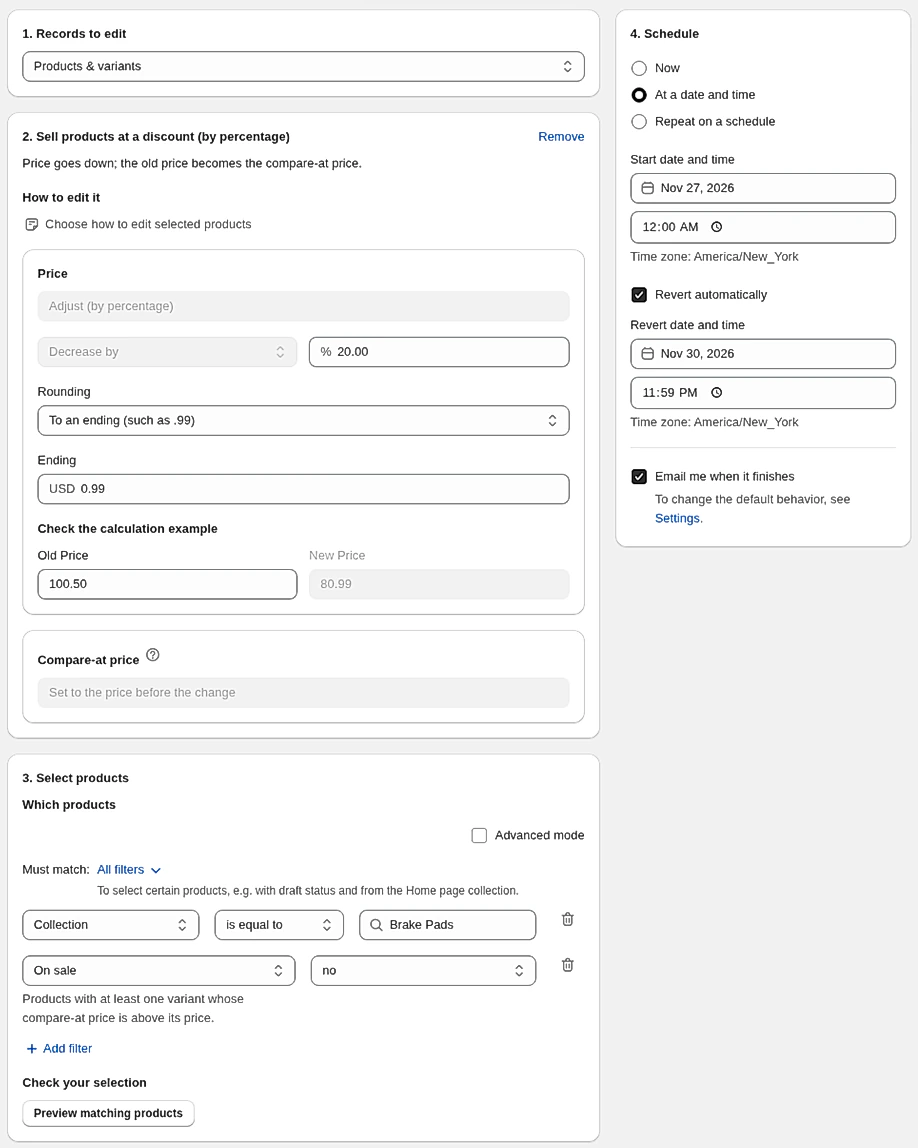
On the app’s Home page, type “discount” into Start a task or click the Sell products at a discount (by percentage) chip under Popular edits. New task opens with the card 2. Sell products at a discount (by percentage).
-
In the card, enter the percentage next to Decrease by. The price is set to Adjust (by percentage) and the Compare-at price edit is locked to Set to the price before the change, so the price before the sale becomes the struck-through compare-at price. Under Rounding, choose To an ending (such as .99) if your prices end in .99.
-
Under 3. Select products, click Add filter and choose Collection is equal to, then search for the sale collection, for example Brake Pads on MITS Auto Parts. To put a hand-picked group on sale, tag those products in Shopify first and use Tag is equal to that tag.
-
Add a second filter, On sale no, and keep Must match: All filters. This leaves out products that already carry a compare-at price, even one equal to or below the price (see the note below).
-
Click Preview matching products and check the list (next section).
-
Under 4. Schedule, choose At a date and time. Set Start date and time, tick Revert automatically and set Revert date and time for the moment the sale ends (Starter and up).
Start and revert times are read in your browser’s time zone, shown under each field as “Time zone: …”, for example “Time zone: America/New_York”. If you plan the sale from another country, or a teammate abroad sets it up, enter the times in that browser’s local time.
-
Click Save in the bar at the top. The task appears in Tasks with the status Scheduled and a Cancel button, its start time under “Start time” and the end under “Reverts”, and it is also listed in the Scheduled tab.
Note: The discount edits write the old price into the compare-at price, even where a variant already had one. A variant that is already marked down gets a second markdown, and its compare-at price drops to the current sale price. The On sale filter keeps those products out.
For a sale across the whole catalog, use the filter All products instead of a collection or tag. It removes every other filter row, so On sale cannot be combined with it; check the preview for products that already carry a discount and exclude them there.
Scheduling details, including what happens if you change your mind before the start, are on Schedule a task and its automatic revert.
Which discount edit to choose
Search “discount” in Start a task to see all four:
| Ready-made edit | Price | Compare-at price |
|---|---|---|
| Sell products at a discount (by percentage) | goes down by the percentage | the old price |
| Sell products at a discount (by amount) | goes down by the amount | the old price |
| Sell products at a discount at the same price (by percentage) | stays | the price plus the percentage |
| Sell products at a discount at the same price (by amount) | stays | the price plus the amount |
The “at the same price” edits show a discount without lowering what shoppers pay. The app warns above them: “Use a compare-at price you really charged; in the EU it must be your lowest price of the last 30 days.” If you sell in the EU, read EU sales: the lowest price of the last 30 days before you use them. For an EU sale, put the price cut and Compare-at price › Set to the lowest price of the last N days in the same task (Pro): if an earlier task cut the price, that sale price is already the lowest recorded price and every variant is skipped.
How to check the sale before saving
Preview matching products lists every product the task will touch, with its Min and Max variant price, total variants and tags. Look for two things:
- Products that should sit out the sale, such as new arrivals or items already at their floor price. Tick them and click Exclude selected products. Preview and exclude shows the whole modal.
- Products already discounted that the filters let through. To find them, add Discount % more than 0 for a moment and preview again; a product shows up when any of its variants is marked down.
The preview does not show the new prices. For those, use Check the calculation example in the edit card: at 20 % off, an old price of 100.50 becomes 80.40, and the compare-at price becomes 100.50.
What happens when the sale ends
At the revert time the task moves through Revert queued and Reverting to Reverted. Each variant gets back the price and the compare-at price it had before the sale started, including a compare-at price the sale overwrote. The revert starts at the minute you set.
The revert writes back the pre-sale value without checking for later edits. A price you change by hand in Shopify during the sale is overwritten, the task still ends as Reverted, and there is no warning. Do not hand-edit sale items while the sale runs, or re-apply that edit after the revert.
To end the sale early, revert the task by hand from its task page. The scheduled revert is then cancelled and does not run a second time.
If the status ends as Not fully reverted or Revert failed, open the task to see which variants were left; Revert a bulk edit that went wrong covers what to do next.
Limits
- Scheduling and Revert automatically need a paid plan (Starter and up). On Free you can run the discount now and revert it by hand from the task page.
- One task covers up to 2,000 records on Starter, 10,000 on Growth and 100,000 on Pro. A price edit counts one record per variant, so a sale on 3,000 products with 4 variants each is 12,000 records. A larger sale needs several tasks, for example one per collection.
- The app changes the price and compare-at price in your catalog. It does not create Shopify discount codes or automatic discounts.
You can also
- End a sale and restore prices that you set up without a scheduled revert
- Revert a bulk edit that went wrong
- Set the EU lowest price of the last 30 days as the compare-at price
- Plan a Black Friday sale on Shopify
Updated