Merchants ask about it in the Shopify Community as “Adding multiple products to collections” and “Bulk moving of products from one collection to another.” In Bulk Product Edit, open New task, add the Collections edit, choose Add to collections or Remove from collections, pick the products with a filter, check the preview, then click Save.
The same filters also drive price, tag and text edits for a whole collection: see bulk edit by collection.

How to add products to a manual collection
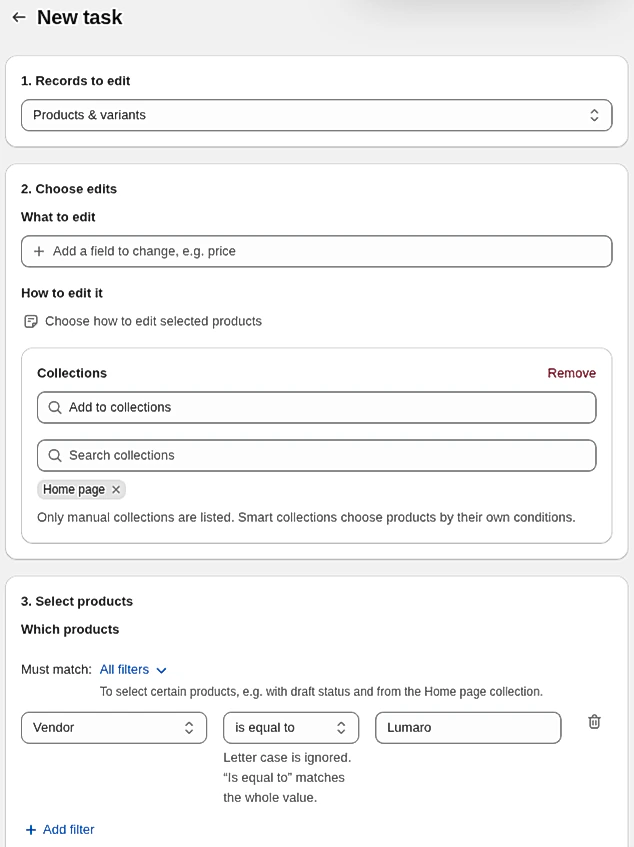
- Open New task. Under 1. Records to edit, keep Products & variants.
- Under 2. Choose edits, type “collections” in the What to edit box and pick Collections from the Product fields group. An edit card opens.
- In the card, choose Add to collections. Pick one collection or several in Search collections. The list says “Only manual collections are listed. Smart collections choose products by their own conditions.”
- Under 3. Select products, set the filter that finds exactly the products you want in the collection (table below). Under Must match, All filters picks products that match every row, Any filter picks products that match at least one.
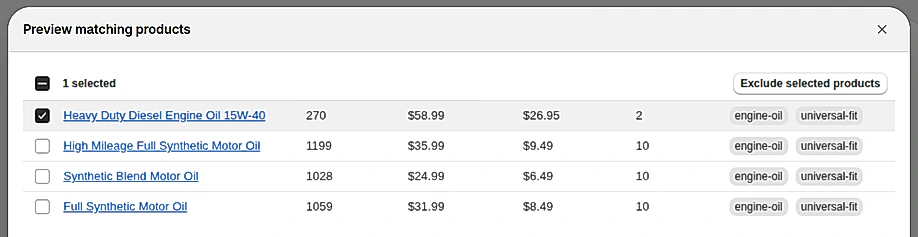
- Click Preview matching products and check the list (next section).
- Under 4. Schedule, keep Now and click Save in the bar at the top of the admin. The app shows “Task created” and opens Tasks with the new task.
Pick the filter by the products you start from:
| You want to add | Filter in 3. Select products |
|---|---|
| Every product of another collection | Collection is equal to that collection |
| Products that sit in no collection | In no collection yes |
| One brand, type or tag | Vendor, Type or Tag is equal to the value |
| Products you pick by hand | Selected products are (Shopify’s product picker, up to 250) |
The first filter row of a new task is already Collection / is equal to with a search box. Click the box to list every collection with its product count, or type the start of a word in the title: “brake r” finds Brake Rotors. On a large store, scroll the list to load more collections.
Collection is also a variant filter under Advanced mode › Variant filters. The Collections edit is a product field, so keep to the product filters for this job.
How to move products from one collection to another
A move is two tasks on the same filter. Run the add first: once the products leave the old collection, Collection is equal to the old collection no longer finds them.
- Create a task with Collections › Add to collections (the new collection) and the filter Collection is equal to the old collection. Save it and wait until it is done.
- Open the task in Tasks, then More actions › Run again. New task opens with the same filter and edit.
- In the edit card, switch to Remove from collections and pick the old collection in place of the new one.
- Click Preview matching products: it should list the same products as the first task. Click Save.
How to find products that sit in no collection
Add the filter In no collection and set it to yes, then click Preview matching products. That list is every product that is in no collection on your store. To put them somewhere, add the Collections edit with Add to collections in the same task and save.
Note: Collection is not equal to a collection also returns the products that are in no collection at all. Add In no collection no as a second row (with All filters) if you want only products that sit in some other collection.
How to check the preview before saving
Preview matching products lists every product the task will change: Title, Total inventory, Max variant price, Min variant price, Total variants and Tags. It does not show collections, so check two things:
- The count. For a move or a copy from one collection, the number of products should equal the count next to the collection in the Collection search.
- The titles. Tick any product that should stay out and click Exclude selected products. The excluded products appear as chips under Excluded products on the form; × on a chip puts the product back.
After the run, the task page lists each product under Changed with the collection in the Old data and New data columns.
What revert restores
Open the task in Tasks and click Revert. Each product goes back to the collections it was in before the task: a product added to a collection is taken out of it again. To undo a move, revert both tasks.
Limits
- Manual collections only. Smart collections pick their products by their own conditions, so the edit does not list them. To get a product into a smart collection, change the field its condition reads, for example a tag: see Clean up product tags.
- Existing collections only. The edit adds products to collections you already have; it does not create a collection or change the order of products inside one.
- Records per task. Each product counts as one record: 10 per task on Free, 2,000 on Starter, 10,000 on Growth, 100,000 on Pro.
- Collection titles and descriptions are a separate edit with Collections chosen under 1. Records to edit.
You can also
- Edit collection titles and descriptions
- Add or remove tags that smart collections read
- Set the product category in bulk
Updated