Products imported or added without codes go live with blank SKUs, and filling them on products already in the store is a frequent Shopify Community question (“bulk edit missing SKUs”). Filter the variants whose SKU is empty, add the SKU edit with Fill from a template, type a pattern, check the preview, then Save.
Each variant without a code gets one built from its own data, for example BRK-Front-Ceramic for the Front / Ceramic variant of a Brake Pad Set for Nissan Rogue 2021–2024 on MITS Auto Parts. Variants that already have a SKU stay out of the task, because the filter never picks them. The wider set of SKU and barcode edits is on the bulk edit SKUs and barcodes page.

How to fill empty SKUs on every variant
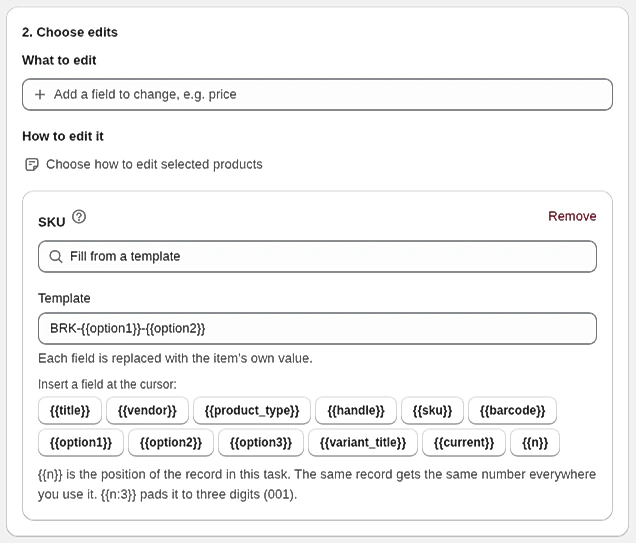
- Open New task. Under 2. Choose edits, search for “SKU” in the field box and pick SKU from the Variant fields group. The card for it appears under How to edit it.
- In the SKU card choose Fill from a template. Type the pattern into Template; the chips under it list the fields you can use.
- If the pattern has
{{n}}, two more settings appear. Set First number (“The first record gets this number.”) and tick Skip values already used in the store: before the run the app reads every SKU in the store, and a number whose value is already taken is skipped. - Under 3. Select products, tick Advanced mode and switch to Variant filters. Click Add filter and choose SKU › is empty.
- Narrow it if you need to, with All filters kept as the match mode: a Vendor or Collection row for one supplier’s range, or Option2: value › is empty to fill single-option products first, where a pattern without
{{option2}}is enough. That row leaves out every product with two or more options. - Click Preview matching variants and check the list (next section).
- Under 4. Schedule keep Now and click Save in the bar at the top of the admin. The task opens in Tasks.
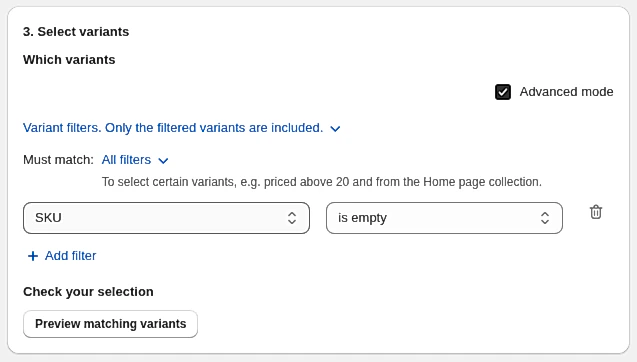
Note: Without Advanced mode, the product filter SKU › is/are empty skips a product that has SKUs on some variants but not on a newly added variant, such as a new Rear position. Use Variant filters to find single blank variants.
Fields you can put in the pattern
Anything you type around the fields stays as typed, so a fixed product code such as CREW- or BRK- goes straight into the template.
| Field | What it puts in |
|---|---|
{{option1}}, {{option2}}, {{option3}} |
the variant’s value of its first, second or third option, such as Black or M |
{{variant_title}} |
the variant’s title, such as Black / M |
{{title}}, {{handle}}, {{vendor}}, {{product_type}} |
the product’s title, URL handle, vendor and type |
{{barcode}} |
the variant’s barcode |
{{n}} |
a running number: the position of the variant in this task, counted from First number; {{n:3}} pads it to three digits (001) |
The SKU field also offers {{sku}} and {{current}}; on a blank variant both are empty, so leave them out of this job.
Two patterns that fit common catalogs:
BRK-{{option1}}-{{option2}}on MITS Auto Parts givesBRK-Front-Ceramic,BRK-Front-Semi-metallic,BRK-Rear-Ceramic. Option values go in as the variant shows them, so check values that contain spaces, such as Performance ceramic.BRK-{{n:3}}with First number 1 on MITS Auto Parts givesBRK-001,BRK-002and so on.
What to check in the preview
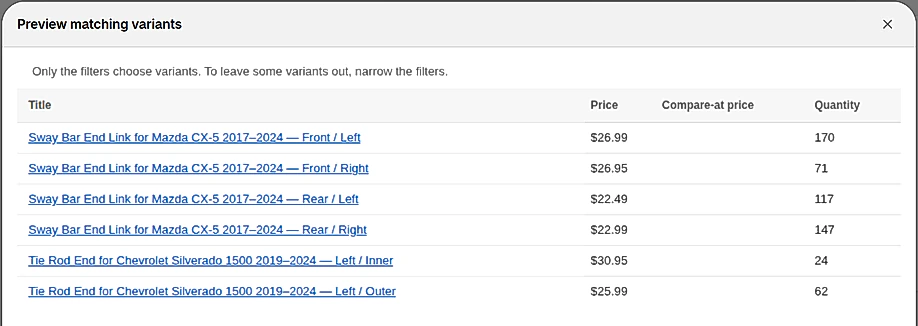
- Preview matching variants lists each matched variant with its price, compare-at price and quantity. The count should equal the number of blank variants you expect; a much larger list means a filter row is missing.
- The list shows which variants change; the new SKUs appear on the task’s Changed tab after the run. To see real results first, run the task on one product (add a Selected variants row and pick that product’s variants), look at the SKUs in Shopify, then run the rest.
{{n}}counts from First number again in every new task, so give the second task a First number past the last number the first one used. - The variant preview has no checkboxes. It says “Only the filters choose variants. To leave some variants out, narrow the filters.” How the product preview and exclusions work is on Preview and exclude.
Keep new products covered
New products that arrive without codes can be picked up on a schedule. Under 4. Schedule choose Repeat on a schedule with the same SKU › is empty filter (Starter and up; Starter allows 2 recurring tasks, Growth 3, Pro 7). A recurring task goes on numbering from where its previous run stopped, so {{n}} keeps counting across runs. Each run picks the variants again with SKU › is empty, so only codes still blank are filled. Recurring runs do not count toward Tasks used this month, and the task holds one recurring slot while it exists, stopped too.
What revert restores
Tasks › task page › Revert writes back the SKU each variant had before the task, which for this job means blank again. Run it before other systems (a fulfillment service, a marketplace feed) start using the new codes.
Limits
- A pattern without
{{n}}, such as{{handle}}-{{option1}}, gives Black / M and Black / L of the same product the same SKU. Check afterwards with the Duplicate SKU filter. - The template fields are the variant’s own values and none of them reads another variant’s SKU, so “give every variant the product’s main SKU plus the size” needs that main code typed into the template for each product.
- The app’s help for SKU reads “A case-sensitive identifier for the product variant in the shop.” So
crew-black-mandCREW-Black-Mare different codes. - SKU is a variant field, so every variant is one record: a store with 800 products × 4 sizes and no SKUs is 3,200 records, more than Starter’s 2,000 per task and within Growth’s 10,000. Variant filters only narrow which variants change and add no records, and variants skipped without a change do not use the limit. A larger catalog needs several tasks, each with a First number past the numbers the previous one used.
You can also
- Find and fix duplicate SKUs after a pattern without a running number
- Fix missing and duplicated barcodes with the same template approach
- Add a new size to many products and give the new variants SKUs in the same task
Updated