Open Sidekick in your Shopify admin and ask your question with the app’s name as Sidekick knows it, Product Edit by MITS. Answer Yes when Sidekick asks for access. Sidekick can also pass products to a new task, or send texts it wrote to the Changes from Sidekick page, where nothing changes until you click Apply changes.
Sidekick works on every plan, Free included. It reads your tasks and plan from the app. Through Product Edit by MITS, Sidekick does not change products: each change it suggests becomes a normal Bulk Product Edit task that you can revert like the ones you build yourself.

How to ask Sidekick about your tasks and plan
- In the Shopify admin, open Sidekick (Work with Sidekick in the admin bar).
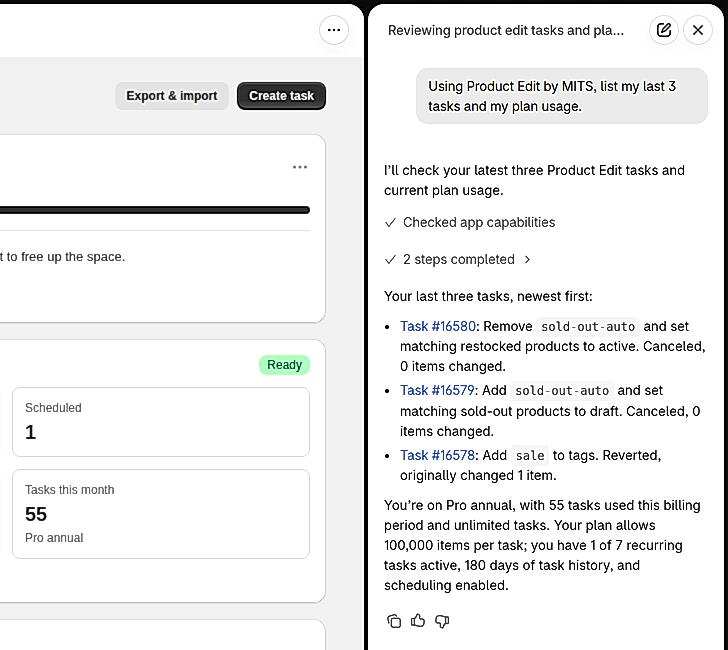
- Type a request that names the app, for example “Using Product Edit by MITS, list my last 3 tasks and my plan usage.”
- Sidekick asks “Allow Sidekick to use Product Edit by MITS for this request?” Choose Yes, or Yes, and don’t ask again to skip this question next time.
- Sidekick answers with the app’s data. For tasks it lists the newest ones with a link to each and a short summary, such as “Replace “Rotors” with “Discs” in collection titles, reverted. Originally changed 1 collection and skipped 1.”
For plan usage, the answer names your plan, how many tasks you used this billing period and how many are available, the items allowed per task, the active recurring tasks out of your limit, whether scheduling is included and how many days of task history the app keeps. The same numbers are listed by plan in Plans and limits.
The app also gives Sidekick the details of a single task, your recurring tasks and the list of fields it can edit, so you can ask about those the same way.
How to send texts from Sidekick to a task
Sidekick can write new values, such as SEO titles, and send them to the app for review.
- Ask Sidekick to write the text and send it to the app, for example “Write a new SEO title for the product Radiator for Honda Civic 2016-2021 and send it to Product Edit by MITS so I can review it.”
- Answer Yes to the access question. Sidekick says “Taking you there…” and the app opens Changes from Sidekick.
- Read the page. It says “Sidekick prepared these changes. Check the old and new values, then apply them. Nothing changes until you apply them, and the task can be reverted from Tasks.” Under Check the changes you see Fields to change (here SEO title), the number of changes and one line per product with the old value and the new one.
- Click Apply changes to run them as a task, or Cancel to go back to the app’s Home with nothing changed.
- After Apply changes the task appears in Tasks under a name like “Sidekick changes: SEO title on 1 product”. Open it to see its logs, or click Revert to restore the old values.
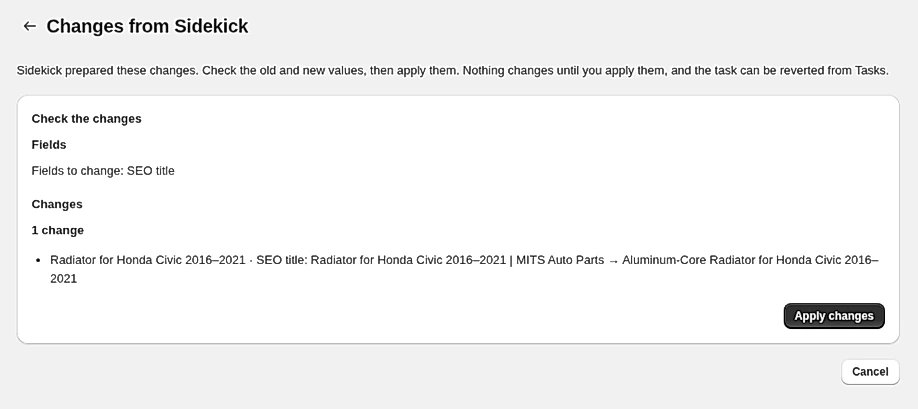
Sidekick’s changes run through the same import as a spreadsheet you upload, so they revert the same way. Import a file you can revert covers values you prepare in a file.
How to send products from Sidekick to a new task
- Ask Sidekick to find products and open them in the app, for example “Open Product Edit by MITS to raise the price of Radiator for Honda Civic 2016-2021 by 1.”
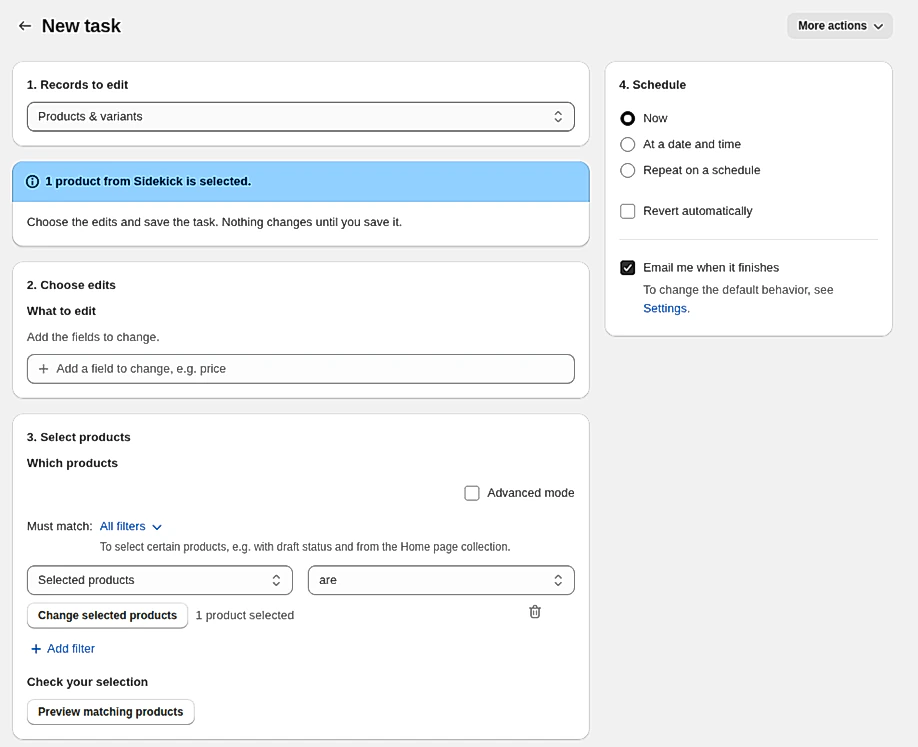
- Answer Yes to the access question. The app opens New task with the banner “1 product from Sidekick is selected.” and the Selected products filter set to them.
- The edit itself is not carried over, and Sidekick may tell you it could not fill it in. Under 2. Choose edits, pick the field in the box “Add a field to change, e.g. price” and set the value yourself.
- Preview the task and click Save.
Admin selections open the same way, as shown in Edit in Product Edit from the Shopify admin.
Limits
- Through Product Edit by MITS, Sidekick does not change products. Every change waits for Apply changes on the review page or Save on New task.
- A product hand-off brings only the products. You choose the edit and its value in the app.
- Changes from Sidekick run as an import task, so they apply only as many records as your plan allows per task (10 on Free). One review holds at most 250 changes. A product hand-off opens New task, where the usual task limits apply.
- On a plan without Sidekick (older plans), a product hand-off shows the banner “Opening a selection from Sidekick needs the … plan” (the app names the plan) and “Choose the products with filters below, or change the plan to start from your selection.”
- Sidekick asks for access on every request until you choose Yes, and don’t ask again.
Related
Updated