A new line sits in drafts until launch day, and when a season ends, its products have to come off sale in bulk. In Bulk Product Edit, open New task, add Product status, choose Change to and a status, pick the products with filters, check the preview, choose when it runs under 4. Schedule, then click Save.
The task sets one status on every matching product, at the time you choose, and keeps the old status of each one so Revert can put it back. The bulk edit product status page walks through the same edit with a midnight launch.

Which status to choose
The Product status edit has one action, Change to, with four values:
| Status | Use it to |
|---|---|
| Active | launch products that are ready to sell |
| Draft | take products off sale while you rework them, or prepare a launch |
| Archived | take old products off sale without deleting them |
| Unlisted | keep products for sale by direct link only: Shopify hides them from collection pages, storefront search, product recommendations, internet search and the sitemap (unlisted products) |
How to launch a new collection at a set time
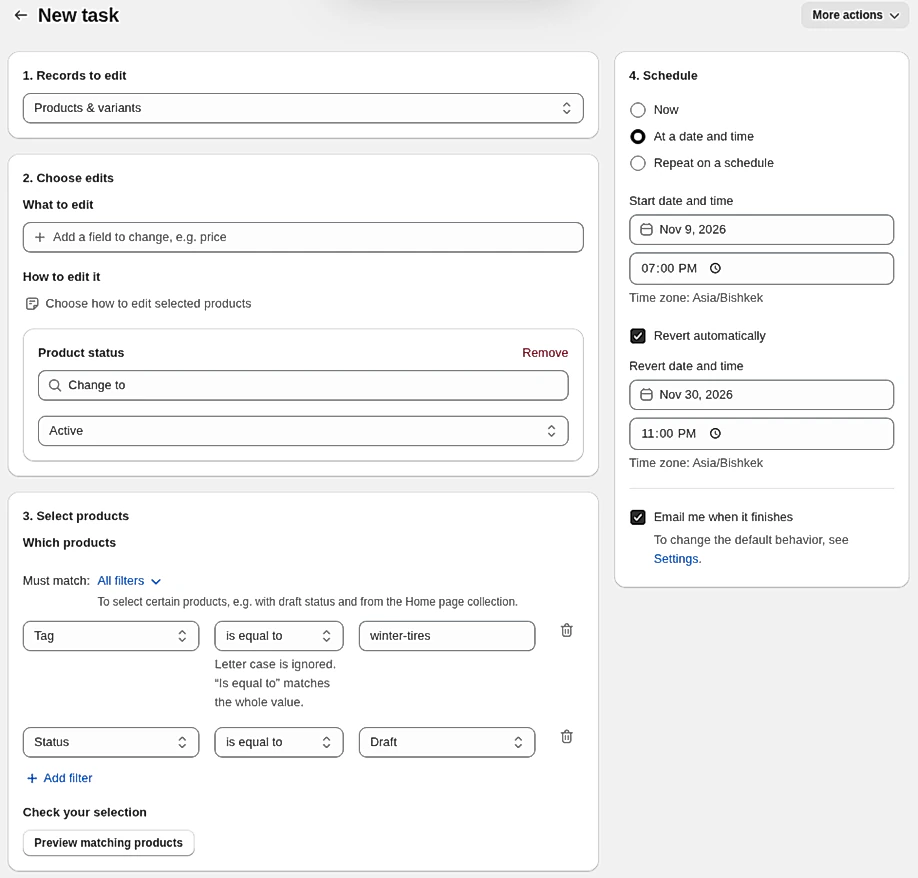
- Open New task. Under 1. Records to edit, keep Products & variants.
- Under 2. Choose edits, add Product status, choose Change to and select Active.
- Optional: add a second product field to the same task, for example Tags › Remove tags with
coming-soon. Product field edits run together in one task, one log row per field. - Under 3. Select products, add Tag is equal to
winter-tires(or Collection is equal to your new collection), then a second filter Status is equal to Draft, with Must match: All filters. The status filter keeps already active products out of the task. - Under 4. Schedule, choose At a date and time (Starter and up) and set Start date and time. The line “Time zone: …” under the box names the zone the time is read in, which is your browser’s time zone; a teammate in another zone sees and sets times in theirs. The default is the next full hour.
- Optional: tick Revert automatically and set Revert date and time if the line should go back to draft after a limited run, such as a holiday collection. If you revert the task by hand before that time, the scheduled revert is canceled and does not run a second time.
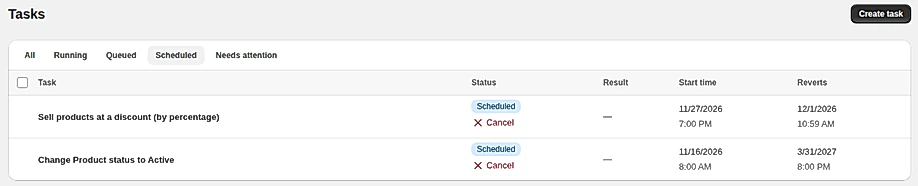
- Click Save. The toast says “Task created”, and the task waits in Tasks under the Scheduled tab until its start time.
A scheduled task starts within a few seconds of its start time.
To change a scheduled task, cancel it and start it again: open the task, then More actions › Cancel task, then Run again with the new time. Cancel has no confirmation dialog.
A product that is not published to the Online Store stays hidden there even when it is active (sales channel availability). A few days before the launch, preview the same tag with Online Store is equal to not published to find those products.
How to archive old products in bulk
- Open New task, add Product status, choose Change to and select Archived.
- Under 3. Select products, pick the products to retire. Filters that fit this job:
- Status is equal to Active, so drafts you are still working on stay as they are;
- Created time older than a number of days, or Published time before a date, for last year’s range;
- Tag or Collection for a named season or a discontinued brand;
- Total quantity is equal to
0for products that sold out and will not come back.
- Under 4. Schedule, keep Now, or choose At a date and time to archive the line the night the season ends.
- Click Save.
The same steps with Unlisted or Draft pull products from browsing or from sale without archiving them.
How to check the preview before you save
Click Preview matching products under 3. Select products. The list shows each product’s title, total inventory, prices, number of variants and tags; it does not show the status, so the Status filter is what guarantees that part. Check two things:
- the count and the titles match the line you mean to launch or retire, with no bestseller that happens to share the tag;
- products you want to leave alone are ticked and taken out with Exclude selected products. They stay out on Run again too.
Status filters for variant edits
When a task edits variant fields, such as prices for the new line, switch on Advanced mode › Variant filters and use Status (product) is equal to Draft. It picks the variants of draft products only. Variant field edits cannot go into the same task as Product status, so set the prices in a separate task before the launch task runs.
What revert restores
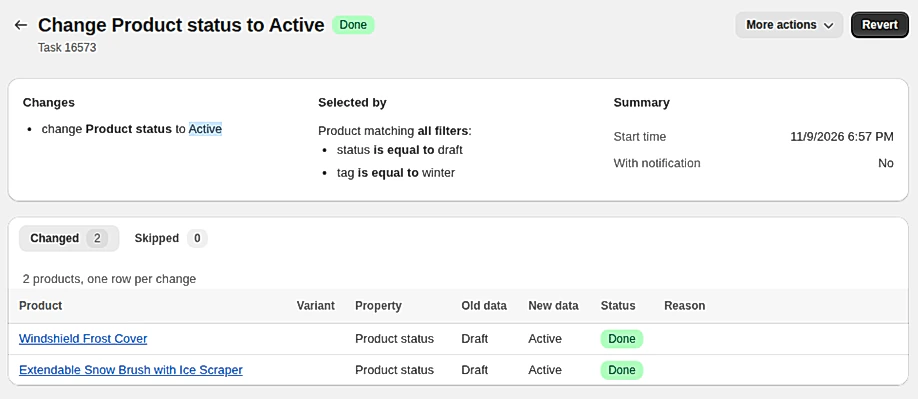
Open the finished task and click Revert. Each product gets back the status it had before the task: archived products return to active, launched products return to draft. On the task page the Changed tab lists every product with Old data and New data, such as Draft and Active.
Note: A done task that changed products cannot be deleted from the list; revert it first. Delete task is offered only on canceled, failed and reverted tasks, and on done tasks that changed nothing.
Limits
- The task changes the status field only. It does not change which sales channels a product is published to; that is the Sales channels edit (sales channel availability).
- Records per task depend on the plan: 10 on Free, 2,000 on Starter, 10,000 on Growth, 100,000 on Pro. Retiring a large range on Free means many small tasks.
- The app does not delete products, so archiving is the furthest it goes. To remove products for good, delete them in the Shopify admin.
You can also
- Schedule a task and its automatic revert
- Hide products that are sold out
- Publish or unpublish products on sales channels
Updated