To move forty brake kits onto a new product.sale page, open New task in Bulk Product Edit, add the Theme template edit, choose a template from your published theme, filter the products, check the preview, then click Save.

How to give many products another template
- Open New task. Under 1. Records to edit, keep Products & variants.
- Under 2. Choose edits, type “template” in the What to edit box and pick Theme template from the Product fields group. An edit card opens.
- In the card, choose Change to and pick the template in Choose a template. The list holds the product templates of your published theme. If it says “The published theme has no other templates of this kind. Add one in Online Store › Themes › Customize.”, create the template in the theme editor first.
- Under 3. Select products, set the filter that finds exactly the products that should get the template (table below).
- Click Preview matching products and check the list (next section).
- Under 4. Schedule, keep Now and click Save.
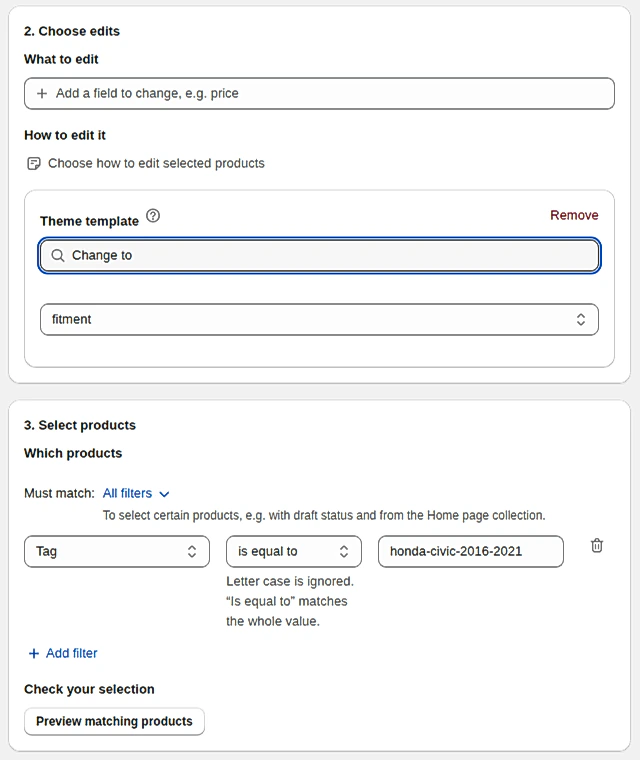
The template is named by its suffix, as the field’s help says: “sale” for product.sale.json.
| You want to change | Filter in 3. Select products |
|---|---|
| Products of one brand, type or tag | Vendor, Type or Tag is equal to the value |
| Every product on one template | Theme template is equal to its suffix, for example sale |
| Every product on any non-default template | Theme template is not empty |
| Products on the default template | Theme template is empty |
| Products you pick by hand | Selected products are (Shopify’s product picker, up to 250) |
If gift cards could match the filter, add the row Is gift card no to keep gift cards out of the task.
Note: Theme template is not equal to
saleleaves out the products on the default template. To include them, add a second row Theme template is empty and switch Must match to Any filter. This works only when the task has no other filter rows, because Any filter applies to every row.
How to reset products to the default template
Choose Use the default template in the Theme template card in place of Change to. Filter by the template you are retiring, for example Theme template is equal to sale, or Theme template is not empty to reset every product that uses any custom template. The products then use your theme’s standard product page.
How to change the gift card template
Gift cards have their own edit. Pick Gift card template in step 2, then choose Change to with the template or Use the default template. Its help says it changes only gift card products and skips the rest. Set the filter Is gift card to yes so the preview lists the gift cards alone; any other product that matches lands under Skipped on the task page.
Is gift card also exists as a variant filter under Advanced mode › Variant filters. Both template edits are product fields, so use the product filters for this job.
How to check the preview before saving
Preview matching products lists every product the task will change. It does not show the current template, so check the count and the titles:
- With Theme template is equal to a suffix, the count is the number of products on that template today.
- Tick any product that should keep its page and click Exclude selected products; × on its chip under Excluded products puts it back.
After the run, the task page lists each product under Changed with the old and new template. A product that was on the default template shows “—” as its old value.
Theme templates access
The template list needs the optional Theme templates access (“Choose a product or gift card template from your published theme.”). Without it, the edit card shows a banner that asks for this access, with Grant access. Shopify then opens its Update data access window; click Update and the list fills. If you cancel, the banner says access was not granted, and the editor can’t be used until you grant it. You can grant the same access later under Settings › Optional access: see Settings.
What revert restores
Open the task in Tasks and click Revert. Each product goes back to the template it had before the task, the default template included.
Limits
- Published theme only. The list shows the templates of the theme that is live. A template that exists only in an unpublished theme is not offered, as the field’s help says: “The template must exist in the published theme.”
- The app assigns templates. It does not create or edit a template’s layout. Build the template in Online Store › Themes › Customize first.
- Records per task. Each product counts as one record: 10 per task on Free, 2,000 on Starter, 10,000 on Growth, 100,000 on Pro. Both template edits are on every plan.
- Every option of these two edits is listed in All edits and their options.
You can also
- Launch, draft or archive products
- Bulk edit product status on Shopify
- See what Bulk Product Edit can change
Updated