One Shopify Community thread is titled “Changing weight on a product is not updating shipping costs”. Check for variants with no weight or the wrong unit first. To fix them, open New task, find those variants with the Weight filter, add the Weight edit, check the preview, then Save. The same task form marks variants as physical or digital.

How to find variants with no weight
Weight belongs to each variant, so filter variants. A product filter on weight matches a product when any one of its variants matches, while is empty needs every variant to be empty; either way the task would then edit every variant of that product. See the filters reference.
- Open New task. Under 1. Records to edit keep Products & variants.
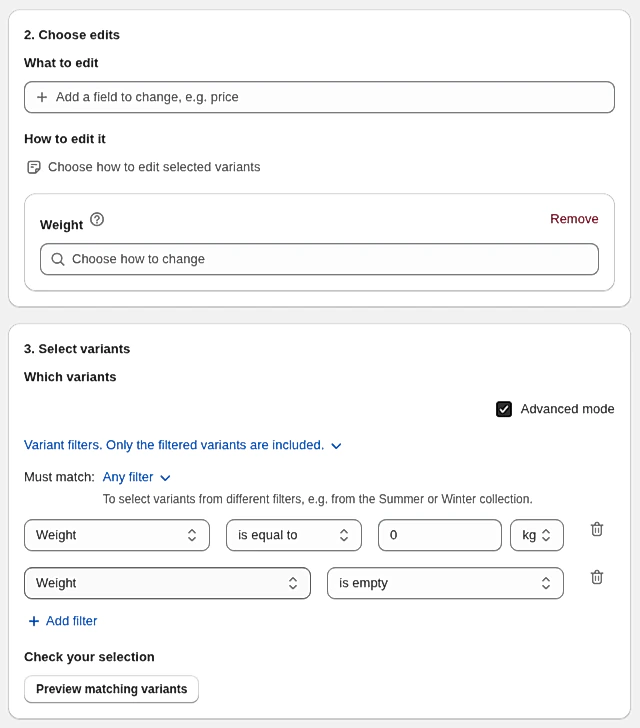
- Under 2. Choose edits, type “weight” in Add a field to change, e.g. price and pick Weight from Variant fields.
- Under 3. Select products, tick Advanced mode and switch to Variant filters. The task now edits only the variants the filters pick.
- Click Add filter and set Weight is equal to
0. Add a second row, Weight is empty, and set Must match to Any filter, so both kinds of missing weight are picked. - Click Preview matching variants to see the variants the filters pick.
The weight filter takes a unit (g, kg, lb or oz) and converts between them: Weight at least 0.5 lb also finds a variant saved as 500 g. That makes the filter useful for finding outliers too, such as a T-shirt saved as 200 kg instead of 200 g.
How to set or convert weights
The Weight edit has four actions:
| Action | What it does |
|---|---|
| Change to | Writes the same weight on every selected variant |
| Adjust (by amount) / Adjust (by percentage) | Raises or lowers each variant’s current weight |
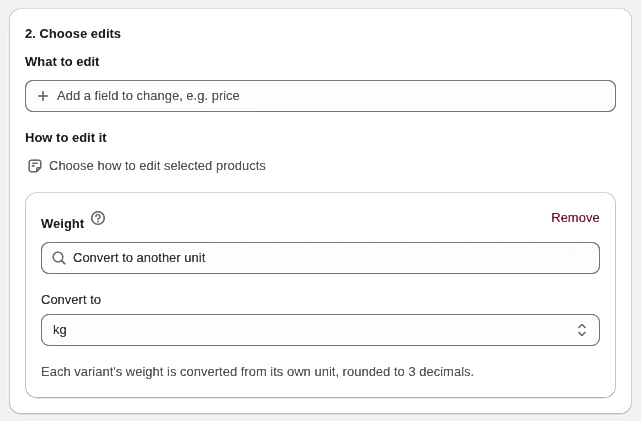
| Convert to another unit | Recalculates each variant’s weight from its own unit into the unit in Convert to |
Use Change to when the variants you picked really weigh the same, for example one size of brake pads in MITS Auto Parts. When every product has its own weight, filter one product group at a time, or set the weights in a spreadsheet: the Export & import screens have a Weight column and a Weight Unit column, and the import refuses a row with a weight unit other than g, kg, oz or lb. Export and import beyond the first 10 records need the Starter plan or higher. With the default import option Leave the value unchanged, an empty weight cell leaves the weight as it is.
Use Convert to another unit when the numbers are right but the units are mixed, so the whole catalog reads in kg or in lb.
How to mark products as physical or digital
The variant edit Physical product (requires shipping) has one action, Change to, with two values: Physical product (requires shipping) and No shipping required. Use it when a downloadable file, a gift service or a booking was saved as a shipped item, or when a real product was switched off by mistake. To find the variants to change, use the filter Physical product (requires shipping) with yes or no; it exists for products and for variants.
For products you deliver without shipping, the ready-made edit Make products digital sets both fields at once: No shipping required and Don’t track quantity. Search “digital” in Start a task on Home and pick it; the task opens with both edits already set, so you only choose the products. See saved templates and ready-made edits.
How to see which shipping profile a product uses
The product filter Shipping profile (is equal to or is not equal to a profile) lists the products in a profile. Pick a profile, such as General profile, and click Preview matching products. Add the product filter Weight is equal to 0 and it shows which products in an expensive profile still have no weight.
The filter needs the optional access Shipping profiles. Without it, the filter row shows “Product Edit needs access to shipping profiles for this filter” and a Grant access button. Shopify’s confirmation window lists this access as “View orders” with “Shipping information”; the app only reads your shipping profiles. You can grant it from the banner or from Settings › Optional access.
How to check the preview before saving
With variant filters, Preview matching variants lists each variant’s title, price, compare-at price and quantity. It does not show weights, so check the scope there: the count and the titles match what you expect, and no variant from another group slipped in. The list has no checkboxes; to leave some variants out, narrow the filters.
With product filters, such as Shipping profile or Physical product (requires shipping), Preview matching products shows each product’s title, total inventory, prices, number of variants and tags. Tick a product that should be left alone and click Exclude selected products.
After the task runs, the Changed tab on the task page lists each variant with its old and new value. The weight unit shows there as Shopify writes it, for example from 0 POUNDS to 0.20 POUNDS for lb. Open two or three of the products in Shopify and check the weight. Weight changes the shipping rate only with weight-based or carrier-calculated rates; if you use them, run a test checkout to see the new rate.
What revert restores
Open Tasks, open the task and click Revert. A Physical product (requires shipping) change goes back to the value each variant had before the task. A Weight task with Change to is reverted the same way: every variant it changed gets its old weight back. After a Convert to another unit task, Revert brings back both the number and the original unit: a variant converted from 15.8733 lb to 7.2 kg shows 15.8733 lb again.
Limits
- Moving products to another shipping profile is not possible in the app. The app can filter by shipping profile but cannot change it; assign products to a profile in Shopify admin, see Shopify’s help on shipping profiles.
- A weight edit counts one record per variant, so a product with four variants uses four records.
- Records per task depend on the plan: Free 10, Starter 2,000, Growth 10,000, Pro 100,000.
You can also
- Add HS codes and country of origin for international shipping
- Show unit prices on many products sold by weight or volume
- Saved templates and ready-made edits, to rerun the weight check on new products
- Bulk edit weights: the feature overview
Updated