One Community thread is titled “When duplicating a product, the barcode is also duplicated”. The copy carries the original’s code, and some variants have no barcode at all. Open New task, pick the variants with the Duplicate barcode or Barcode filter, add the Barcode edit with Fill from a template, check the preview, then Save.

How to find variants with a missing or duplicated barcode
Barcodes belong to variants, so filter variants. On New task tick Advanced mode and switch to Variant filters; the task then edits only the variants the filters pick.
| Filter | Pick | Finds |
|---|---|---|
| Barcode | is empty | variants with no barcode |
| Barcode | is not empty, is equal to, is any of | variants that already carry a code, or one exact code |
| Duplicate barcode | yes | variants whose barcode is also on another variant |
Product filters have the same two rows but match whole products, so a T-shirt with a barcode on size S and none on M and L does not show up under Barcode is/are empty: a product matches only when every variant has an empty barcode. Use Variant filters for this job; All filters and conditions explains the difference.
Duplicate barcode reads your whole catalog before it answers: the preview says “Finding duplicates in your catalog… This can take a few minutes.” When nothing clashes it says “No duplicate barcodes found.” On a large catalog add a second row (Vendor, Tag or Collection) so the list shows only the products you mean to fix.
How to give each variant its own barcode from a pattern
Use this for internal barcodes: codes you print on your own labels and scan with your own POS or warehouse scanner.
- Open New task, tick Advanced mode and choose Variant filters.
- Add the filter for the job. Missing: Barcode is empty. Duplicated: Duplicate barcode yes, plus Variant’s created time within the last 30 days, so the copies you made by duplicating get new codes and the older originals keep theirs. Leave Must match on All filters.
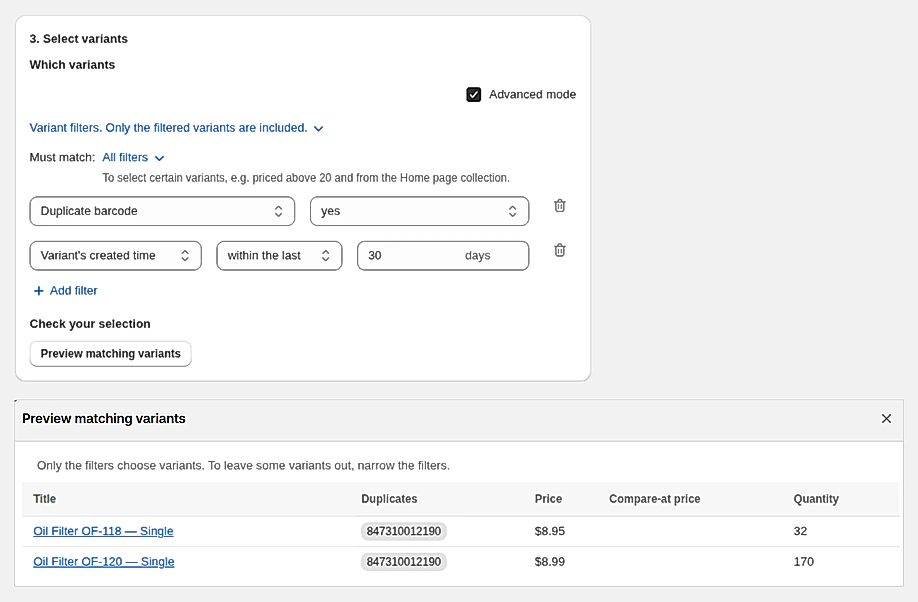
- Click Preview matching variants and check the list (see the next section).
- Under 2. Choose edits open the box “Add a field to change, e.g. price”, pick Barcode in the Variant fields group, choose Fill from a template and type the pattern in Template.
{{n}}is a running number, the position of the variant in the task. With the template2000{{n}}and First number 1001, the first variant gets20001001, the next20001002.{{n:3}}pads it to three digits (001). To make the barcode equal to the SKU, click the{{sku}}chip, which inserts{{sku}}into Template; check first that every SKU is filled and unique. The Example: line shows only when the template holds{{n}}: for{{sku}}-{{n}}it reads “Example: [sku]-1, [sku]-2”. With{{n}}in the template, tick Skip values already used in the store so a running number never repeats a barcode you already have: “Before the run, every value of this field in the store is read; a number whose value is taken is skipped.” - Under 4. Schedule keep Now and click Save.
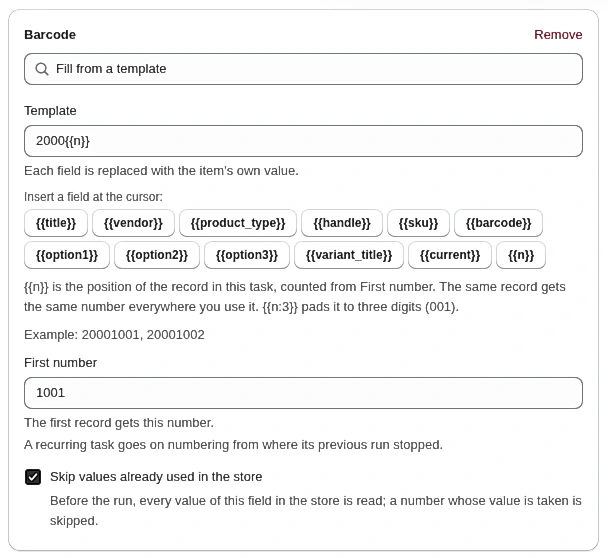
Note: Change to on Barcode writes the same barcode on every variant the task picks. On many variants it creates the duplicates you are trying to remove. Use Fill from a template or a list.
How to put in registered barcodes from a list
When a supplier or GS1 gave you one code per item, a pattern cannot produce them. Put them in with a file (full export and import need Starter and up; Free exports the first 10 records):
- Open Export & import › Export, choose Variants, filter them the same way (Advanced mode › Variant filters › Barcode is empty) and tick the Variant SKU and Barcode columns.
- Paste each code into the Barcode cell of its row in the spreadsheet.
- On Import choose Variants, upload the CSV or Excel file with Upload and preview and check the review: every row lists the variant, the column and its old and new value. Rows are matched by Variant ID, else by SKU.
- Click Start import. The import runs as a task, so it shows up in Tasks and can be reverted like one.
A variant that needs more than one code (a single unit and a case pack, say) uses Barcode list: “Every barcode of the variant with its type, up to 20.” Its actions are Add barcodes, Remove barcodes, Replace all barcodes and Clear all barcodes, with one barcode per line in the box.
One task edits either Barcode or Barcode list: once one of them is in the task, the field picker no longer offers the other.
What to check in the preview
- Compare the count with what you expect. If Duplicate barcode returns far more variants than you duplicated, your originals are in the list too: tighten the Variant’s created time row before you edit.
- Read the names: each row names the product and the variant, for example “All-Season Wiper Blade — 22 in”. The variant preview has no exclude box, so a variant you want to keep untouched needs another filter row.
After the run, the task page lists every variant on the Changed tab with its old and new barcode, and the Skipped tab says why any variant was left alone.
What revert restores
Revert on the task page writes back the barcode each variant had before the task. For Barcode list the picker says “Every barcode of the variant with its type, up to 20. Revert restores the whole list.”
Limits
- The app does not issue registered GS1 barcodes (UPC, EAN, GTIN). A pattern makes internal codes for your own labels and scanners. If a retailer or marketplace asks for registered numbers, buy them from GS1 and put them in from a list as above.
- The duplicate scan reads your whole catalog page by page on every preview. A vendor, tag or collection row shortens only the result list.
- A variant holds at most 20 barcodes in Barcode list.
- A barcode edit counts one record per variant. Free edits 10 variants per task. Starter raises it to 2,000, Growth to 10,000 and Pro to 100,000.
You can also
- Find and fix duplicate SKUs on the same duplicated products
- Fill missing SKUs with a template built from the variant’s own data
- Add HS codes and country of origin to the same variants for customs
- See every way to bulk edit SKUs and barcodes
Updated