In the Shopify admin a new size goes on product by product; one merchant had to “add a variant to over 600 products” and was budgeting 3–5 days of someone’s work for it. One task adds XXL to every pair of work gloves that comes in XL, under New task › Options › Add an option value.

How to add a size to many products
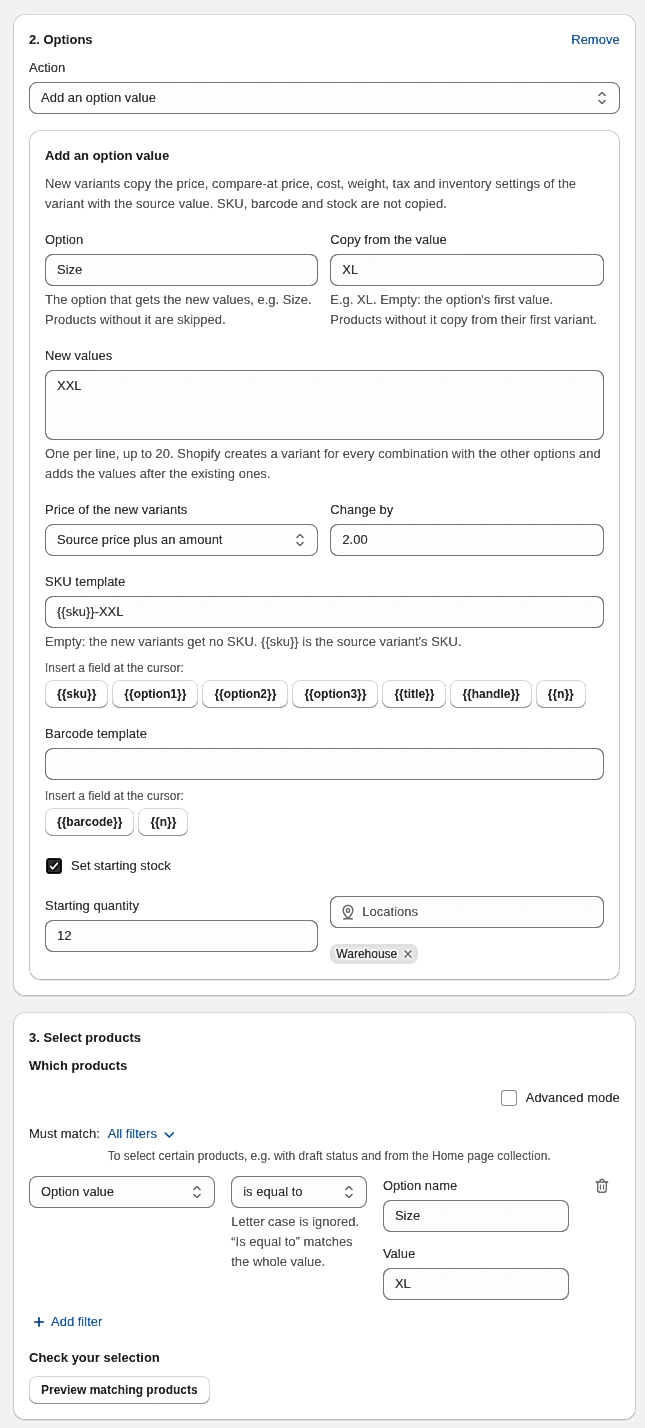
- Start a New task (the records stay on Products & variants), find Options under Other edits (run alone) in 2. Choose edits and set its Action to Add an option value.
- In Option, type the option that gets the new value, for example
Size, orColororLengthfor other options. Products without this option are skipped. - In Copy from the value, type the existing value the new variants copy, for example
XL. The new variants copy that variant’s price, compare-at price, cost, weight, tax and inventory settings. Left empty, the option’s first value is used; a product withoutXLcopies from its first variant. - In New values, enter one value per line, up to 20:
XXL,3XL. Shopify adds the new values after the existing ones, soXXLand3XLgo afterXL. - In Price of the new variants, keep Same as the source variant, or pick Source price plus an amount, Source price plus a percent, Source price minus an amount or Source price minus a percent and type the change in the Change by box beside it. With Source price plus an amount and
2.00, anXLat 23.99 gives anXXLat 25.99. - In SKU template, build the new SKUs from tokens:
{{sku}}is the source variant’s SKU, and{{option1}},{{option2}},{{option3}},{{title}},{{handle}}and{{n}}are also available.{{sku}}-XXLturnsRC-GL-02-XLintoRC-GL-02-XL-XXL. Left empty, the new variants get no SKU. Barcode template works the same way with{{barcode}}and{{n}}. - Tick Set starting stock if the new size is already on your shelf, enter Starting quantity and pick the location in Locations; the stock lands only at the picked location. Stock is never copied from the source variant, so without this step the new variants start at zero.
- Under 3. Select products, add the filter Option value and fill its two boxes: Option name
Sizeand ValueXL. That picks only the products that already sell the size you copy from. To start with simpler products, add Number of variants at most6, which keeps out products that also come in many colors. Combine it with a Collection, Type or Tag filter to keep the run to one product line. - Under 4. Schedule keep Now, then Save in the bar at the top of the admin.
The task gets a name like “Add XXL to the option Size like XL”, and its log reads “Add an option value (Size)” with the number of variants added per product.
Note: Shopify creates a variant for every combination with the other options. A T-shirt sold in 8 colors gets 8 new variants for one new size, each with its own SKU and stock.
Check the preview before you save
Click Preview matching products under 3. Select products (how the preview works: Preview and exclude). The modal lists every product the task will touch, with Total variants and the price range. Check two things:
- Total variants: every color multiplies the new size, so a product with 12 variants in 4 colors gets 4 new ones;
- products that should not get the size at all, such as a style that stops at XL. Tick them and click Exclude selected products.
The preview shows products before the change; it does not list the variants the task will create. To try the price and SKU template on a small scale first, run the task on one product, check it in Shopify, then use Run again, widen the filter and, in the preview, exclude the product you ran it on, since it already has the new size.
What revert restores
Revert deletes the variants this task created, with their stock. The app asks “Reverting deletes the variants this task created, with their stock. Do you want to revert the task?” before it starts. See Revert a bulk edit that went wrong.
Limits
- Add an option value needs the Growth plan (Growth: up to 10,000 records per task). On Free and Starter the action is shown as “Add an option value (Growth plan)” and cannot be picked; a task that still reaches Save with it is refused with “Not included in your plan”.
- The edit adds values to an option a product already has. It does not create a new option on products that lack it; those products are skipped.
- To reorder the values, run Sort sizes, colors and variants afterwards. New values already land after the existing ones, so
XXLfollowsXL; sort only when the size needs a different place.
You can also
- Rename options and option values when the new size needs a different spelling across the catalog
- Sort sizes, colors and variants so the new size sits in the right place
- Fill missing SKUs on variants you added without an SKU template
- Bulk edit variants for every other bulk change to variants
Updated