Merchants on the Shopify Community ask how to change option names in bulk, so that Colour reads Color and S reads Small on every product. The CSV route is risky; one merchant who tried it saw the re-import zero all stock. In Bulk Product Edit, click Create task, pick Options, choose Rename option or Rename option value, filter the products, then Save.

How to rename an option on every product
This changes the option’s name, such as Colour to Color, and leaves its values as they are.
- Click Create task on Home and leave 1. Records to edit on Products & variants.
- Open the field list under 2. Choose edits; Options sits in the Other edits (run alone) group. Picking it leaves a single card, 2. Options, whose first box is the Action select.
- Set Action to Rename option. Type the name your products use now in Current option name (
Colour) and the name you want in New option name (Color). Letter case in the current name does not matter:colouralso finds Colour. - Under 3. Select products, add a filter that covers the products, for example a Type or Collection. Products in it without that option are skipped.
- Leave 4. Schedule on Now and click Save.
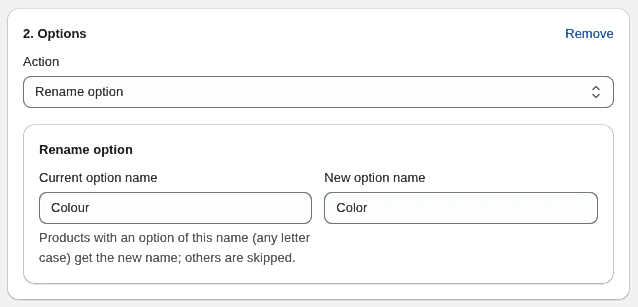
When the task is done, its Changed tab lists one row per product, with the old name and the new one.
How to rename one option value, such as S to Small
- Click Create task and pick Options under Other edits (run alone).
- Set Action to Rename option value. In Option type the option the value belongs to (
Size), then fill Current value (S) and New value (Small). Letter case in Current value does not matter either:xlalso finds XL. The current value must match a whole value:Standdoes not rename Standard. - Under 3. Select products, click Add filter and pick Option value. It has two boxes: Option name (
Size) and Value. With is equal toSit picks exactly the products that sell an S. - Click Save.
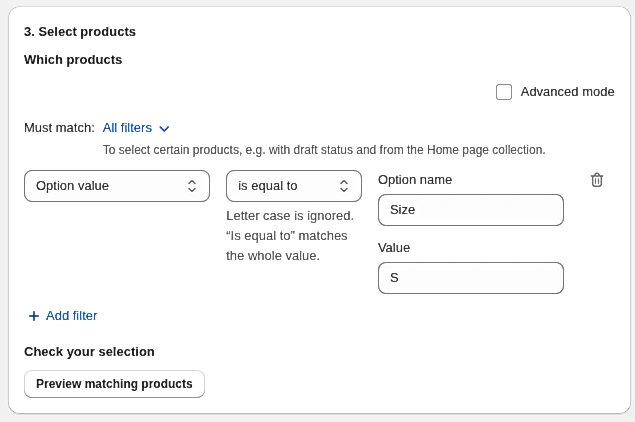
The finished task names the option and both values in its log. Each task holds one action, so Colour to Color and S to Small are two tasks.
Values with extra colons in the variant title
Shopify builds a variant’s title from its option values, so a value imported as Size: S shows up in every title that uses it. To see which variants carry a colon, tick Advanced mode, switch to variant filters, add Variant’s title contains :, and open Preview matching variants. Then turn Advanced mode off again (switching clears the filter rows) and rename each value, Size: S to S, with Rename option value and the Option value filter (Option name Size, Value contains :). Type the whole value in Current value (Size: S), one task per value. Every variant that uses the value gets the clean title.
Option renames take product filters only. Variant filters help you find the variants in a preview; a rename task with variant filters cannot be saved and shows “Product fields can only be changed for products chosen by product filters. Switch the filters to products or choose other fields.”
What to check in the preview
Click Preview matching products before you save. It lists the products the filter picked, with Total variants for each.
- The count should match the products that use the old name or value. If you expect 40 shirts in sizes S to XL and the list shows 3, the filter value is wrong.
- Products you want to keep as they are can be ticked and taken out with Exclude selected products.
- The preview lists products only; it does not show the old and new names. Check spelling in New option name or New value before you save, since that text goes onto every product in the list.
What revert restores
Open Tasks, open the task and click Revert. The option gets its old name, or the value its old text, on every product the task changed.
Why items are skipped
- The product has no option with that name. For Rename option the app’s help says: “Products with an option of this name (any letter case) get the new name; others are skipped.” For Rename option value it says: “Products without this option are skipped.”
- The new value already exists on the product. Renaming S to M on a product that already has M fails for that product with “Option value already exists.”, and the task ends as Not completely done.
- The product has no value that matches the whole current value.
Standon a product with Standard and Large renames nothing; the product is skipped with “The option Size has no value Stand.”
Limits
- One rename per task. A list of renames, such as all sizes S, M and L to Small, Medium and Large, is one task per value; Run again on a finished task opens the same form with the fields filled in, so you can change only the values.
- The task changes the option name or value only; prices, SKUs and stock are not part of it.
- Records per task depend on the plan: see Plans and limits.
You can also
- Add a new size to many products
- Sort sizes, colors and variants
- Remove or replace a word in every product title
- Bulk edit variants with the other variant edits
Updated