Your team wants one Google Sheet of the catalog with today’s prices and stock, and a way to send their edits back to Shopify. Connect Google in Settings, then open Export & import › Export, choose Google Sheets and turn on Repeat on a schedule. Edits come back through Import › A Google Sheet.
Google Sheets needs Growth or Pro. On Free and Starter the export goes to a CSV or Excel file you download (Free exports up to 10 records), and an edited file goes back as an upload. Bulk editing vs CSV import explains when a spreadsheet is the better tool than a task.

How to connect Google Sheets
- Open Settings. The Google Sheets block reads “Export to a new Google Sheet and import from a sheet you pick. Product Edit only sees the files it creates or that you pick.” Click Connect Google Sheets.
- Sign in with the Google account that should own the sheets. In Google’s consent window, keep the Google Drive box ticked: the app creates and reads sheets in that account’s Drive.
- Back in Settings, the block shows “Connected as” with your Google email and a Disconnect button.

If the Drive box was left unticked, the first sheet export fails in Export history with “Google Drive access wasn’t allowed, so Product Edit can’t create or read sheets. Connect Google Sheets again in Settings and keep the Google Drive box ticked.” Click Connect Google Sheets again and tick it this time.
Until Google is connected, the export form says “Connect Google Sheets in Settings to export there.” and the import form says “Connect Google Sheets in Settings to import from there.” Below Growth, Google Sheets and Repeat on a schedule show a Growth lock. Every option on the Settings screen is in Settings.
How to export products to a Google Sheet
- Open Export & import › Export. Under Records to export, pick Products for one row per product, or Variants for one row per variant with its SKU, price and stock.
- Under Select products, add the filters that pick the products the sheet should hold (a vendor, a collection, a tag) and check the list with Preview matching products.
- Under Choose columns, tick what the team needs. Keep an ID column: if no ID, Handle or SKU column is ticked, the app adds one first, “so the file can be imported back”.
- Under Format, choose Google Sheets and click Export.
- Export history opens. When the row turns Done, click Open the sheet.
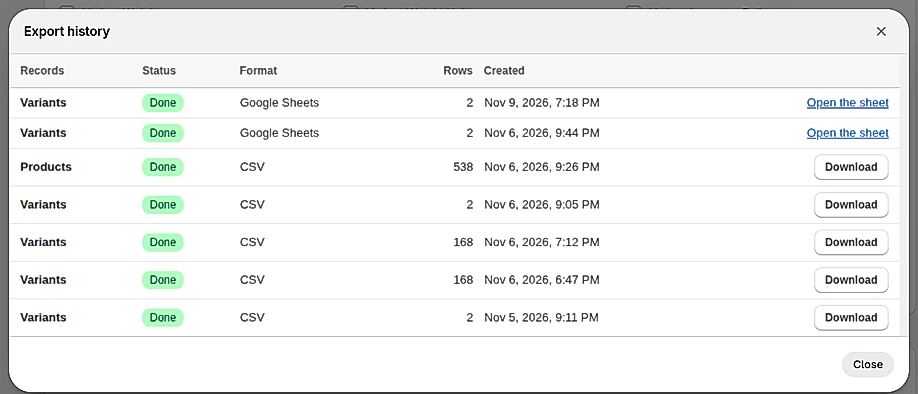
On MITS Auto Parts, the variants of the Extendable Snow Brush with Ice Scraper (two rows) were in a new sheet within about 30 seconds. Each export makes a new sheet in your Drive, named after the records and the store’s date and time, for example “Product Edit variants 2026-11-06 10:44”. IDs are stored as text, so Google Sheets does not round them. To give the team access, share the sheet from Google Sheets like any other file.
How to keep the sheet updated on a schedule
Before you click Export, turn on Repeat on a schedule. Its help text reads “Each run makes a new file, or refreshes the same Google Sheet.”
- Under Select days of the week, tick the days the sheet should refresh.
- Set Time. The label names the time zone it uses, which is your browser’s.
- Click Schedule export (the button’s label when a schedule is on).
The first run makes the sheet. Every later run refreshes that same sheet, so the team keeps one link. The schedule appears under Scheduled exports as a row like “Every Monday at 8:00 AM (America/New_York)” with Open the sheet, Stop and Delete. A stopped schedule shows Start. Delete asks “Delete this scheduled export?” and warns: “The schedule stops for good and can’t be restored. Files and sheets it already made are kept.”

Note: A scheduled run writes the store’s values over the sheet. A cell someone typed into the refreshed sheet is replaced at the next run. Import edits before the next run, or make edits in a one-off export sheet and keep the scheduled one for reading.
Growth allows 3 scheduled exports, Pro allows 20.
How to import edits made in the sheet
- In Google Sheets, change the cells you want to change. Leave the ID column as exported: each row is matched by its ID, and a row with an empty ID is matched by SKU for variants or by handle for products.
- Open Export & import › Import. Under The file holds, pick the same records you exported (Variants for a variants sheet).
- Under Options, Empty cells stays on Leave the value unchanged unless an empty cell should clear the field (Clear the value). Leave Overwrite stock even if it changed since the export off, so sales made while the team edited the sheet are not written over.
- Under Source, choose A Google Sheet and click Pick a Google Sheet. Google’s “Select a file” window lists the spreadsheets in the connected account, newest first. Pick the sheet.
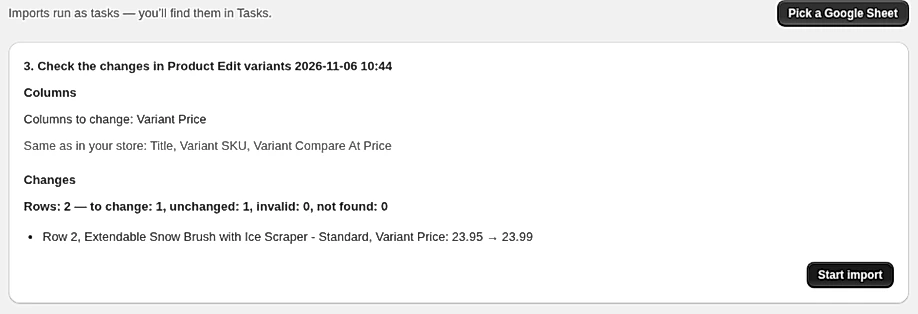
- The app compares the sheet with the store and shows Check the changes in with the sheet’s name. Read it (next section), then click Start import.
- The import runs as a task named after the sheet and the changed columns, for example “Import from sheet “…” (Variant Price)”. Follow it in Tasks.
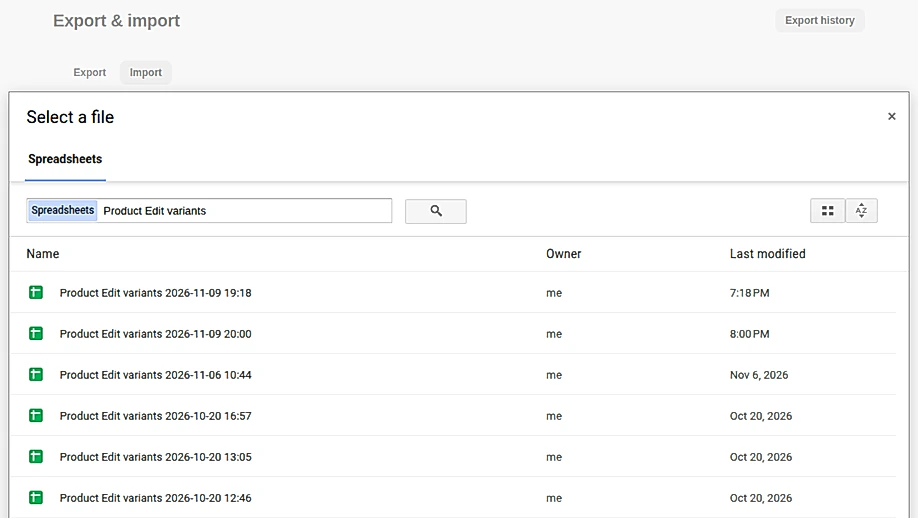
If Google cannot open the picker, the app shows “Google Sheets could not open the sheet picker” and asks you to try again in a minute. While the review shows “Comparing the file with the store…”, it keeps checking and updates by itself.
What to check before you start the import
The review compares every row of the sheet with the store as it is now.
- Columns to change should list only the columns the team edited. Same as in your store lists the columns that match.
- Each change has its own line with the row, the field, the old value and the new one. When a price edited in the sheet from 23.95 to 23.99 shows the old value you expect, the sheet was in step with the store.
- The rows line counts rows to change, unchanged, invalid and not found. Invalid and not-found rows are skipped with their reason.
An old sheet holds old values. If a price changed in Shopify after the export, the sheet’s older price shows up as a change and the import would write it back. Fix that cell in the sheet, or export a fresh sheet and copy the edits into it. While Overwrite stock even if it changed since the export is off, a stock cell is written only if the store still holds the quantity the sheet was exported with. Every message in the review is explained in Import a file you can revert.
How to undo an import from a sheet
Open Tasks, open the import task, click Revert and confirm “Do you want to revert the task?”. Shopify gets back the values the products had before the import; on MITS Auto Parts the one-price import was Reverted in under a minute. The sheet keeps the team’s edits, so correct it before you import from it again.
Limits
- Google Sheets, scheduled exports and sheet imports need Growth or Pro. Plans and limits lists the records per task and the scheduled exports each plan allows.
- Product Edit only sees the sheets it creates and the ones you pick in Google’s window.
- Disconnect in Settings ends the connection.
- A scheduled refresh replaces what the team typed into that sheet (see the note above).
You can also
- Export products to Excel or CSV with stock per location, costs and metafields
- Import a file you can revert from Excel or CSV
Updated