A material, a Google field or a part spec on hundreds of products gets typed in one by one, and Shopify Community merchants ask why variant metafields don’t show in Shopify’s bulk editor. In Bulk Product Edit, click Create task, pick Metafields, choose Product metafields or Variant metafields, pick the metafield and an Operation, filter the products, then Save.

How to fill a metafield on many products
- Open Home and click Create task. 1. Records to edit stays on Products & variants.
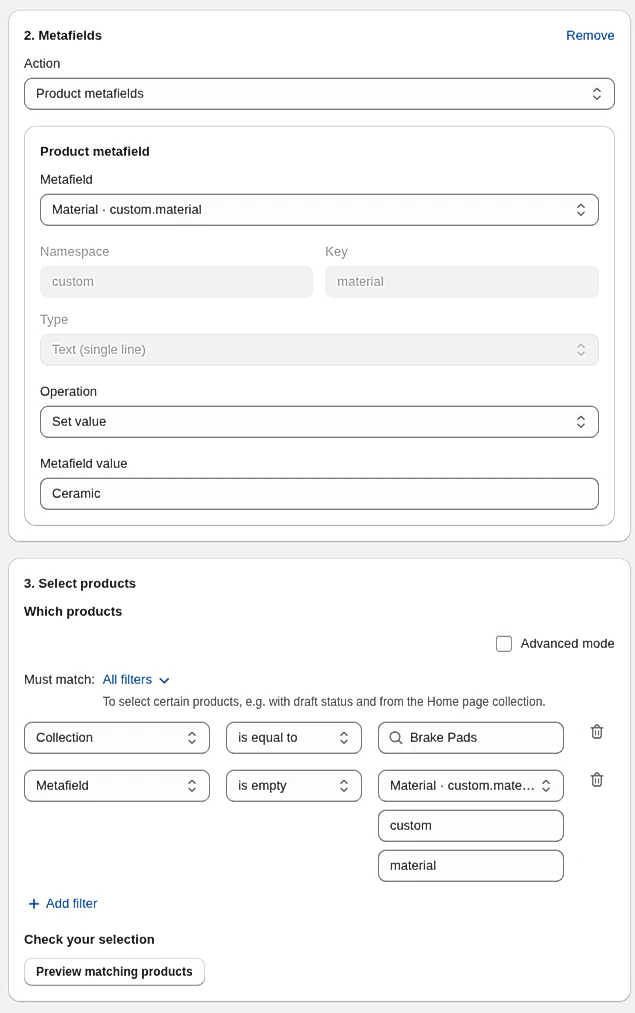
- Click the field list under 2. Choose edits. Metafields sits in the Other edits (run alone) group; once you pick it, the form turns into one card, 2. Metafields, with an Action select.
- Set Action to Product metafields for a value that belongs to the product (material, care notes, a size chart), or Variant metafields for a value that differs per size or color.
- In the Metafield select pick one of your store’s definitions, for example “Material · custom.material”. The app fills Namespace, Key and Type from the definition and locks them.
- Pick the Operation and enter the value. The operations offered depend on the type (table below). For a text field, Set value with
Ceramicwrites that text to every product in the task. - Under 3. Select products click Add filter and pick the products, for example Collection · is equal to · Brake Pads. To fill only the products where the field is still blank, add Metafield · custom.material · is empty.
- 4. Schedule starts on Now; leave it there and click Save in the top bar. The new task gets a name like “Change Product metafield Material to Ceramic”.
Variant metafields
With Action set to Variant metafields, the task writes the value to every variant of the products your filters pick. A Set value task on a product with sizes S, M and L writes all three variants, one row per variant on the Changed tab.
If the store has no variant metafield definitions, the card says so and points to Settings › Custom data in the Shopify admin. Create the definition there and click Refresh list, or use Metafield without definition (next section).
Metafields without a definition
The last item in the Metafield select is Metafield without definition. It opens Preset, Namespace (placeholder custom), Key (placeholder material) and Type. Keep Preset on Custom metafield and type the namespace and key exactly as Shopify shows them in Settings › Custom data.
Which operations each type offers
| Type of metafield | Operations |
|---|---|
| Text (single line), Text (multi line) | Set value, Add text to the beginning, Add text to the end, Replace text (with Find and Replace with), Remove text, Fill from a template, Limit the length, Cut from a word to the end, Copy from field, Clear the value |
| Decimal | Set value, Increase by, Decrease by (each with Change by: Amount or Percent, and Metafield value), Copy from field, Clear the value |
| Metaobject (list of references) | Set value, Add entries, Remove entries, Copy from field, Clear the value |
Add entries and Remove entries work on a metafield that holds a list of metaobjects, such as “Fits vehicles · custom.fits_vehicles” on every brake pad set. Pick the entry in the Metaobject box: left empty, it lists the definition’s entries, for example “Jeep Grand Cherokee 2014-2021”. The entries themselves (their names and fields) are edited as metaobject records: see Edit metaobject entries in bulk.
How to fill Google Shopping fields from a preset
Pick Metafield without definition, then open Preset. Besides Custom metafield it lists Google Shopping: google_product_category, Google Shopping: condition, Google Shopping: gender, Google Shopping: age_group, Google Shopping: mpn, Google Shopping: custom_product, Google Shopping: size_system, Google Shopping: size_type and Google Shopping: custom_label_0 to custom_label_4. Each preset writes to the namespace mm-google-shopping. Pick the preset for the Google field you need, choose Set value and enter the value. Google Shopping: custom_product has the Type True / false and offers Set value, Copy from field and Clear the value; under Set value pick True or False in the Metafield value select.
Variant metafields offers the same Preset list, so a Google field that differs per size or color goes on the variants. The Google & YouTube channel stores the Google product data you add there in mm-google-shopping metafields, and its mappings already use them (Channel mapping in Shopify Help).
How to check the preview before you save
Click Preview matching products under 3. Select products and read the list against the job:
- the count matches the products you meant to fill, and no product from another collection got in;
- with Variant metafields, every variant of each listed product gets the value, so leave out products whose sizes or colors need a different one;
- with is empty in the filters, products that already have a value are missing from the list, as they should be.
After the task, check the result with the same filter turned around: Metafield (or under Advanced mode › Variant filters, Variant metafield with Metafield namespace, Metafield key and Metafield value) · is equal to · the new value. That list shows every product (or, with the variant filter, every variant) that now has the value, including any that had it before the task. The list of what the task itself changed is the Changed tab on the task page under Tasks.
What revert restores
Open Tasks, open the task and click Revert. Every product or variant gets back the value it had before. Where the metafield was empty before the task, revert removes it again: after a variant metafield task is Reverted, the field is gone from every variant it wrote.
Why items are skipped
- Definitions limited to some categories. The card warns: “This definition applies only to some product categories. Products in other categories will be skipped.” Each skipped row says the definition “does not apply to the category of this product.” Set the category first with Set the product category in bulk, then run the metafield task.
- Definitions that need a unique value. Under Set value the card warns: “Every product needs its own value of this metafield. The value you set is written to one product only; Shopify rejects it for the others.” Use a CSV file for fields like these, one value per row.
Note: A task can read Done even when every product was skipped and nothing was written, so open the Skipped tab after the run. Each row there gives the reason.
Limits
- Metafields are a run-alone edit: one task changes one metafield. Fill a second field with a second task.
- Every plan has the metafield edit, Free included.
- To give each product a different value (a part number, a unique code), export the metafield column, fill it in the sheet and import it. The export names such columns “Metafield: namespace.key [type]”.
You can also
- Export products to Excel or CSV with their metafield columns
- Set the product category in bulk so category metafields apply
- Edit metaobject entries in bulk behind your metafield lists
- Bulk edit Shopify products with every other edit Bulk Product Edit offers
Updated