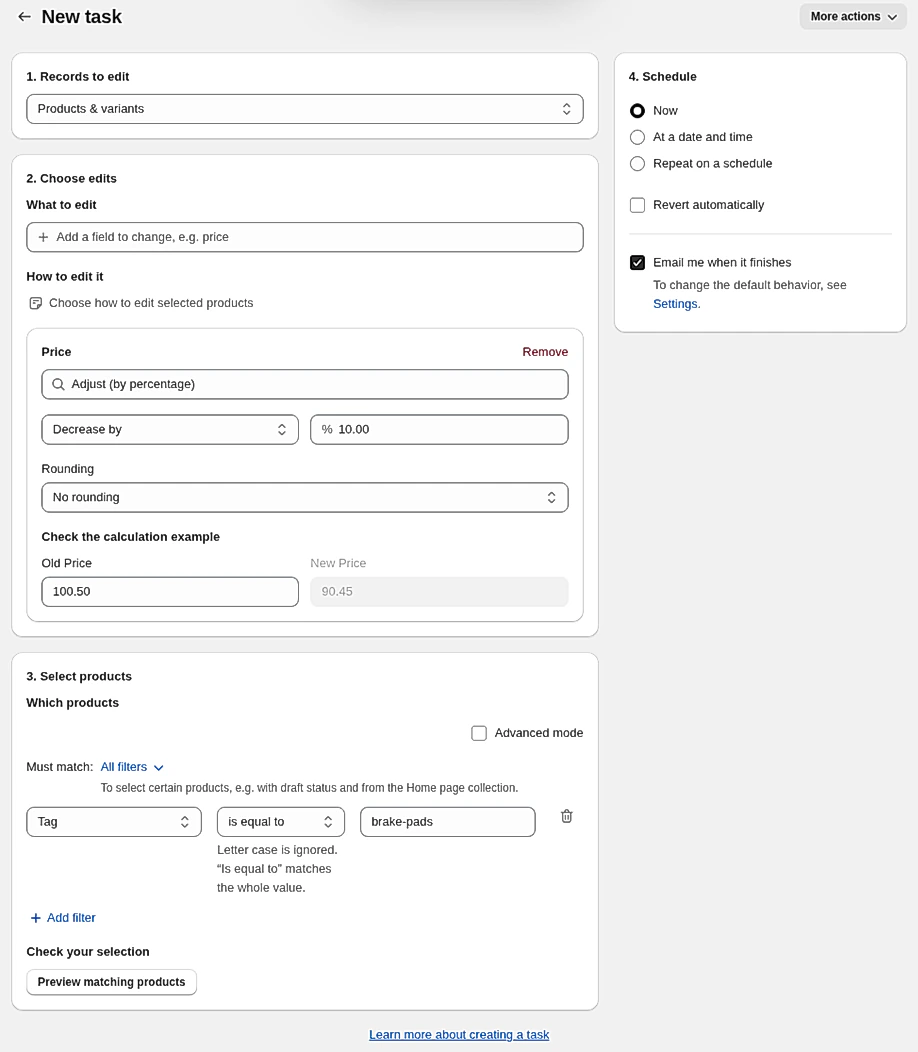
A task is one bulk edit: the records to change, the edits to apply, the filters that pick the items and the time it runs. Click Create task on the Home page, fill the four numbered steps of New task, check the selection with Preview matching products, then click Save in the bar at the top of the Shopify admin.

Ways to open a new task
- Create task in the header of the Home page opens an empty form.
- Start a task on the Home page: type a field, for example “price”, and pick an edit from the list (Ready-made edits, Product fields, Variant fields, Other edits (run alone), Collection, Metaobjects). The form opens with that edit already added. The Popular edits buttons under the search do the same in one click.
- Saved templates on the Home page: Use opens the form with the template’s filters and edits.
- Run again on a task page opens the form with the same filters and edits as that task.
Records to edit
Step 1 decides what kind of record the task changes. The filters and edits offered in the next steps follow this choice.
| Records | What the task can change | Plan |
|---|---|---|
| Products & variants | product fields (title, tags, status, SEO and more) or variant fields (price, inventory, SKU and more) | every plan |
| Collections | collection title and description | every plan |
| Metaobjects | entries of one metaobject definition: fields, handle, status | Growth and up |
Choose edits
Step 2 starts with the box Add a field to change, e.g. price. Each field you pick adds a card under How to edit it with its options and a Remove link; price, compare-at price and inventory cards also show a calculation example with an old and a new value, so you can check the math before you save. All edits and their options lists every field.
- Product fields and variant fields cannot be mixed in one task. To change a title and a price, run two tasks.
- Other edits (run alone) such as Images, Options and Inventory quantity are the only edit in their task: the step turns into one card with an Action list.
Select products
Step 3 picks the records. Add filter adds a row with a field, an operator and a value; Must match sets whether a product needs All filters or Any filter. Advanced mode switches to variant filters, which pick single variants instead of whole products, for example Selected variants. Among the product filters, Only default variant (yes / no) picks products by whether they have only the default variant, and Only first variant from each product edits just the first variant of each matched product. The preview still lists every variant of those products, but only the first one changes. The rules for every field and operator are in All filters and conditions.
A task needs at least one filter. Saving without one shows the error “Filters: add at least one filter.” To change the whole catalog, add the filter All products; it removes the other filter rows, because nothing else is needed.
Under Check your selection, Preview matching products lists what the filters match and lets you leave single products out: see Preview and exclude.
When to run
Step 4, 4. Schedule, sets when the task starts.
| Option | What happens | Plan |
|---|---|---|
| Now | the task waits for the next whole minute, shows Queued in Tasks, then starts | every plan |
| At a date and time | starts at the date and time you pick; the time is read in your browser’s time zone, shown under the field as “Time zone: …”; Revert automatically adds a revert date and time with the same line | Starter and up |
| Repeat on a schedule | runs on the days of the week and at the time you pick; the task saves your browser’s time zone and shows it as Time zone under the schedule; Revert each run after undoes each run after a number of hours | Starter and up |
Email me when it finishes sends a message when the task is done; its default is set in Settings. Scheduling is covered in Schedule a task and its automatic revert, repeating tasks in Recurring tasks.
After you save
The app shows “Task created” and opens Tasks, where the new task waits as Queued (or under Scheduled when it has a start time) with a Cancel link until it starts. More actions › Save as template in the form keeps the filters and edits for next time.
Pages in this section
- Preview and excludeHow the Bulk Product Edit preview lists every product a task will change, how to leave some of them out, and where to check the new values before you save.
- Schedule a task and its automatic revertRun a Bulk Product Edit task at a set date and time in your browser's time zone, revert it on its own when the sale ends, and get an email when it's done.
- Recurring tasksSet a Bulk Product Edit task to repeat on chosen weekdays, revert each run after N hours, read the run history, stop, start or revert a single run.
- Saved templates and ready-made editsStart a bulk edit in one click: the ready-made edits on the Home page, saving your own filters and edits as a template, and running a finished task again.
Related
- Get started: install and run your first task
- How to bulk edit Shopify products, the short version with one example task
Updated