By the MITS team, developers of Bulk Product Edit (Built for Shopify) · Updated 21 October 2026
To bulk edit products in Shopify, select them in the admin and click Bulk edit: Shopify opens a spreadsheet where every row is a product or variant and every column a field. That covers typing new values into a few dozen rows. For changes by a rule — 10% up and rounded to .99, a sale that ends on Monday, stock at one location — you need a CSV file or an app.
Short answer: under about 50 products and exact values, use the admin bulk editor. A full catalog restructure you can check in a spreadsheet, use CSV import. A change by a rule, on a schedule, or one you may need to undo, use a bulk edit app.
Which method fits your edit
| The edit | Admin bulk editor | CSV import | Bulk edit app |
|---|---|---|---|
| Type exact values into a few dozen products | Best fit | Overkill | Works |
| Raise prices by 10% and round to .99 | Each cell by hand | Spreadsheet formula | One rule |
| Sale with compare-at price that ends on a date | Twice by hand | Two imports | Start and revert time |
| Stock change at one location | Inventory section | Inventory CSV | Per-location editor |
| Select by collection, vendor, tag, price or stock | Admin filters, then tick | Filter the export | Filters on the task |
| Undo the change | No | Re-import the old file | Revert the task |
| See the result before saving | Yes, row by row | No | Preview |
Method 1: Shopify’s bulk editor
The bulk editor is free, built into the admin and works for products, collections, inventory and customers. Each row is a selected product or variant; each column a property you choose under Columns. Steps and limits below follow Shopify’s bulk editing help.
- Select the products. In the Shopify admin open Products, tick the products you want to change and click Bulk edit.
- Add the columns. Click Columns and pick the fields to edit: price, compare-at price, SKU, tags, vendor and so on.
- Edit the cells. Type new values, select several cells to change them at once, or drag a cell’s fill handle to copy its value down the column.
- Save. Click Save. If Shopify reports invalid values, fix them and save again.
Shortcuts that save time
- Arrow keys move between cells.
- Shift-click selects a range; Alt-click (Command-click on a Mac) selects cells that are not next to each other.
- Type into one of several selected cells and the value goes into all of them.
- Drag a cell’s fill handle to copy its value to the cells above or below.
Where it stops
- For products with several variants, inventory can only be bulk edited from the Inventory section. For one size or color across many products, see how to bulk edit variants.
- There are no formulas: “10% more” means calculating and typing each price.
- Nothing happens on a schedule, and there is no undo after Save.
- Shopify warns that Microsoft Edge can cause errors on large selections because of URL length; use Chrome, Firefox or Safari.
- Big selections take longer to save, and every row you edit is one more row to check.
“Update the invalid values, then save again”
This error blocks the whole save, even when the bad value sits in a column you are not showing. The usual causes are a variant without a required SKU or a metafield value that fails validation. Add the SKU and metafield columns, find the empty or invalid cells, fix them and save again.
Method 2: CSV export and import
For changes the bulk editor cannot express, export the products to a CSV file, change it in a spreadsheet and import it back.
- Export. Products → Export, choose the products and “CSV for Excel, Numbers or other spreadsheet programs”.
- Keep a copy. Save the untouched export: it is your only undo.
- Edit. Change the columns you need with formulas — for example a new Variant Price column that is the old price times 1.1, rounded.
- Import. Products → Import, choose to overwrite products with matching handles, upload.
Stock quantities have their own inventory CSV, exported and imported from the Inventory page, with quantities per location.
The risks are the ones you cannot see: a sorted column that no longer matches its row, a formula pasted as text, a column the import overwrites with empty values. You see the result only after the import, on the live store. Bulk Product Edit also exports and imports spreadsheets. The free plan covers the first 10 records, CSV and Excel come with the Starter plan, Google Sheets with Growth, and scheduled exports with Growth (3) and Pro (20). Our comparison of the two approaches: bulk edit app vs CSV import.
Method 3: a bulk edit app
A bulk edit app replaces “tick products and type values” with “describe the products and the change”. Here is how it works in Bulk Product Edit by MITS, our app.
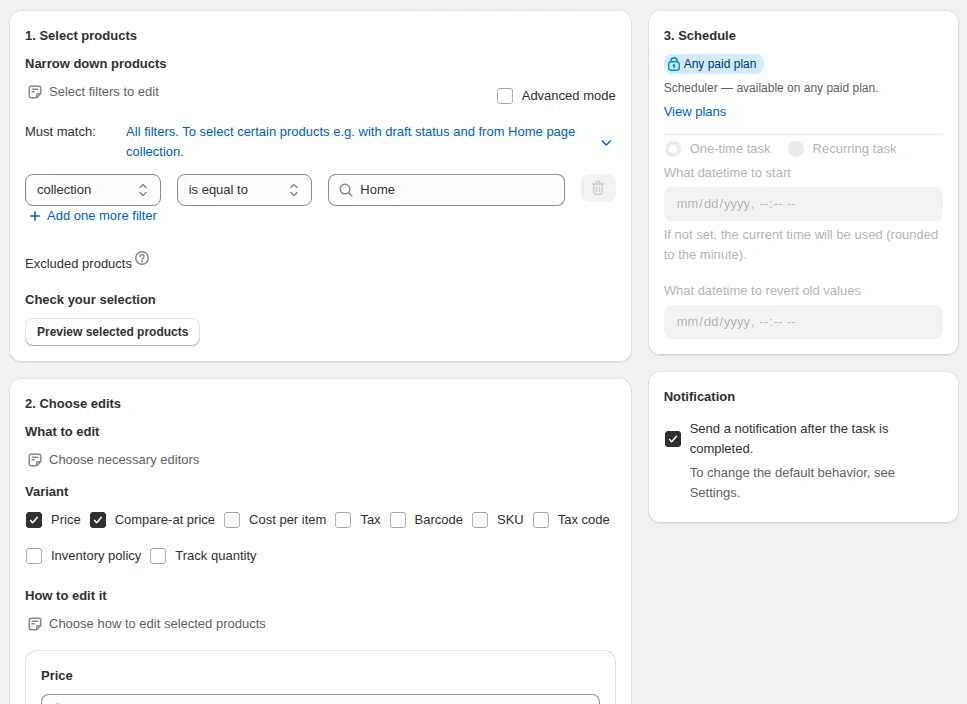
- Filter. Select products or variants by collection, vendor, product type, tag, option value, price or stock; match all filters or any of them.
- Choose the change. Prices by percent or amount from the price, compare-at price or cost; set a price; build it from cost plus shipping; round to .99 or whole numbers. Or inventory per location, tags, titles, vendor, type, status, SKU, barcode, weight, tax settings, handles and SEO fields.
- Preview. Check the matched rows and untick the ones that should stay as they are.
- Run now or schedule it. Give a sale a start time and a revert time, or repeat a task on chosen weekdays.
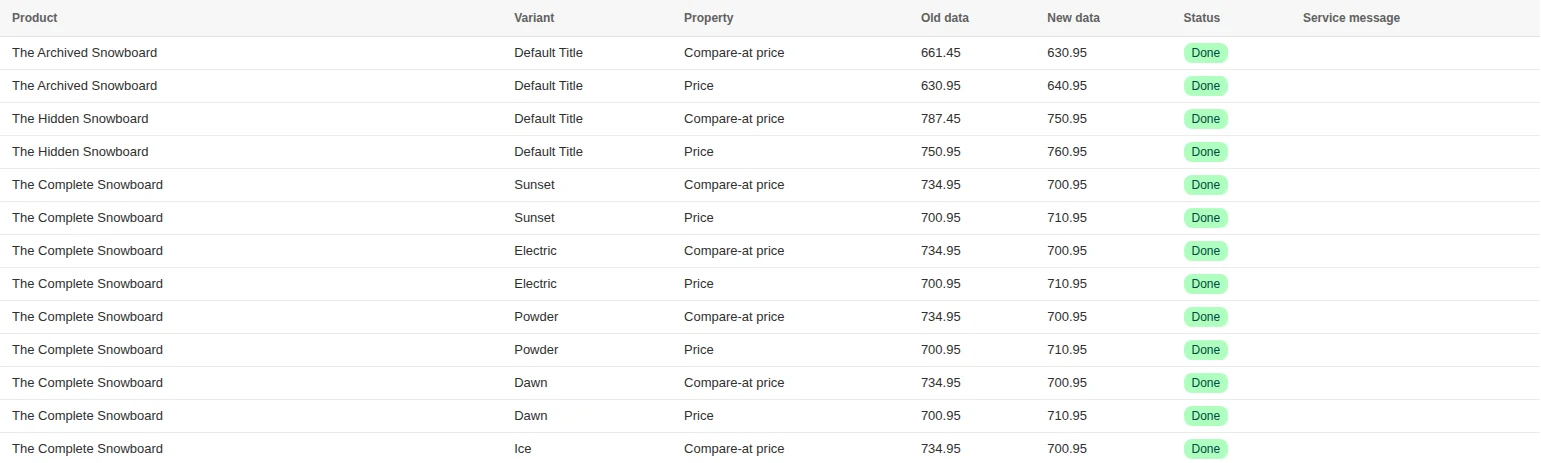
- Check the log, keep the way back. Each row is marked done, skipped or failed with Shopify’s message, and a finished task can be reverted from its history.
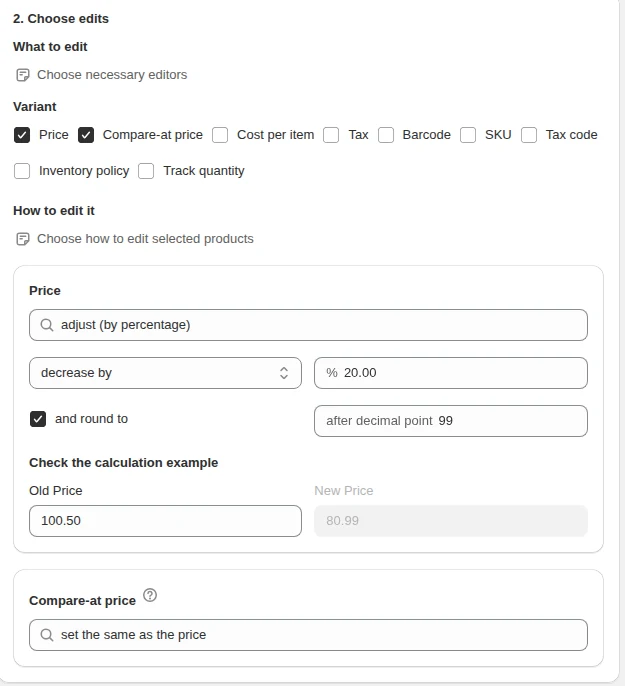
The free plan runs every edit, filter and condition on 10 records per task, enough to test a setup; paid plans go from 2,000 to 100,000 per task. See plans.
Try a rule-based bulk edit on ten products or variants. The free plan includes task logs and manual revert.
You will be redirected to the Shopify app store.
Common bulk edits, step by step
Raise all prices by 10% and round to .99
Filter the products (or choose “all products”), choose price → increase by 10%, rounding .99, preview, run. Details: bulk edit prices.
Run a sale that ends on its own
Set the compare-at price to the current price, decrease the price by 20%, round, then set the start and revert times. Details: schedule price changes.
Add a tag to a whole collection
Filter by collection, tags → add. Details: bulk edit tags.
Change stock at one location
Filter the products, choose the location, set or adjust the quantity with a Shopify reason code. Details: bulk edit inventory.

Mistakes to avoid
- No backup. Export the products before any large edit, whatever the method.
- Product vs variant. A product-level price change touches every variant; filter variants when only some sizes should change.
- Forgotten compare-at. After a sale, put the price back and clear the compare-at price, or the product keeps showing a “sale”.
- Edge on big selections. Use another browser for the admin bulk editor.
- Uninstalling mid-task. Wait for running or reverting tasks to finish; scheduled ones are cancelled on uninstall.
Related guides
How to bulk edit prices
Set, raise, cut, derive and round Shopify prices across a filtered slice of the catalog.
Read moreHow to schedule a sale
Give a price change a start time and a revert time so it ends by itself.
Read moreHow to bulk edit inventory
Adjust quantities per location with reason codes, switch tracking, and stop overselling.
Read moreHow to bulk edit tags
Add, remove and rename product tags across a filtered part of the catalog.
Read moreHow to revert a bulk edit
Revert a finished task manually or on schedule, and read what changed.
Read moreBulk editing for large Shopify catalogs
Up to 100,000 products or variants per task, with preview and revert.
Read more