Merchants ask how to bulk add variant color images to all products, so each color variant shows its own photo. Bulk Product Edit sets the variant image by position: click Create task, pick Images, set Action to Variant image, enter the Image position in the product, filter the products, then Save.

How to give every variant its image
- Click Create task on Home and leave 1. Records to edit on Products & variants.
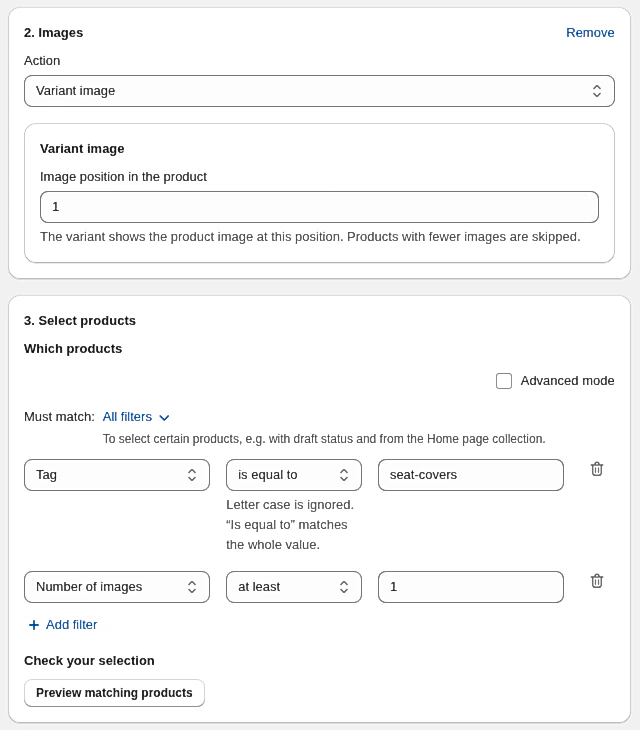
- In the field list under 2. Choose edits, pick Images from the Other edits (run alone) group. A single 2. Images card opens with an Action select.
- Set Action to Variant image.
- In Image position in the product enter the position of the photo the variants should show. Position 1 is the first image on the product in the Shopify admin. The help under the box says: “The variant shows the product image at this position. Products with fewer images are skipped.”
- Under 3. Select products click Add filter and pick the products, for example Tag · is equal to · seat-covers. Add Number of images · at least with the same number as the position, so products that lack that photo stay out of the list.
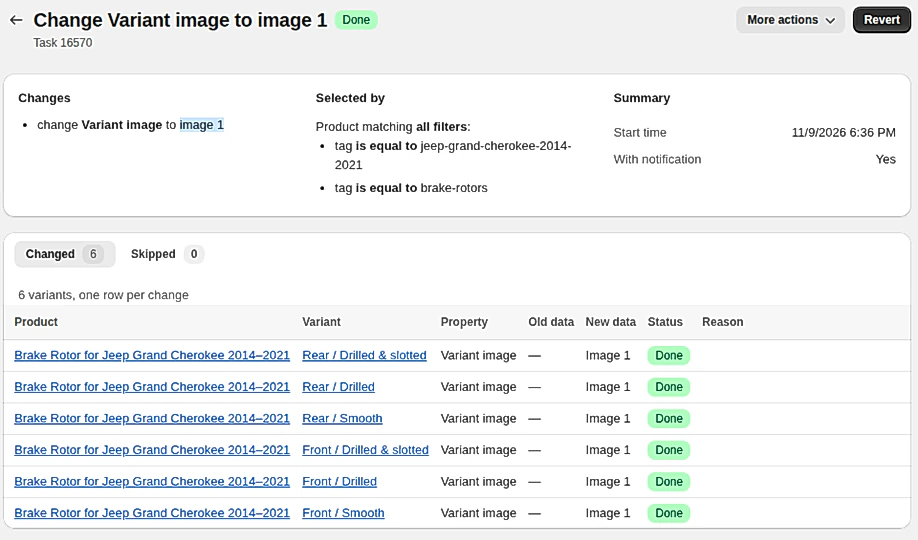
- Leave 4. Schedule on Now and save with Save at the top of the page. The task is named like “Change Variant image to image 1”.
Every variant the task covers gets the photo at that one position. To find variants that still show no image, use Advanced mode › Variant filters › Has an image · no; All filters and conditions lists the rest.
One color per task
When every product keeps its color photos in the same order (black at position 1, gray at 2, beige at 3), one task per color covers them: under Advanced mode › Variant filters add Option1: value · is equal to · Black with position 1, then a second task for Gray with position 2, and so on. Use Option2 or Option3 if color is not the first option. Only the filtered variants change; the other colors keep their image. With variant filters the button reads Preview matching variants and has no exclude step (“Only the filters choose variants. To leave some variants out, narrow the filters.”). Check the Changed tab of the first color’s task before you run the next one.
How to put variant images first or reorder images
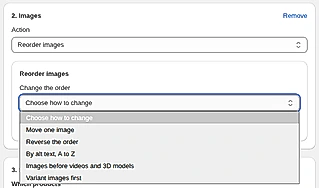
Set Action to Reorder images and pick one way under Change the order:
| Choice | What it does |
|---|---|
| Move one image | moves the image in Image at position to Move to position |
| Reverse the order | turns the image order around, so the last image becomes the first |
| By alt text, A to Z | sorts the images by their alt text, A to Z |
| Images before videos and 3D models | puts every photo ahead of the videos and 3D models |
| Variant images first | puts the images your variants use at the front |
The help under Change the order says: “Positions count from 1, as in Shopify admin; videos and 3D models count too. Products with more than 250 media are skipped.” Variant images first is useful after a variant image task, when the color photos should lead the gallery. Sorting by alt text works well once alt text follows a pattern; Fill missing image alt text sets one.
How to remove images
Set Action to Remove images. Under Images to remove choose All images or The image at a position and type the Position. Use Number of images in the filters to pick only products that have that many photos, for example Number of images · at least · 3 before removing position 3.
How to add the same images to many products
Set Action to Add images and paste the links into Image addresses: “One image address (URL) per line, up to 20.” Shopify downloads each address. Every product the task covers gets the same images, added after the photos it already has, which suits a fitment chart or an install diagram on every part of one type. To find products with no photo at all, filter by Number of images · is equal to · 0.
Note: Add images, Remove images and Image alt text need the Product images access. Until it is granted, the form shows “Product Edit needs access to product images for this editor. Shopify asks you to confirm. Tasks with this editor can be saved once access is granted.” with a Grant access button, and the task cannot be saved. The same access sits under Settings › Optional access (“Add product images from a link and remove images in bulk edits and imports.”), where Grant access opens Shopify’s Update data access window.
How to check the preview before saving
Click Preview matching products before you save. The list shows each matching product with its Total variants, so you can count how many products and roughly how many variants the task will touch. Tick a product you want to keep as it is and click Exclude selected products.
The preview lists products; the result appears on the task page after the run. On a variant image task the Changed tab shows one row per variant with its title and the new image, such as “Image 1”. A reorder row shows the old and the new order of the images, and a remove row shows the image going from attached to removed.
What revert restores
Revert on the task page writes back what the task changed. Added images leave the product, a reordered gallery gets its old order back, and variants get back the image they showed before. A removed image comes back at its old position in the gallery. Revert does not check changes made in Shopify after the task, and a reorder is undone against the gallery’s current order, so if you moved images by hand since, check the gallery after the revert. The task moves to Reverted when Shopify has the old state again.
Why items are skipped
- Variant image: the product has fewer images than the position you entered.
- Reorder images: the product has more than 250 media.
- Add images: Shopify could not download the address. The Skipped tab says “Shopify could not process the image at this address (Media processing failed), so it was not added. Check that the address opens the image in a browser.” The product keeps the images it had, and when no address worked the task reads Failed.
Limits
- The variant image is picked by its position in the product media. The app does not match a photo to a color name, a file name or a SKU, so the photos have to sit in the same order on every product before one task can cover them all.
- One task sets one position and one action. Images runs alone, so a price or tag change needs its own task.
- Add images takes up to 20 addresses per task.
- An import does not change image files or variant images: Image Src and Variant Image are read-only columns in the file (“Read-only column: an import does not change it.”). Alt text can change through the Image Alt Texts column.
You can also
- Fill missing image alt text on every product photo
- Sort sizes, colors and variants so the color order matches the photos
- See what else you can bulk edit in Shopify with Bulk Product Edit
Updated