A supplier sends a new price list with SKUs, costs and maybe stock, but none of the handles a product CSV expects. Merchants ask on the Shopify Community how to “only update cost and prices according to supplier list”. Open Export & import › Import, choose Variants, upload the file, check the changes and click Start import.
Each row of the file is matched to a variant by its SKU. The import changes only the columns it recognizes, such as price, cost and stock, and lists every other column of the supplier’s file as left alone. The whole update runs as one task that you can revert from Tasks. For when a file import is the better tool than a bulk edit, see bulk editing apps vs CSV import.

How to get the supplier’s file ready
Rename the supplier’s headers to the ones the import reads. The headers of a Product Edit export work too.
| Header in the file | What it does |
|---|---|
sku |
finds the variant with this SKU |
price |
sets the variant’s price |
compare at price |
sets the compare-at price |
cost |
sets the cost per item |
barcode |
sets the barcode |
qty, quantity or stock |
sets available stock, only in a store with one location |
Then check the rows:
- Write prices with a dot, as
19.99. A value the app can’t read as a number puts the row under the invalid rows with “must be a number like 19.99”, and a decimal comma (19,99) is refused. - Keep one row per SKU. A second row for the same variant is not imported: “… is already changed by row 2, so this row is not imported: a file changes each record in one row.”
- A SKU used on two variants of your store can’t be matched by SKU: “Variant SKU … matches 2 records: use the ID column instead.”
- Extra columns, such as the supplier’s description or pack size, can stay in the file. The review lists them under “Columns the import leaves alone” as “Unknown column: it is not part of a Product Edit export.”
- Save a CSV as UTF-8, or upload the
.xlsxfile. Otherwise the app says “The file is not UTF-8 text” and asks for Excel’s CSV UTF-8 (Comma delimited) format or the.xlsxfile. Files can be up to 20 MB.
Find the variants that have no SKU
A variant without a SKU in your store matches no row of the price list. To list those products before the import, open New task with Products & variants as the records, add the filter SKU › is/are empty and click Preview matching products. Fill in their SKUs first, or update those products by hand.
How to import the price list
- Open Export & import and click the Import tab.
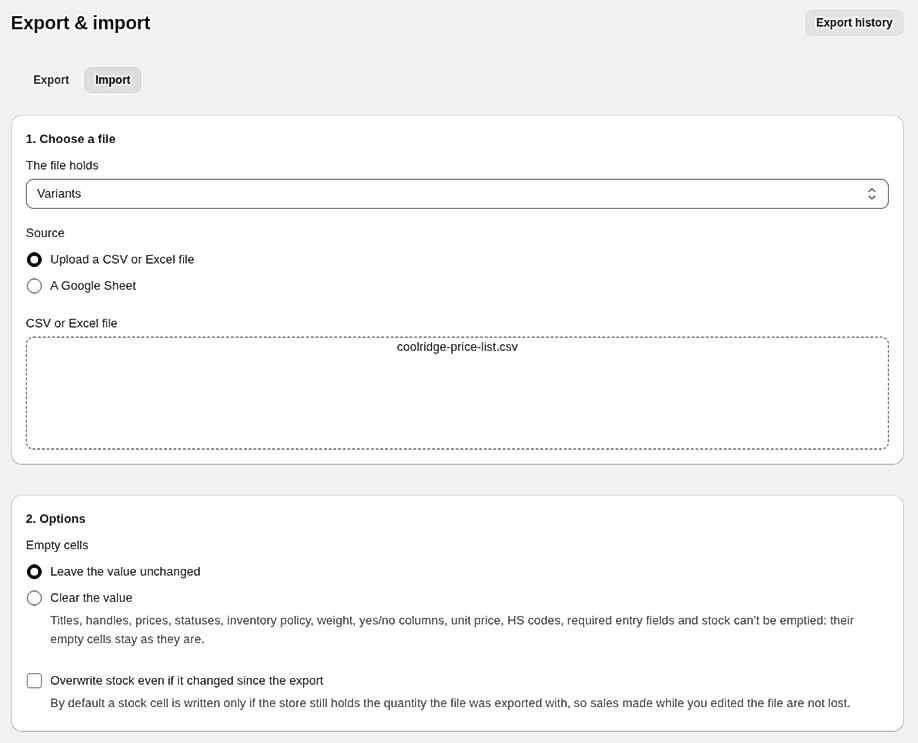
- Under 1. Choose a file, set The file holds to Variants. The How rows are matched box says that a row without a variant ID is matched by SKU.
- Under Source, keep Upload a CSV or Excel file and drop the price list on the zone that reads “Accepts .csv and .xlsx files up to 20 MB”. A list kept in Google Sheets can be picked with A Google Sheet instead (Growth and up).
- Under 2. Options, leave Empty cells on Leave the value unchanged. A blank cost cell in the supplier’s list then keeps the cost the variant has now. Clear the value would empty such cells.
- If the file has a stock column, tick Overwrite stock even if it changed since the export. A file you made yourself has no exported quantity to compare with, so without the box every stock cell is held: “The file has no exported quantity to compare with: export it from Product Edit again, or choose to overwrite stock even if it changed.”
- Click Upload and preview. The app shows “Comparing the file with the store…”, then 3. Check the changes in your file name.
- Read the review as described below, then click Start import. “The import started” appears with Go to tasks.
What to check before you click Start import
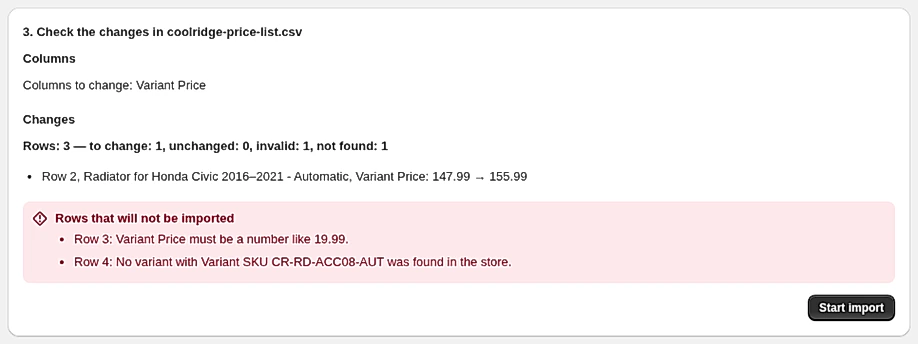
The review counts every row of the file, as in Rows: 3 — to change: 1, unchanged: 0, invalid: 1, not found: 1, and then lists them:
| Part of the review | What to look for |
|---|---|
| Columns to change | The columns the import will write, such as “Columns to change: Variant Price”. If price or cost is missing here, its header was not recognized. |
| Same as in your store | Recognized columns whose values already match the store. |
| “Columns the import leaves alone” | The supplier’s extra columns. A price or cost header here needs renaming. |
| Changed rows | One line per cell with the row, the product, the column and the old and new value, as in Row 2, Extendable Snow Brush with Ice Scraper, Variant Price, 23.95 to 23.99. Read a few lines; a price 10 or 100 times the old one points to a shifted decimal in the file. |
| Invalid rows | Listed under “Rows that will not be imported” as “Row N: …” with the reason. Fix the cell in the file and upload it again, or let the row be skipped. |
| Not found rows | SKUs with no variant in your store, often discontinued items or a SKU the supplier writes differently. |
| Stock held | “Stock held because it changed since the export: N”, one line per held cell. Tick the overwrite box from step 5 and upload the file again if the supplier’s stock should win. |
Start import stays disabled when no row of the file changes anything in the store.
What the import task records and how to revert it
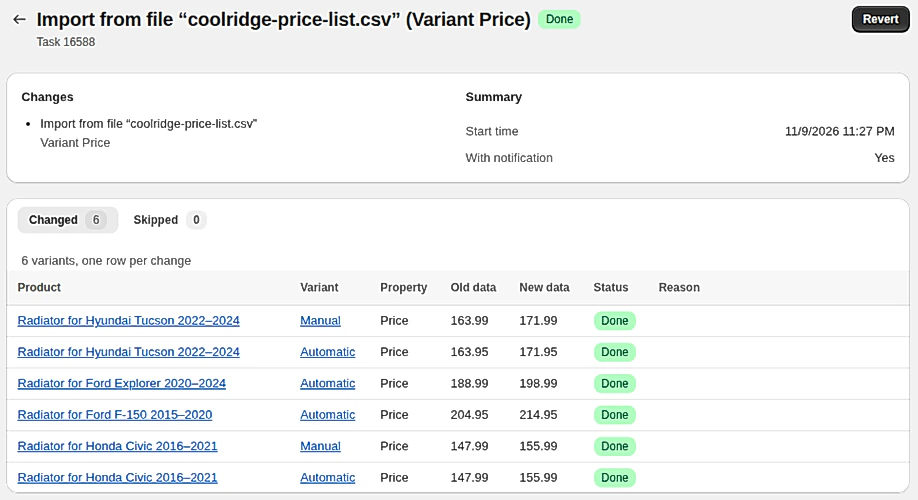
The import becomes a task named after the file and the changed columns, as in Import from file “supplier-prices.xlsx” (Variant Price). Its Changed tab shows the old and new value of each variant. Invalid and not-found rows appear on the Skipped tab with the same reason as in the review, and the task then ends Not completely done.
To undo the price list, open the task in Tasks and click Revert. The app writes back the price, cost and stock each changed variant had before the import, and the task moves to Reverted.
Limits
- Plan: on Free, Export & import covers the first 10 records. On paid plans a task can change up to 2,000 records (Starter), 10,000 (Growth) or 100,000 (Pro).
- Stock at several locations:
qty,quantityandstockwork only in a store with one location. With more locations, start from a Variants export: tick Advanced mode, switch to variant filters, add SKU › starts with the supplier’s SKU prefix (or is any of with up to 100 SKUs, one per line), and tick the locations so the file has anInventory Available: <location>column for each one. Paste the supplier’s numbers into that file. - The overwrite box writes the supplier’s number over your count, including sales made since you got the file. Use it when the supplier’s stock is the stock you sell.
- The import writes only the numbers in the file. To turn new costs into new prices with a markup, run a price edit after the import.
- An import runs when you click Start import, so next month’s price list goes through the same steps.
You can also
- Set prices from cost plus a markup and fix low margins
- Raise every price by the supplier’s percentage increase
- Set stock levels in bulk without a file
- Import a file you can revert, edited from your own export
Updated