Years of imports and old apps leave tags nobody uses, and merchants ask “how to delete unused tags from the manage list.” Remove a tag from the last product that carries it and Shopify stops suggesting it in the product Tags box. To delete a tag from every product, open New task, add the Tags edit, choose Remove tags, add a Tag filter for that tag, check Preview matching products, then Save. Rename and replace work the same way.

Which tag action fits the mess
The Tags edit has six actions. Five of them clean up; Add new tags is covered on bulk edit tags.
| Job | Action | What you type |
|---|---|---|
| Delete one or a few tags from every product that has them | Remove tags | The tags to remove, separated by commas, such as Accessory, Winter, Sport; several tags go in one task |
Change Winter to Winter sale everywhere |
Rename a tag | The old tag in Find and the new one in Replace with; each is a whole tag without commas, and letter case is ignored, so Winter also renames winter |
Strip every tag that has a word in it, such as all the sale tags from past promotions |
Remove tags containing text | The word, for example sale |
| Swap a product’s whole tag list for a clean one | Replace all tags | The new tag list, separated by commas |
| Leave the products with no tags at all | Clear all tags | Nothing |
How to remove, rename or replace tags in bulk
-
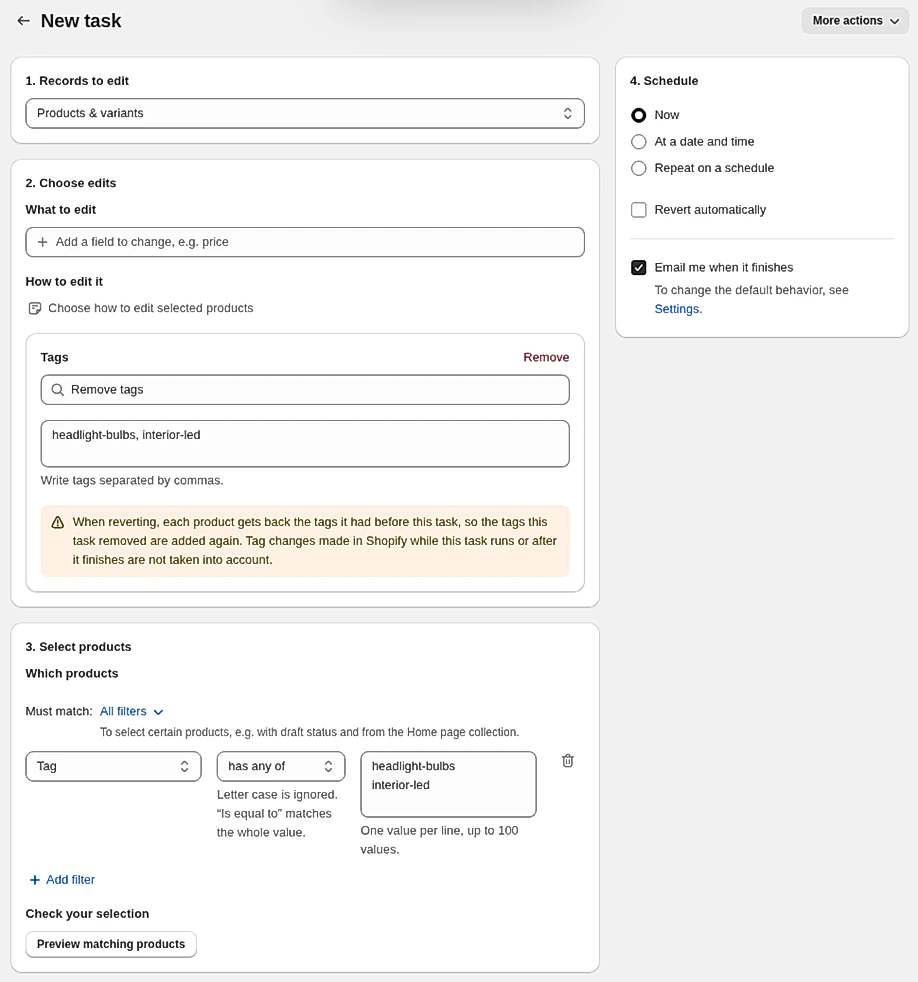
Start a New task; 1. Records to edit stays on Products & variants.
-
In 2. Choose edits, type “tags” in the field box and pick Tags from Product fields. A Tags card appears.
-
In the card, choose the action from the table above and fill in its field.
-
In 3. Select products, click Add filter and choose Tag. Pick the operator that matches the job:
- is equal to your tag, for Remove tags or Rename a tag on one tag;
- has any of your tags, when you remove several at once;
- contains your word, for Remove tags containing text;
- has none of or is empty, to find products missing a tag or carrying none.
Letter case is ignored in the filter. Must match decides whether a product needs All filters or Any filter; add Collection, Vendor or another filter to limit the cleanup to part of the catalog.
-
Click Preview matching products and check the list (next section).
-
Under 4. Schedule, leave Now selected and click Save.
-
The task opens in Tasks. When it is done, its page shows the Changed and Skipped tabs.
Note: The Tags edit changes product tags only. The app does not edit customer or order tags.
What to check in the preview
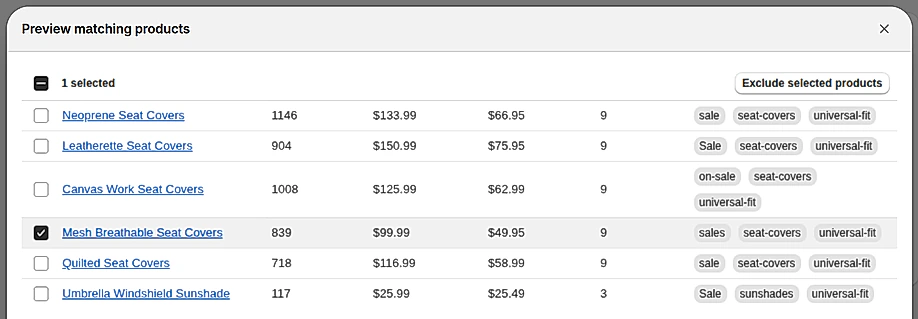
The Preview matching products window lists every product the task will touch, with a Tags column showing each product’s current tags. Look for two things:
- Products that should keep the tag. A contains filter for
salealso catcheswholesale, and Remove tags containing text would strip that tag as well. Tick those rows and click Exclude selected products; they stay out of this task and show under Excluded products on the form. - A count that looks wrong. If the list is much shorter than you expected, the tag may be spelled differently on some products; try contains with part of the word.
The preview cannot show the new tags. The task page’s Changed tab shows the result per product.
What revert restores
Open the task in Tasks and click Revert: each product gets back the exact tag list it had before the task, so removed tags return and renamed ones go back to the old name. Tag changes made in Shopify while the task ran or after it finished are not kept, so revert soon after a cleanup. Details: Revert a bulk edit that went wrong.
Limits
- Each plan caps the products one task edits (Plans and limits). A catalog over the cap takes several tasks; split them with a second filter such as Vendor or Collection.
- A Tags edit changes the product, so pick products with the product Tag filter.
- To remove tags from a Shopify Flow workflow, use the action Add or remove product tags (Starter and up), described in Shopify Flow actions and trigger.
You can also
- Tag new arrivals automatically
- Add products to collections in bulk
- Undo a tag change that went wrong
Updated