A merchant reviewing another bulk editor wrote that it picked “29 items” but edited “only 11”. In Bulk Product Edit every task keeps a log of each item it touched, so you can see which ones changed and why the rest did not. Open Tasks, click the task, then open its Skipped tab and read the Reason column.

How to find the skipped products and their reasons
- Open Tasks. The Result column counts both outcomes, for example “415 changed · 103 skipped”; hover the (?) to see whether the counts are products or variants. The Needs attention tab collects the Failed and Not completely done tasks.
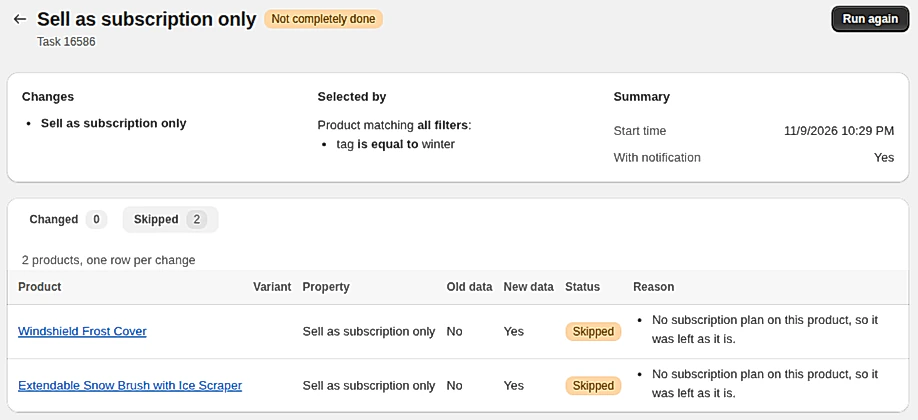
- Click the task. A task that changed some items and skipped others reads Not completely done. The Changes card shows the edit and Selected by shows the filters it ran with.
- Open the Changed tab. Each row shows the product, the variant, the property, Old data and New data, so you can check what the task wrote.
- Open the Skipped tab. Each row has a status badge (Skipped, on some rows Failed) and the reason in plain words in the Reason column.
How to check the preview before you run it again
Run again (on the task page, under More actions for a done task) brings back the edit and the filters. It runs the edit on every matching product again, including the ones that already changed, and a relative edit such as +10% would then apply twice.
- Fix the cause from the Reason column first, in Shopify or in the task’s settings.
- Narrow the filters so they pick only the skipped products, then open the preview and check that the products from the Changed tab are not in it.
- Exclude any that slipped in. Run again keeps the first task’s exclusions, but changing a filter value clears them, so after step 2 set them again.
Preview and exclude explains how the preview and exclusions work.
Why items are skipped
The reason in the log tells you what to fix. These are reasons the app writes, as seen on real tasks:
| Reason in the log | What it means | What to do |
|---|---|---|
| “The compare-at price is empty, so there is nothing to change.” | End a sale found a variant that was not on sale | Nothing; the variant already had its regular price |
| “Option value already exists.” | Rename option value would create a duplicate value | Pick a new value the product does not have |
| “No subscription plan on this product, so it was left as it is.” | Sell as subscription only needs a selling plan | Add a subscription plan in Shopify first |
| “The image is not ready in Shopify (FAILED), so it was left as it is.” | Shopify never finished processing that image | Replace the image in Shopify, then run the task again |
| “ON is not a province of CN, so the province of origin was left as it is.” | The province does not belong to the variant’s country of origin | Pick a province of that country, or narrow the task with the Country of origin filter |
| “The metafield definition … does not apply to the category of this product.” | The definition is limited to some product categories | Narrow the task with the Category filter |
Some limits are written under the edit itself in New task, for example “Products without this option are skipped” for option edits and “Products with more than 250 media are skipped” for reordering images. In an import, invalid and not-found rows land in the Skipped tab with the same reason the import preview showed, and the task ends Not completely done.
Every status and message is explained on Task statuses and messages.
When the plan limit stopped the task
Each plan caps the records one task can change: 10 on Free, 2,000 on Starter, 10,000 on Growth and 100,000 on Pro. A product-level edit (title, tags, status) counts one record per product; a variant-level edit (price, SKU, weight) counts one per variant. So a price change on 3,000 products with 4 variants each is 12,000 records. Items skipped without a change do not use the limit.
When more records match than the plan allows, the task changes the first ones in the order Shopify returns them (by ID, variants grouped by product). Once it is done, Plan limit reached shows in its status cell in Tasks and as a banner with a View plans button on the task page: “Records changed: {count}. Not every matching record was changed. Upgrade your plan to change more records in one task.”
You can change the plan, or split the job: filter by Created time or Collection so each task matches fewer records than the limit. Before you run the second task, check its preview against the first task’s Changed tab. The limits of every plan are on Plans and limits.
Limits
- A one-off task keeps its log, so its Changed tab doubles as a change history of each product the task touched. Runs of a recurring task older than your plan’s history (7 days on Free, 30 on Starter, 90 on Growth, 180 on Pro) are removed with their logs.
- A skipped item was not changed, so there is nothing to undo for it. A revert writes back only the rows in the Changed tab; Revert a bulk edit that went wrong explains what it writes back.
- A revert can skip items too. A task that reads Not fully reverted keeps the rows it could not revert in the Changed tab with the reason, for example an edit Shopify cannot undo. A task that reads Revert failed gives the reason per row in its Skipped tab.
You can also
- Revert a bulk edit that went wrong
- Preview a bulk edit and exclude products before it runs
- Undo a bulk edit on Shopify
Updated