In Bulk Product Edit, open New task, choose Metaobjects under 1. Records to edit, pick the Metaobject definition, add the field, Handle or Status edit, select the entries with filters, check Preview matching entries, then click Save. Metaobject entries need the Growth plan or higher.

How to change a field on many entries
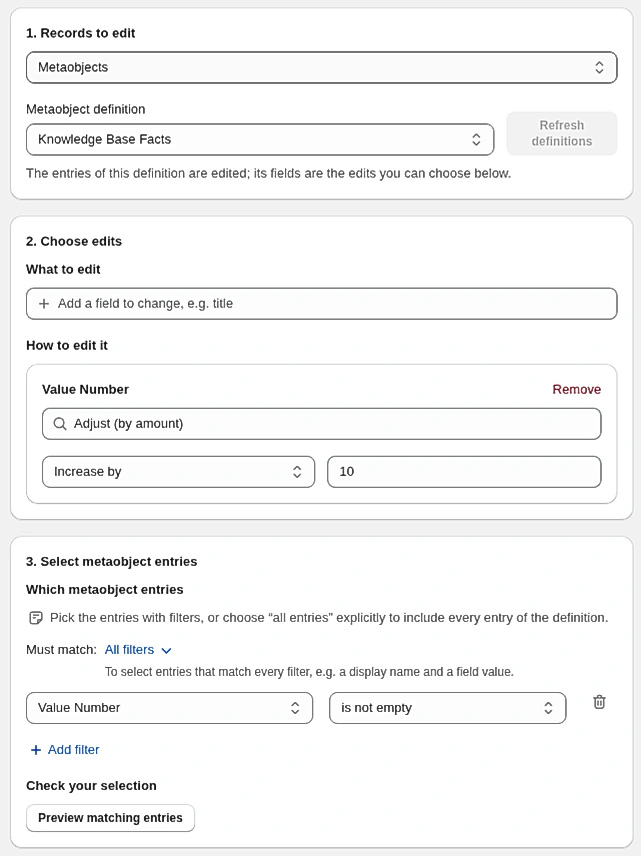
- Open New task. Under 1. Records to edit, choose Metaobjects.
- In Metaobject definition, pick the definition whose entries you want to change. Its fields become the edits you can add. If you created the definition a minute ago and it is not in the list, click Refresh definitions (it is greyed out while the form has unsaved changes).
- Under 2. Choose edits, open the picker. The Fields group lists the definition’s fields, then Handle, and Status when the definition has an active / draft status. Fields the app cannot write sit in Can’t be changed in bulk (“Fields of these types stay as they are.”); a product taxonomy value reference is one of them.
- Pick the field and choose how to change it. The actions depend on the field type. A number field, for example, offers Change to, Adjust (by amount), Adjust (by percentage) and Clear (delete); the two adjust actions add Increase by / Decrease by and the amount. Add more edits to the same task if you need them.
- Under 3. Select metaobject entries, add filters (see below), or choose All N entries (for example All 5 entries) to edit every entry of the definition.
- Click Preview matching entries, check the list, then click Save.
The task gets a name that describes the edit, such as “Increase Metaobject field (Lookbook · Rank, integer) by 10”, and its page lists one row per change: the entry, the field, the old value and the new one.
Filters that pick the entries
With Must match set to All filters, an entry has to pass every filter, for example a display name and a field value. A new filter row starts as Display name is equal to.
| Filter | Operators | Use it for |
|---|---|---|
| Display name | is equal to · is not equal to | one entry by its name |
| Handle | is equal to · is not equal to | one entry by its handle |
| Updated time | before · after (date, optional time) | entries changed before or after a day |
| Status | is equal to · is not equal to (Active / Draft) | only draft or only active entries; shown for definitions with a status |
| a field of the definition | is equal to · is not equal to · more than / less than (numbers, dates) · is empty · is not empty | entries by a value, or entries where the field was never filled |
Only fields that can be filtered in Shopify admin appear as filters. All N entries greys out the filter row and Add filter; delete that row to filter again.
How to set new handles
Add Handle under 2. Choose edits and pick one of three ways:
- Set a new handle: type it in New handle. “Handles become lowercase with hyphens, for example ‘Summer Sale’ becomes summer-sale.”
- Replace text in the handle: fill Find and Replace with, for example replace
springwithspring-2027in every handle that has it. - Copy from the display name: each entry gets a handle made from its own display name.
Note: A metaobject handle edit leaves no redirect from the old handle; the task page says “no redirect from the old URL”. If the definition has web pages on your storefront, links to the old address stop working.
How to switch entries between active and draft
Add Status under 2. Choose edits and choose Active or Draft. To publish only the drafts, add the filter Status is equal to Draft, so entries that are already active stay out of the task. One task can change the status and the handle together, and its revert puts both back.
What to check in the preview
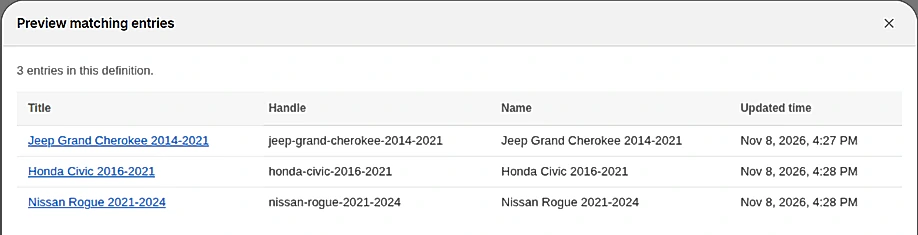
Preview matching entries shows a table with Title, Handle and one column per field of the definition; it scrolls sideways when the definition has many fields.
- Count the rows. If you expected 12 entries and see 40, a filter is missing.
- Look at the column you are about to change. Entries with an empty cell there may need a different edit; leave them out with the filter is not empty and handle them in a separate task.
- With a Status filter the table adds a Status column. It has no Updated time column, so when you filter by Updated time the row count is your check; open an entry in Shopify admin if you need to see why it matched.
- “No entries match these filters” means the filters select nothing; fix them before you save.
What revert restores
Open Tasks, open the task and click Revert. The badge moves through Revert queued to Reverted, and each changed field, handle and status goes back to the value the entry had before the task.
Limits
- Metaobject entries open on the Growth plan (Growth and Pro). On Free and Starter the option reads Metaobjects (Growth plan) and can’t be chosen.
- One definition per task. To change entries of two definitions, run two tasks.
- Records per task: 10,000 on Growth, 100,000 on Pro. A metaobject task counts one record per entry.
- One run changes at most the plan’s limit or 50,000 entries, whichever is lower. When a run hits it, the task shows Run limit reached: “This run stopped after {count} entries, the most one run can change. Narrow the filters (for example by update date) to change the rest in another task.”
- Fields listed under Can’t be changed in bulk keep their values.
- A handle edit leaves no redirect (see the note above).
You can also
- Fill product and variant metafields
- Export metaobject entries to Excel or CSV, edit the file and import it back with a preview
- Check what each plan allows
Updated