“Can I revert an accidental product description edit?” is a question merchants post in the Shopify Community. For an edit made in Bulk Product Edit, yes: open Tasks, click the task, click Revert and confirm. The app writes back the old value of every item in the task’s Changed tab.

How to revert a task
- Open Tasks and click the task. The task page shows the edit sentence, the Selected by card with the filters, and the Changed and Skipped tabs.
- Click Revert. It is the main button on a Done task.
- The dialog Revert this task asks “Do you want to revert the task?”. Click Revert to confirm. A toast says “In revert queue”.
- The badge changes to Revert queued, then Reverting, then Reverted on the open page, without a reload. The badge can stay Done for up to a minute before it moves; a large task takes longer to reach Reverted.
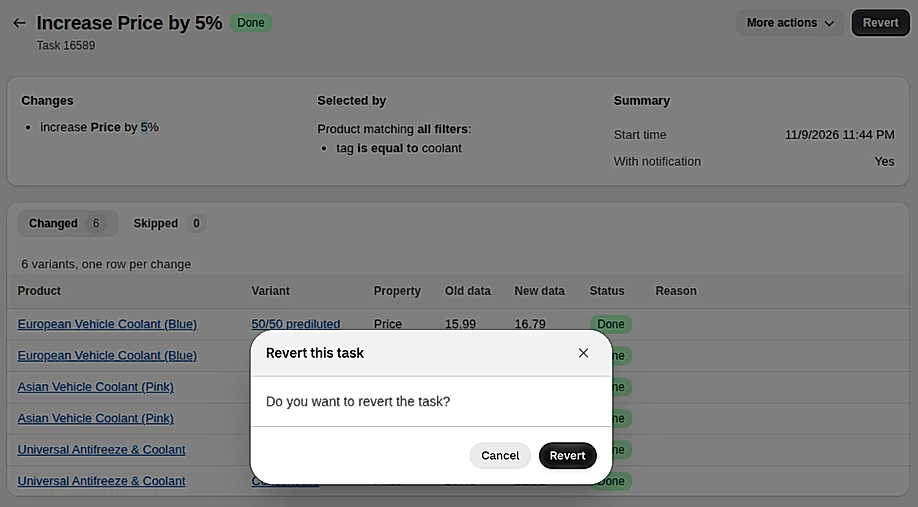
Revert works on the whole task. It touches only the rows in Changed, so the products the task skipped stay as they are, and you do not need a filter to pick the affected products again.
Check the Changed tab before you confirm
The Changed tab is the list of what Revert will write back. Each row has the product, the variant, the Property, Old data and New data. Old data is the value that goes back.
- Look for fields you changed by hand in Shopify after the task ran. Revert writes the old value over them with no warning, and the task still ends Reverted. The tag editor warns about this too: on revert each product gets back the tags it had before the task, and tag changes made in Shopify meanwhile are not kept.
- Read the dialog. For some edits it adds a line about what else happens, such as deleted variants or removed redirects (see the table below).
- If a different task changed the same products after this one, revert the newer task first: each revert writes back the value from before its own task.
What Revert writes back for each edit
| Edit | What Revert does |
|---|---|
| Price, compare-at price, title, vendor, SEO fields and most other fields | Writes back the value in Old data |
| Tags | Each product gets back the full tag list it had before the task. Tags this task added are removed, tags it removed come back |
| Inventory quantity, Adjust (by amount) | Changes the quantity back by the same amount, so sales and restocks made in between are kept |
| Inventory quantity, Change to, or On hand | Writes back the old number, which overwrites sales and restocks made since the task ran |
| Reorder images / variants | Reverts against the current order of the images or variants |
| Barcode list | Restores the whole list the variant had before, including the barcode types |
| Add an option value | Deletes the variants the task created, with their stock. The dialog says “Reverting deletes the variants this task created, with their stock.” |
| URL handle with a redirect | Removes the redirect from each old URL, unless it was changed in Shopify since. This needs the URL redirects access: grant it in Settings › Optional access with Grant access. Without it, the redirects stay in Shopify under Content › Menus › URL redirects |
| Unit price measurement, Country HS code | Shopify can’t remove these once they are set, so a revert can only bring back a previous value. A product that had none keeps the new one |
| A file import from Export & import | The import runs as a task, so it reverts from Tasks like any other |
Revert a sale or a recurring edit automatically
You can set the revert when you create the task, in the schedule step (Starter and up):
- At a date and time with Revert automatically and a Revert date and time: the task starts on time and reverts at the end date. This is how a weekend sale undoes itself; the full job is in end a sale and restore prices.
- Repeat on a schedule with Revert each run after a number of hours, at most 23, “so each run is reverted before the next one starts.” The Recurring tasks page shows “Reverts each run after 1 h” in the row.
To revert one run of a recurring task by hand, open Recurring tasks, click Task history on the row and open the run. While the series is active, Revert is greyed out with the tip “Stop the recurring task to revert its runs.” Click Stop first. Reverting a run by hand ends the series: it turns Terminated and its pending runs are cancelled. Recurring runs do not appear under Tasks › All. They show in the Running, Queued, Scheduled and Needs attention tabs with a “Recurring run” tag, and in their task history.
When the revert does not finish
| Status | What it means | What to do |
|---|---|---|
| Revert queued with “Waiting for another task to finish” | Another task is running on the store | Wait; it starts by itself |
| Not fully reverted | Some rows went back, others could not. The task page says “Shopify can’t undo some of these changes, so they stay as they are. The Changed tab shows which.” | Open Changed; the rows that stayed show the reason |
| Revert failed | Nothing was restored | Read the message on the task page, then open Skipped |
When the revert stopped before it restored anything, the task page reads “The revert stopped before it restored anything. Try the revert again; if it fails again, contact support.” with Contact support. Revert can be offered again on that task, and a second try can finish as Reverted. When Shopify itself cannot undo the change, such as a unit price measurement added to a product that had none, the task page says “The revert didn’t restore anything. The Skipped tab shows why for each row.” and a retry gives the same result.
Every badge and message is listed in Task statuses and messages, and the reasons for skipped rows are in why some products were not changed.
Run the edit again after a revert
On a Reverted task, Run again is the main button. It opens New task with the same records, filters and edits, so you can fix the value that was wrong and save a new task. Products you excluded by hand in the first task stay excluded; if you change a filter value, those exclusions are cleared.
Limits
- A deleted task cannot be reverted. Delete task asks “Delete this task from the list? Changes it made in Shopify stay as they are.” Bulk Delete tasks on the Tasks list warns that the logs and Revert go away. Only tasks with nothing left to revert (reverted, canceled or failed) can be ticked, so a done task with changes has to be reverted first.
- Only the app’s own tasks can be reverted. A CSV imported in the Shopify admin, an edit made by hand or by another app is outside the app’s log, so there is nothing for Revert to write back. For a bad import in the admin, restore from the export you made before it; Shopify’s product import help covers the file format. Other ways to undo an edit on Shopify are in undo a bulk edit on Shopify.
- Old recurring runs can no longer be reverted. Runs older than your plan’s task history are removed once a day, and a removed run can no longer be reverted; the app always keeps the latest run of each series, and one-off tasks are never removed. The limits per plan are in recurring tasks.
You can also
- Find out why some products were not changed
- End a sale and restore prices
- Read every task status and message
Updated