To start a common edit without building it from scratch, pick a ready-made edit under Start a task on Home, click Use on one of your Saved templates, or click Run again on a finished task. Each opens New task with the edits in place; check the filters and values, then click Save. Templates come with every plan, Free included.

Which ready-made edits the app has
Ready-made edits pair two fields that belong together, such as the price and the compare-at price of a sale. They sit in the Ready-made edits group of the Start a task search on Home; the bulk edit templates page lists common jobs.
| Ready-made edit | What it changes |
|---|---|
| Sell products at a discount (by percentage) | Price goes down by the percentage; the old price becomes the compare-at price |
| Sell products at a discount (by amount) | Price goes down by the amount; the old price becomes the compare-at price |
| Sell products at a discount at the same price (by percentage) | Price stays; the compare-at price is set that percentage above it |
| Sell products at a discount at the same price (by amount) | Price stays; the compare-at price is set that amount above it |
| End a sale | Price goes back to the compare-at price and the compare-at price is cleared; a price is never lowered |
| Raise prices and compare-at prices | Both go up by the same percentage, so discounts stay |
| Keep selling when out of stock | Turns on quantity tracking and keeps taking orders after stock runs out |
| Make products digital | Sets no shipping required and stops tracking quantity |
How to start a ready-made edit
- On Home, type in Start a task (“Search edits, e.g. price”), for example “discount”, or click a chip under Popular edits. The chips are Sell products at a discount (by percentage), End a sale, Price, Inventory quantity, Tags, Product status, Product title and SEO.
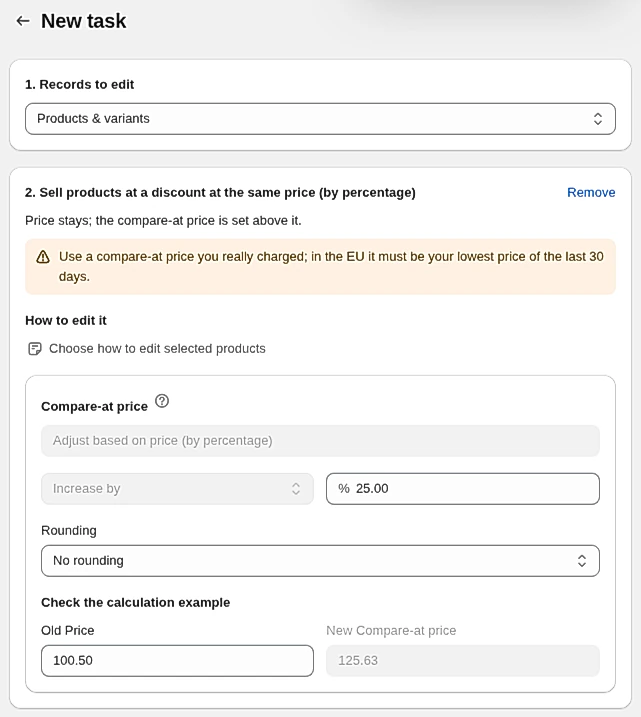
- Click the ready-made edit. New task opens with one card for it and a Remove button. The fields it pairs are locked to the right action, so you only enter the number.
- Enter the percentage or amount and set Rounding if the card has it. The calculation example under the card shows an old and a new value, for example Old Price 100.50 and New Price 80.40 at a 20% discount.
- Under 3. Select products, click Add filter and pick the products, for example a tag on the summer collection of MITS Apparel. Click Preview matching products to see the list and exclude any product you want to leave alone.
- Choose when it runs under 4. Schedule and click Save.
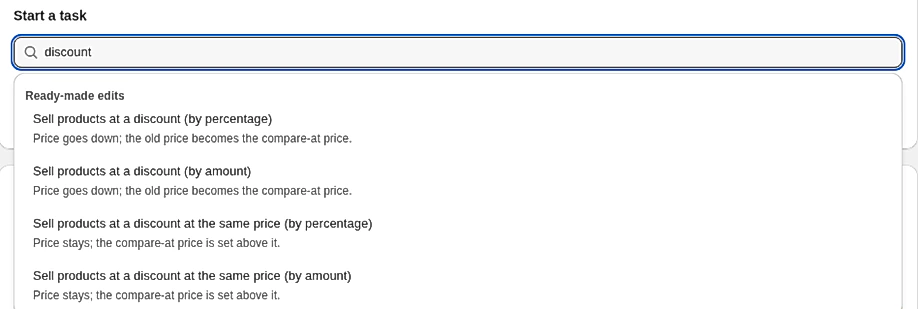
The New task picker (Add a field to change) does not list ready-made edits, so start them from Home. The whole sale, with its end date and the automatic revert, is on Run a sale that ends on its own.
Discount at the same price
At 25%, a price of 100.50 stays as it is and gets a compare-at price of 125.63.
Note: The form warns: “Use a compare-at price you really charged; in the EU it must be your lowest price of the last 30 days.” To set it from your price history, see EU sales: the lowest price of the last 30 days.
How to save your own template
- Build the task in New task: the edits, the filters and any products you excluded in the preview.
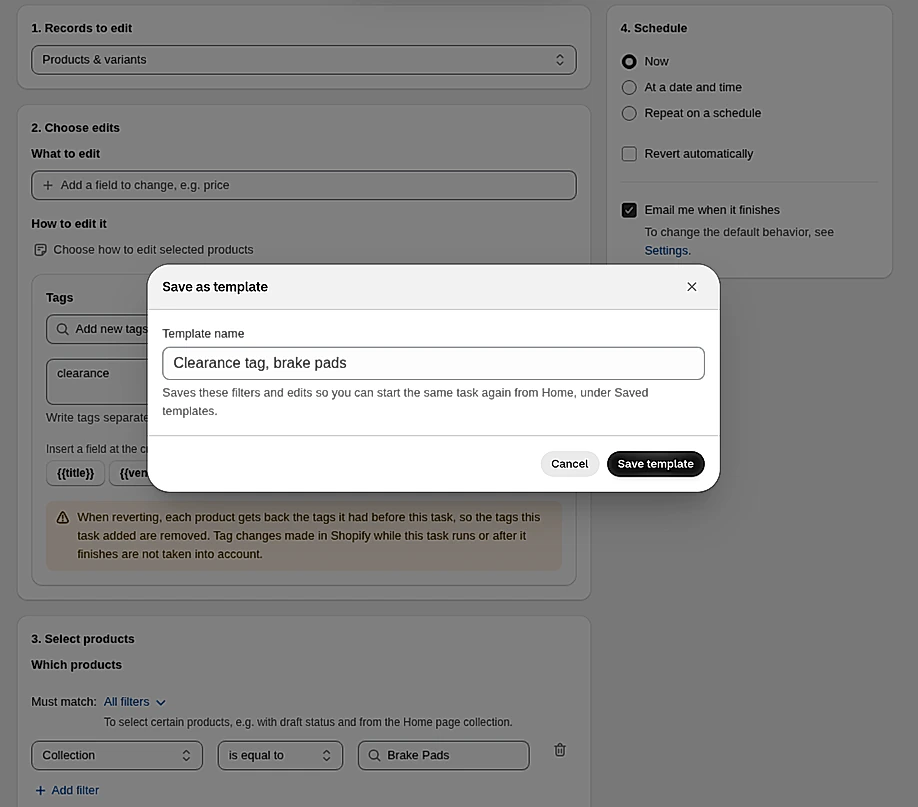
- Click More actions › Save as template.
- Type a Template name you will recognize later, such as “Clearance tag, 30% off”, and click Save template. The toast reads “Saved as Clearance tag, 30% off. Find it on the dashboard under Saved templates.”
The template keeps the filters and edits. If the task is incomplete, for example an edit with no action chosen or no filter, a red banner lists what to fix and nothing is saved.
How to start a task from a saved template
- On Home, find the template under Saved templates.
- Click Use. New task opens with the template’s edits, filters and excluded products.
- Check the filter values and the numbers in each edit card, then click Preview matching products: the catalog may have changed since you saved the template.
- Choose when it runs under 4. Schedule and click Save.
Delete next to a template removes it. Tasks you already started from it stay as they are.

How to run a finished task again
- Open Tasks and click the task.
- Click Run again. It is the main button on a failed or reverted task; on a done task it is under More actions.
- New task opens with the same edits and filters, and the products you excluded by hand are still excluded.
- Change what you need, check the preview and click Save. The run is a new task; the old one keeps its own results and revert.
If something from the old task no longer exists, the form says “Some of the task’s settings could not be carried over” and names the edits or filters it left out. Check the form before you save.
To change a scheduled task, see Schedule a task and its automatic revert. The rest of the form is on How a task is built, and what each status means is on Task statuses and messages.
Limits
- Exclusions cover products only. Changing a filter value on a form opened from a template or Run again clears the excluded products, so pick them again in the preview.
- Each start from a template or Run again is a new task and counts toward your plan’s monthly tasks: 5 on Free, 45 on Starter, 150 on Growth, unlimited on Pro.
- Scheduled and recurring runs need Starter and up, whichever way the task was started.
Related
- Run a sale that ends on its own
- Keep selling when out of stock
- Fix weights and shipping settings
- How a task is built
Updated