A recurring task runs the same edit on the days and at the time you pick: a tag refreshed every morning, a price change every Friday. In New task, open 4. Schedule, pick Repeat on a schedule, choose the days and the time, set Revert each run after if each run should undo itself, and click Save (Starter and up).

How to set up a recurring task
- Open New task and set up the task as usual: records, edits under 2. Choose edits, filters under 3. Select products. The filters are saved with the task. Every run picks the products again with them when it starts, so products created after you saved are picked by later runs.
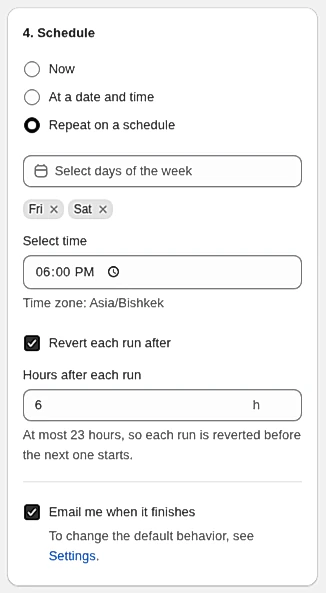
- In 4. Schedule, switch from Now to Repeat on a schedule.
- Under Select days of the week, all seven days start switched on. Click a day to switch it off. With all seven on, the task reads Every day.
- Set Select time. The time is in your browser’s time zone, which is saved with the task and shown as “Time zone: …” under the schedule; the same zone appears on the task’s history page. A teammate in another zone sets times in theirs.
- To undo every run on its own, set the number of hours in Revert each run after. The form notes “At most 23 hours, so each run is reverted before the next one starts.”
- Click Save. The toast says “Recurring task created” and the Recurring tasks page opens with the new row at the bottom.
Date filters that count back from today suit a task that repeats. Products have Created time and Updated time, variants have Variant’s created time and Variant’s updated time, and each takes within the last (N days) or older than (N days). A date filter counts back from the moment of each run (UTC): a daily task with Created time within the last 30 days works on the products added in the 30 days before that run. The full new-arrivals setup is in Tag new arrivals automatically.
How to check it before the first run
Preview matching products lists what the filters pick at the moment you open it. Each run picks again with the same filters when it starts.
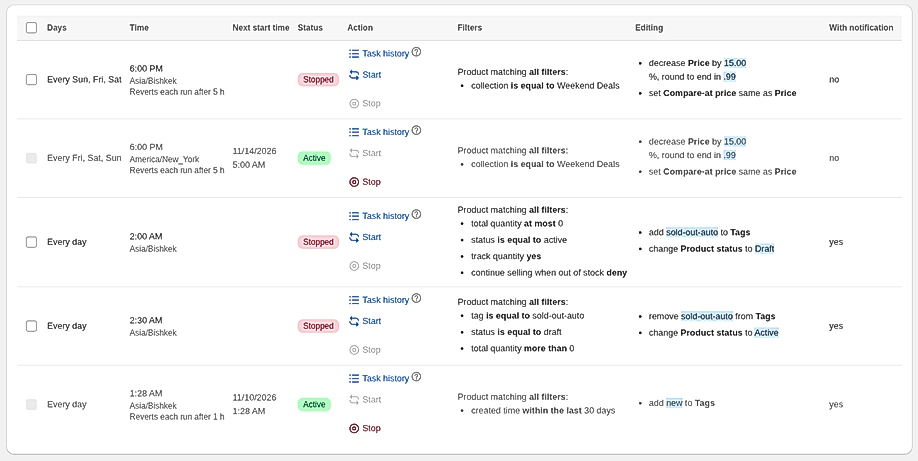
After saving, the Recurring tasks row shows:
| Column | What you see |
|---|---|
| Days · Time | “Every day” or the chosen days, the time with its time zone, and “Reverts each run after 1 h” when an auto-revert is set |
| Next start time | the date and time of the next run |
| Status | Active for a new task |
| Filters · Editing · With notification | the saved filters, the edit, and whether an email goes out |
The table scrolls sideways on a laptop screen. A run starts on the minute you picked.
Where to find each run
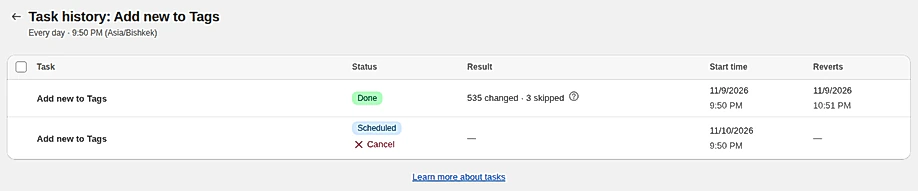
Click Task history on the row. The page is titled “Task history: ” plus the task name, with the days, time and zone under it (“Every day · 1:28 AM”). It lists every run with the same columns as Tasks: a finished run shows Done and its changed count, and its revert time under Reverts when an auto-revert is set. The next run is already there as Scheduled, with Cancel if you want to skip just that one. Open a run to see its Changed and Skipped rows like any other task.
Runs do not appear in the All tab of Tasks. They show up in Running, Queued, Scheduled and Needs attention with a “Recurring run” tag, and you cannot tick them there for delete. The Recurring tile on Home counts only active recurring tasks; stopped ones are still on the Recurring tasks page.
How to stop, start or delete a recurring task
- Stop in the Action column pauses the series, and the status turns Stopped.
- Start on a stopped row turns it back on.
- Delete removes the recurring task.
| Status | What it means |
|---|---|
| Active | the series runs at Next start time |
| Running | a run is in progress; after it ends Done or Not completely done, the series is Active again (also when a run fails before it reaches Shopify because an optional access is missing) |
| Stopped | paused with Stop, or the plan changed to one without recurring tasks, or the app was uninstalled; nothing runs until Start |
| Failed | a run ended Failed; no further run is created until you click Start |
| Terminated | one of its runs was reverted by hand; its scheduled runs are cancelled and its slot is freed |
The automatic revert of a single run does not change the series status.
How to revert a single run
With Revert each run after set, each run undoes itself after that many hours and the series stays Active for the next run.
Reverting one run by hand ends the series: it turns Terminated and its scheduled runs are cancelled. To keep the series going, use Revert each run after instead.
To revert one run by hand, stop the series first. While it is active, Revert on a run is greyed out with the tooltip “Stop the recurring task to revert its runs.”
- On Recurring tasks, click Stop on the row.
- Open Task history and click the run.
- Click Revert and confirm. The app writes back the values the products had before that run. A value edited by hand in Shopify since the run is overwritten; a stock increase or decrease is reversed by the same amount, so sales since then are kept.
- The series is now Terminated and its slot is free. Set up a new recurring task if the edit should repeat again.
Once a day the app removes runs older than your plan’s history (Free 7 days, Starter 30, Growth 90, Pro 180), whatever their status, and always keeps the latest run of each series. A removed run leaves the list and can no longer be reverted.
Limits
- Free has no recurring tasks. Starter allows 2, Growth 3 and Pro 7. See Plans and limits. A recurring task holds a slot in every status except Terminated (Active, Running, Stopped and Failed); delete it to free the slot. When all slots are taken, the app says “Your plan allows … recurring tasks and all of them are in use (active or stopped). Delete a recurring task or change the plan.”
- Recurring runs do not count toward Tasks used this month.
- A run that matches more records than Records per task changes the first ones, and the next run starts again from the beginning of the list. A growing match list needs narrower filters.
- A run happens at its time on its days. A daily task that hides sold-out products catches what sold out since the last run; a product that sells out mid-day stays visible until the next run. The setup is in Hide sold-out products.
- A template with
{{n}}goes on numbering from where the previous run stopped. - For one start and one revert date, such as a single sale, use Schedule a task and its automatic revert.
Related
- Recurring price changes on Shopify
- Tag new arrivals automatically
- Hide sold-out products
- Schedule a task and its automatic revert
- Plans and limits
Updated