“How can I bulk update HS codes and country of origin efficiently?” is a Shopify Community question, and the EU’s flat customs duty on low-value parcels made it urgent. Open New task, pick the variants with Advanced mode › Variant filters, add the HS code and Country of origin edits, then Save.
Shopify keeps both values on each variant, so a brake pad set in six variants (front and rear, three compounds) needs them six times. The app fills them for every variant your filters pick, and HS code and country of origin tasks can be reverted.

How to find the variants with no HS code or country of origin
Use variant filters for this job. A product filter HS code is empty only matches a product when every one of its variants is empty, so a brake pad set with five coded variants and one blank variant would not show up.
- Open New task, click Advanced mode and choose Variant filters.
- Add a row that narrows the catalog first: Collection is equal to your Brake Pads collection, or Vendor is equal to the supplier.
- Add the missing value: HS code is empty, or Country of origin is empty. Keep Must match on All filters.
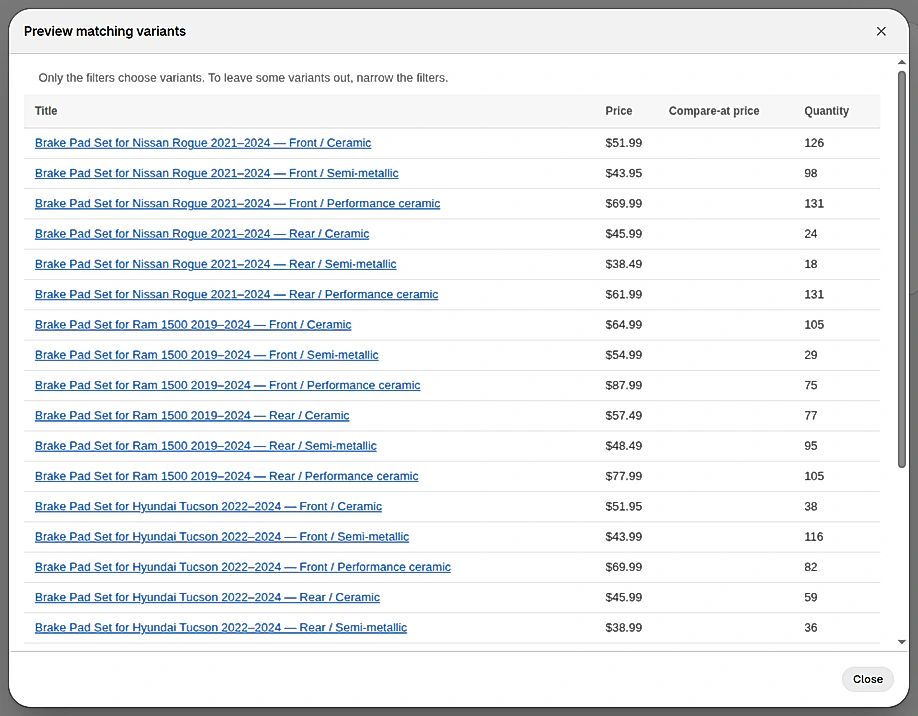
- Click Preview matching variants.
HS code takes the text conditions plus is empty and is not empty, so starts with 8708 finds every variant whose code begins with 8708. Country of origin is a country list (“Choose a country”) with is equal to, is not equal to, is empty, is not empty, is any of and is none of. Is not equal to Portugal (PT) also keeps the variants with no country at all.
Note: Shopify cannot search by country of origin, so the app checks your products page by page and shows “Still looking… Some filters can’t be searched by Shopify, so Product Edit checks your products page by page. A big catalog takes a while.” Put a collection, vendor or tag row above it. Alone on a large catalog it can run for minutes.
To pick whole products, use the product filters HS code and Country of origin.
How to fill HS code and country of origin for a collection or vendor
After the preview from the section above:
- Click Add edit › Variant fields › HS code, choose Change to and type the code, for example
870830for brake pads. The help says “Harmonized System code used for customs and duties. 6 to 13 digits.” - Click Add edit › Country of origin, choose Change to and pick the country, for example Mexico (MX). The list starts on United States (US), so check it before you save.
- To record the region too, add Province of origin › Change to, choose the country, then the province, for example Canada and Ontario (ON).
- Under 4. Schedule keep Now and click Save.
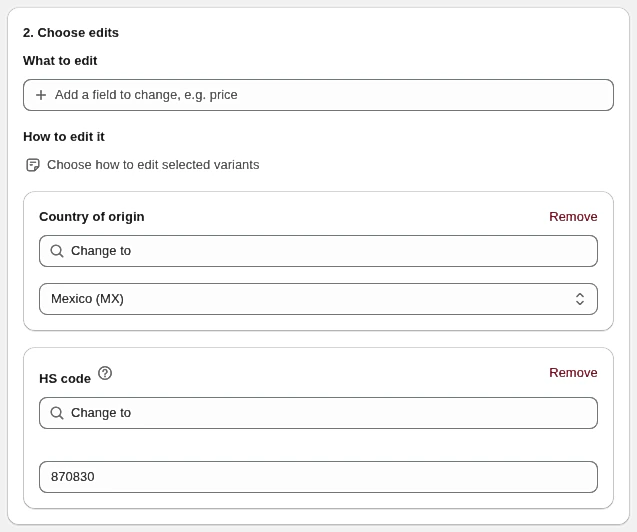
Change to writes the same value on every variant the task picks. If brake pads and air filters in one collection have different codes, run one task per code and filter each group by Category, Type or a tag. When the whole collection should carry the same code and country, you can drop the is empty row and set both on everything: variants that already have the value are logged as “Already set to … again”.
Product fields, such as tags, go in a separate task: “Product and variant edits run as separate tasks.”
How to add a country-specific HS code
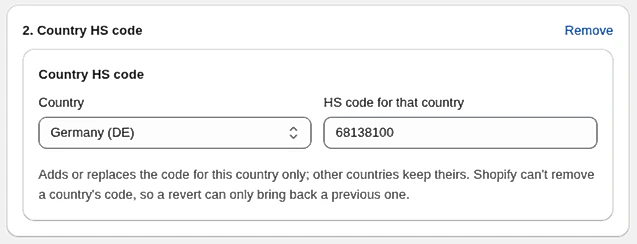
A variant can also keep a separate HS code for each country next to its main one. Click Add edit › Other edits (run alone) › Country HS code, choose the Country and type the HS code for that country, for example Germany (DE) and 68138100 for brake pads. It “Adds or replaces the code for this country only; other countries keep theirs.” This edit runs alone, so it cannot share a task with HS code or Country of origin.
What to check in the preview
- Every row names the product and the variant with its options, such as color and size. Look for products that should not be in the group, such as a gift card or a bundle.
- The variant preview has no exclude button: “Only the filters choose variants. To leave some variants out, narrow the filters.”
- The count must fit your plan’s records per task: 10 on Free, 2,000 on Starter, 10,000 on Growth, 100,000 on Pro.
After the run, the task page lists one row per change with the old and new value, so an HS code that was blank shows an empty old value and 870830 as the new one.
How to get a list of HS codes for your broker
Open Export & import › Export, choose Variants and tick the HS code, country HS codes, and country and province of origin columns. Country HS codes come out as one cell per variant, for example “CA:…, US:…”. Export and import beyond the first 10 records need the Starter plan or higher. On import the country HS codes column is read-only. With Empty cells › Leave the value unchanged (the default) an empty HS code cell leaves the code as it is; Clear the value empties it.
What revert restores
Revert puts back the HS code, country of origin and province of origin each variant had before the task, including a blank.
Note: “Shopify can’t remove a country’s code, so a revert can only bring back a previous one.” A code added where there was none stays after the revert.
Limits
- The app writes the codes you type. It does not look up or suggest HS codes for your products.
- Province of origin is set only when the province belongs to the variant’s country of origin. Otherwise the row is skipped with “ON is not a province of CN, so the province of origin was left as it is.” and the task ends as Not completely done.
- To clear values, use Clear country of origin, Clear province of origin or Remove HS code.
You can also
- Fix weights and shipping settings so customs forms and shipping rates use real weights
- Fix missing and duplicated barcodes on the same variants
- See all filters and conditions for other ways to pick the variants
- Bulk edit product data with filters, a preview and an undo for HS code and country of origin edits
Updated