To end a sale on Shopify, switch each sale price back to the original compare-at price and clear the compare-at. If Bulk Product Edit ran the sale, open the task in Tasks and click Revert. For a sale made by hand or in another app, start the ready-made End a sale edit, filter On sale is yes, then Save.
Merchants also write that a sale revert “skipped products” or that compare-at prices “reset to nothing.” To find any variant the sale left behind, see How to check that every price came back. For the general undo, see undo a bulk edit on Shopify.

Which way to end the sale
| How the sale was made | What to use | What you get back |
|---|---|---|
| A Bulk Product Edit task (any Sell products at a discount edit) | Revert on that task | the price and compare-at price each variant had before the task |
| By hand, by import or by another app | End a sale | price = the compare-at price, compare-at price cleared |
Reverting is the safer choice when the task is still in Tasks. End a sale reads only today’s values and treats every compare-at price above the price as a sale.
How to revert the sale task
- Open Tasks and click the sale task. The Changed tab lists every variant with its old and new price and compare-at price.
- Click Revert. The dialog “Revert this task” asks “Do you want to revert the task?”; confirm it.
- A toast says “In revert queue” and the badge reads Revert queued, then Reverting, then Reverted.
The revert also brings back a compare-at price the sale overwrote. It writes back the value each variant had before the task and does not check for changes made in Shopify since. A price you edited by hand during the sale is overwritten, and the task still ends as Reverted with no warning. Revert soon after the sale, and do not hand-edit sale items meanwhile.
A sale set up with Revert automatically under 4. Schedule ends this way by itself; Run a sale that ends on its own shows that setup. To end such a sale early, click Revert on the task once it is Done: the scheduled revert is then cancelled and does not run a second time.
How to end a sale with End a sale
- On Home, under Start a task, click the End a sale chip in Popular edits (or type “sale” in the search). New task opens with the card 2. End a sale and one line under it: “Price goes back to the compare-at price and the compare-at price is cleared. A price is never lowered.” There is nothing to set on the card.
- Under 3. Select products, click Add filter and set On sale to yes. Add a second row for the sale’s collection or tag and keep All filters, so a product outside the sale is never touched. On MITS Auto Parts that is On sale yes plus Collection is equal to Black Friday.
- Click Preview matching products and check the list (next section).
- Under 4. Schedule, pick Now, or At a date and time to end the sale at closing hour (Starter and up).
- Click Save. The toast says “Task created” and the task appears in Tasks.
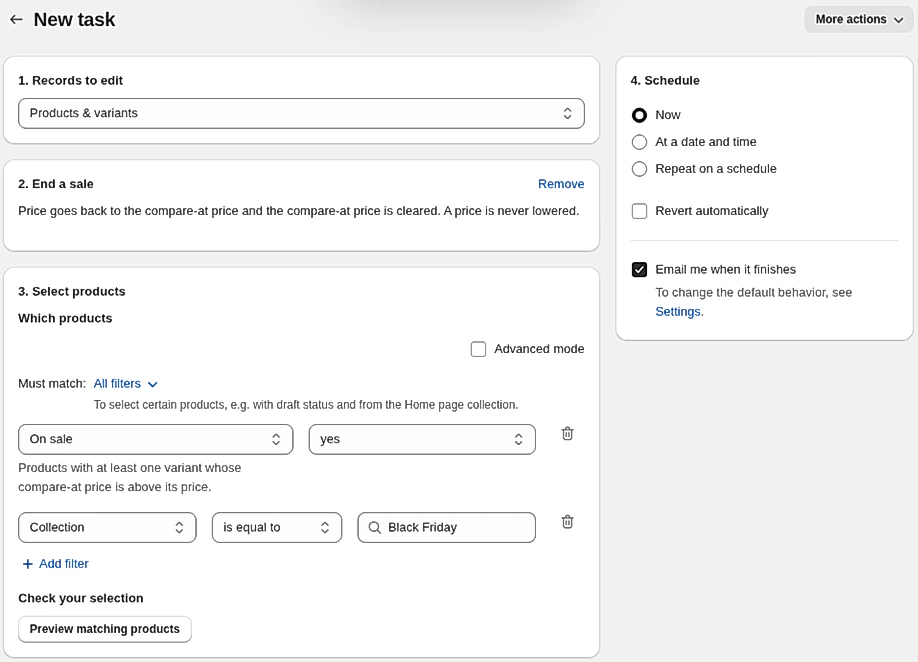
A price is never lowered: a variant whose compare-at price is below its price keeps its price. A variant with no compare-at price is skipped.
Note: End a sale raises the price of every selected variant whose compare-at price is above the price up to that compare-at price. A product that keeps a permanent compare-at price (a list price you always show) gets raised too; exclude it in the preview.
How to check the preview before saving
- The Preview matching products list shows each product’s title, min and max variant price and number of variants. Look for products that were never part of the sale, tick them and click Exclude selected products.
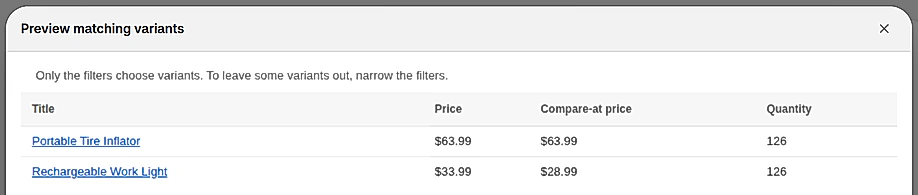
- To see the compare-at price of each variant, switch on Advanced mode and use Variant filters › Preview matching variants. That list has Price and Compare-at price columns but no checkboxes: only the filters choose variants there.
How to check that every price came back
Open the finished task. Changed N and Skipped N count the variants; the Skipped tab gives the reason for each row. Then start a new task, add these filters one at a time, click Preview matching products (or Preview matching variants) and leave with Discard instead of Save:
| Filter | Tab | What a match means |
|---|---|---|
| On sale is yes, plus the sale’s collection or tag | Products | the product still shows a sale price |
| Compare-at price not above the price is yes | Variants | the compare-at price is equal to or below the price, so the struck-through price shows no discount |
| Compare-at price is empty | Variants | the variant has no compare-at price; check the ones that should still have one |
On the Products tab, Compare-at price not above the price matches a product when any of its variants matches, while Compare-at price is empty matches only when every variant is empty. Use the Variants tab for one variant at a time.
Why items are skipped
On an End a sale task, a variant without a compare-at price lands in the Skipped tab with “The compare-at price is empty, so there is nothing to change.” The task then shows Not completely done, which is expected when a product mixes sale and full-price variants. Why some products were not changed lists the other reasons.
A revert that could not restore every row ends as Not fully reverted with the caution “Shopify can’t undo some of these changes, so they stay as they are. The Changed tab shows which.” The rows it left stay in the Changed tab with their reason. Revert failed means nothing was restored. Task statuses and messages explains each badge.
Limits
- Records per task: 10 on Free, 2,000 on Starter, 10,000 on Growth, 100,000 on Pro. A price edit counts one record per variant. Scheduling a sale end needs Starter and up.
- A deleted task cannot be reverted. Its dialog says “Delete this task from the list? Changes it made in Shopify stay as they are.”
- A sale made with Sell products at a discount at the same price kept the price and raised the compare-at price. End a sale would lift the price to that raised compare-at, so revert that task instead.
- End a sale changes the price and compare-at price only.
You can also
- Run a sale that ends on its own
- Find out why some products were not changed
- Revert a bulk edit that went wrong
- Read every task status and message
Updated