Shopify has no built-in way to say “change these prices on Friday and put them back on Monday”. Stores work around it with alarms, weekend logins and a spreadsheet of old prices — which is fine until the person with the spreadsheet is on holiday.
The scheduler in Bulk Product Edit by MITS carries both halves of that promise: a start time for the change and a revert time that restores the previous values.
What the scheduler controls
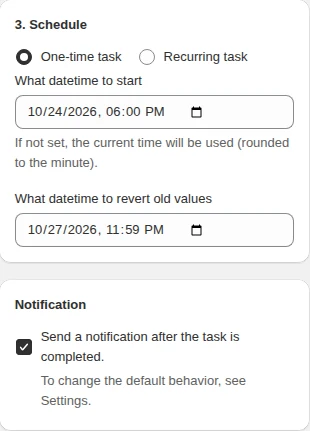
- Start time — the moment the task runs. Leave it empty and the task runs immediately.
- Revert time — the moment the previous values are written back.
- Recurring schedule — repeat on chosen weekdays at a chosen time, with a visible next-run time.
- Email notification — told when the task finishes, so you do not watch a progress bar.
- The revert time cannot be before the start time, and neither can be in the past — the app rejects those combinations when you create the task.
Set up your next promotion once, with its own end time built in.
You will be redirected to the Shopify app store.
What you can schedule
- Price and compare-at price changes — the classic sale.
- Product status changes — a collection that goes live at midnight.
- Tag changes — add a “sale” tag for the duration, remove it after.
- Inventory and policy changes — for a timed pre-order window.
- Any combination of these in one task, so a promotion is a single scheduled unit.
A worked example: a weekend sale that ends itself
- Filter: collection is “Outerwear”, inventory quantity more than 0.
- Editor: compare-at price → set the same as the price.
- Editor: price → decrease by 25%, round to .99.
- Editor: tags → add “weekend-sale”.
- Scheduler: start Friday 00:00, revert Monday 06:00.
- The task changes prices, marks the products, and restores everything on Monday including the tag.
What happens if something changes in between
The revert writes back the values the task recorded when it ran. If a product was edited separately during the sale, the app reports it in the skipped list instead of silently overwriting the newer value.
Scheduled tasks are visible in the task list with their start and revert times, and can be cancelled before they run.
How to schedule a sale on Shopify, step by step
- Tag the sale products. Run a quick task that adds a tag such as
sale-octto everything in the promotion. Filtering on a tag keeps the selection stable between start and revert. - Create the sale task. Filter by that tag, set compare-at price the same as the price, then decrease price by your percentage with rounding.
- Set the start time. If you leave it empty, the task runs now (rounded to the minute). Scheduling is available on paid plans.
- Set the revert time. The moment the sale ends; it cannot be before the start time.
- Turn on the notification. Get an email when the task runs and when it is reverted.
- Check the Tasks screen. Scheduled tasks show as Scheduled, then In revert queue, then Reverted.
Flash sales: hours, not days
A flash sale is the same task with a short window — start at 18:00, revert at 22:00. Because the revert is part of the task, nobody has to be online at 22:00, and the prices go back even if the team is asleep in another time zone. Use the email notification as the signal to post the sale on social media.
A Black Friday to Cyber Monday plan
| Task | Filter | Change | Start → revert |
|---|---|---|---|
| Early access | tag vip-bf | −15%, round .99 | Thu 18:00 → Mon 23:59 |
| Black Friday | tag bf-sale | −25%, round .99 | Fri 00:00 → Sat 00:00 |
| Weekend | tag bf-sale | −20%, round .99 | Sat 00:00 → Mon 00:00 |
| Cyber Monday | collection Accessories | −30%, round .99 | Mon 00:00 → Tue 00:00 |
Overlapping tasks on the same products are best avoided: let one task revert before the next one starts, or each revert restores the price the previous task left behind.
What happens to products added after the task started
A task edits what matched when it ran. A product published during the sale keeps its normal price, and the revert does not touch it. If new arrivals should join the promotion, run a second task on them with the same revert time.
Status values you will see
- Scheduled — waiting for the start time.
- In revert queue — the sale is live and the revert is booked.
- Reverting / Reverted — old values are being or have been written back.
- Not fully reverted — some items could not be restored; the log lists which ones.
Related guides
How to create a recurring edit
Repeat a bulk edit on chosen weekdays, with the filter re-evaluated each run.
Read moreBlack Friday sale prices on Shopify
Build a tiered Black Friday promotion as scheduled tasks that roll themselves back.
Read moreHow to revert a bulk edit
Revert a finished task manually or on schedule, and read what changed.
Read more