“How can I correctly order product variants?” When your sizes show as L, M, S, XL on the product page, you can fix the order on every product at once: open New task, filter the products, pick Options in the Add a field to change box, choose Sort option values, pick By clothing size (XS, S, M, L, XL), then Save.

Which edit fixes which order
Order has three separate edits in Bulk Product Edit, all listed under Other edits (run alone) in the Add a field to change box:
| What looks wrong | Edit to use | Where to find it |
|---|---|---|
| Values inside one option are out of order (S, M, L or Red, Blue, Green) | Sort option values | Options |
| Color shows before Size, or the options come in the wrong sequence | Move an option | Options |
| The variant rows are in the wrong order (by price, SKU or stock) | Sort variants | Variant order |
Each one runs as its own task. For the other variant fields you can change in bulk, see bulk edit variants.
How to sort sizes or colors on many products
- Open New task and keep Products & variants as the records.
- Click Add filter and pick the products whose option needs sorting: a Type, Tag or Collection filter for the range, or Option value with the option name
Sizeand one of its values (S) to catch only products that have that option. - Under 2. Choose edits, click the Add a field to change box, open Other edits (run alone) and choose Options.
- In Action, choose Sort option values.
- In Option, type the option name exactly as your products use it, for example
Size. - In Sort values, choose the order (the choices are below).
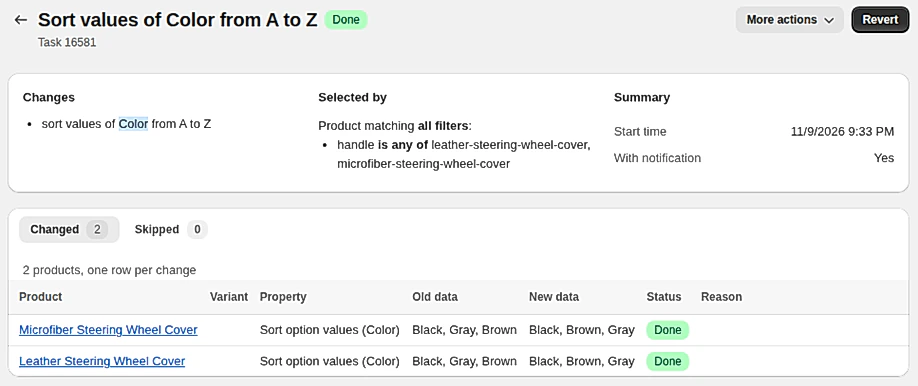
- Click Preview matching products, check the list, then click Save. The task gets a name like “Sort values of Color from A to Z”.
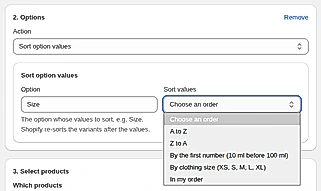
The Sort values choices:
- A to Z and Z to A: alphabetical, the usual pick for colors and materials.
- By the first number (10 ml before 100 ml): reads the number in each value, so
5 kg, 10 kg, 25 kgstays in size order where an alphabetical sort would put10 kgfirst. - By clothing size (XS, S, M, L, XL): the standard apparel run.
- In my order: adds the box Values in order. Type one value per line; values you do not list keep their order after these.
Shopify re-sorts the variants to follow the new value order, so the variant list changes along with the picker.
How to move an option to first place
Use this when the product page asks for Color before Size and you want Size first.
- Set up the filter as above, then choose Options in the Add a field to change box.
- In Action, choose Move an option.
- In Option to move, type the option name, for example
Size. - In New position, choose
1. - Click Preview matching products, then Save. The task is named like “Move option Size to position 1”.
Products without this option are skipped. Shopify re-sorts the variants after the new option order, so the variant rows change too.
How to sort variants by price, SKU or stock
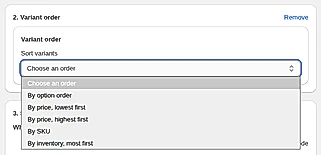
- Set up the filter, click the Add a field to change box and choose Variant order (under Other edits (run alone)).
- In Sort variants, choose one:
- By option order: lines the variants up with the order of the options and their values;
- By price, lowest first or By price, highest first;
- By SKU;
- By inventory, most first.
- Click Preview matching products, then Save. The task is named like “Sort variants by price, lowest first”.
Note: Sorting option values or moving an option makes Shopify re-sort the variants. If you need both, run Sort option values or Move an option first and Sort variants last, or the variant order you chose gets reshuffled.
How to check the preview and the result
Preview matching products lists every product the task will touch. Check that the count matches the range you meant to fix, and that no product with a deliberate order of its own (a bundle, a size chart that starts at XL) slipped in. Tick those and click Exclude selected products before you save.
The preview lists the products; the new order shows up after the run: open the task from Tasks and read the Changed tab, where each product has its old and new order, for example Black, Gray, Brown becomes Black, Brown, Gray. An option task on one product took about a minute and a half, so give a large batch time.
What revert restores
Open Tasks › task page › Revert and confirm. The products get back the value order, option order or variant order they had before the task. Revert one task at a time, newest first, if you ran several order edits on the same products.
Limits
- One edit per task. Sorting sizes and colors is two Sort option values tasks, and adding a variant sort makes three.
- A Shopify product has at most three options, so New position goes from 1 to 3.
- Sizes outside XS to XL (2XL, 3XL, waist sizes): check the order in the Changed tab after the run.
- These edits change order only. Misspelled values (“Sml” next to “S”) sort as separate values; rename them first.
- Records per task depend on the plan: see Plans and limits.
You can also
- Rename options and option values so every product spells its sizes the same way before you sort them.
- Add a new size to many products, then sort it into place.
- Set variant images and image order so each color shows its own photo.
- Bulk edit variants: prices, SKUs, stock and the other variant fields.
Updated